Before you start
- Initial paper and ink setup completed, with plain paper loaded.
- The HP app and the document already available on the phone.
- For subscribed Internet-based services, keep their required Internet connection; Direct itself does not provide it.
Understand the local connection
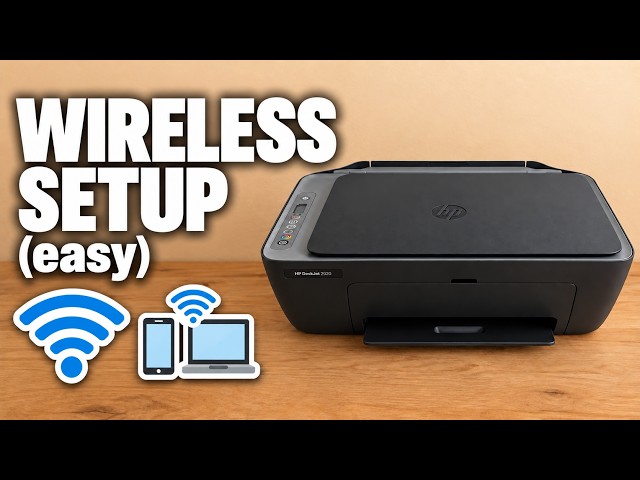
Wi-Fi Direct links the phone to the printer’s own DIRECT network. It does not connect the phone or printer to the Internet. Download any needed app and document first; a cellular connection may still provide Internet on the phone, but the Direct network does not.
Step 1:Turn on Direct if its icon is absent
With the printer on, hold Wi-Fi and Resume together for three seconds. Check for the Wi-Fi Direct icon on the display. If it is already present, leave it enabled. Do not clear the saved home network just to perform this step.
Step 2:Print the name and password
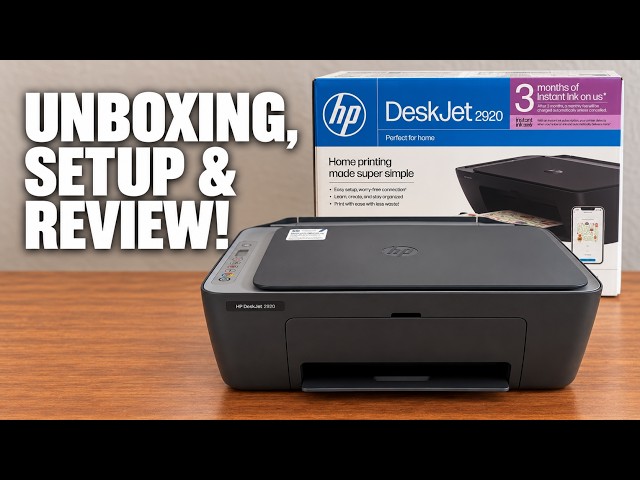
Load paper. Press Information and Resume together to print the Wi-Fi Direct guide, as specified by HP. The Printer Information Report from a single Information press can also include connection details. Read your printer’s actual DIRECT name and password; do not use the sample credentials from the recording.
Step 3:Join the printer’s network on the iPhone
In Settings → Wi-Fi, select the DIRECT name matching the printed guide and enter its password. Keep that connection active for the direct route. This password is separate from the home router’s password and the printer’s admin PIN.
Step 4:Find the printer and check a print job
In the HP app, choose Add device → Add existing printer and select the connected DeskJet. The source also opens a document in Files, chooses Print and finds the DeskJet in the printer selector. Review the pages and copies, then send a job if ready.
The recording demonstrates discovery, not a completed printed page. Check the actual output on your own printer before calling the job finished.
Return the phone to home Wi-Fi
Afterward, reconnect the iPhone to its usual network. This ends the Direct path; for subsequent Direct printing, rejoin the printer’s network. If the printer is configured on home Wi-Fi, that shared-network route is a separate way to find it.
Questions & troubleshooting
The phone says there is no Internet.
That describes the Direct connection. It is a local printer link. Keep the document available locally and reconnect to your normal network afterward.
The printer disappears when I change Wi-Fi.
The Direct connection ended. Rejoin the matching DIRECT network for this method, or use a completed shared-home-network setup.