Before you start
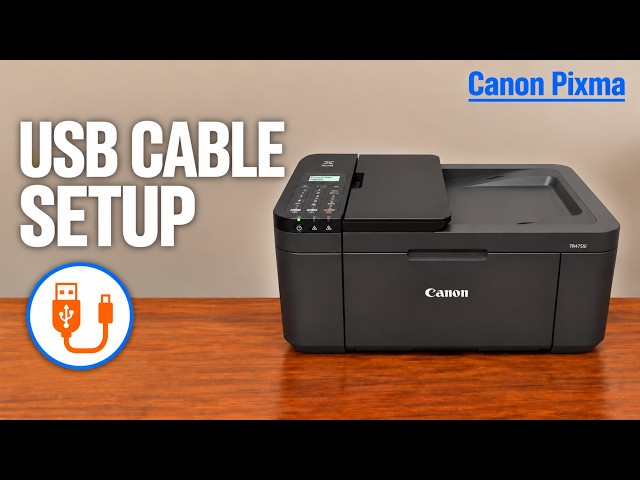
- Use a printer USB cable with the correct Type-B printer connector and a computer-compatible other end. Connect directly to a suitable computer port; do not confuse the rear fax/telephone sockets with USB.
- Have internet access for Canon’s installer and downloads. Wi-Fi printer setup is not required for this cable connection.
Step 1:Connect the correct rear port
- Turn on the printer and make sure no print or scan is in progress.
- Locate the rear USB port using Canon’s linked rear-view diagram. Check the Type-B connector orientation and insert it without force.
- Connect the other end to the computer. Do not unplug or reconnect this cable while a computer print or scan is running.
Canon’s TR4720 USB setup specifically permits connecting the powered printer before running this installer. Follow the prompts for your actual model and downloaded installer rather than a rule taken from a different printer.
Step 2:Use Canon’s exact-model Windows setup
- Open Canon’s official setup site, choose the model printed on your unit and your actual region, and select computer setup for Windows. Download and open the offered setup file.
- Select your language and place of residence, then choose Start Setup. Review the licence and any optional participation choices separately.
- When the installer finds the printer, select the intended device and continue. Choose USB Connection (USB Cable), then Next.
- Keep the cable attached and wait while Canon installs the software and MP Drivers. Canon’s documented installer includes IJ Scan Utility; finish at the installation-complete screen.
The source calls TR4755i and TR4720 “the exact same model.” This guide uses Canon’s task-specific compatibility instead; keep your actual regional model selection, especially for supplies and software. Canon PRINT is an optional interface, not proof that every printing task requires that app.
Step 3:Verify a print and, if needed, a saved scan
- Load plain paper centrally in the front tray, print-side down and portrait orientation. Set the guides, register the actual size and Plain paper, and open the output tray, support and extension.
- Use the installer’s Test Print option if available, or print a short known document from a Windows application to the installed Canon queue.
- Check the completed page. For scanning, open the installed IJ Scan Utility or Canon PRINT if you chose to install it, select the USB-connected printer and complete a scan/save using the related guide.
The video reaches installation completion and shows the printer in Canon PRINT. It offers but skips Test Print; that is not a demonstrated successful physical print. Perform your own completion check.
If the printer is not detected
Check power and both cable ends, including the correct printer port. When no job is running, reconnect securely and try a direct computer port rather than a hub. Canon’s connection troubleshooting then provides the restart and MP Driver reinstall route if those checks fail; do not erase the printer’s network configuration to solve a USB cable issue.
Questions & troubleshooting
Do I need to connect the printer to Wi-Fi first?
No. This is a USB connection. The computer still needs internet access to download the software.
Is Canon PRINT mandatory for basic USB printing?
No. Canon’s USB installer provides the MP Drivers and IJ Scan Utility. Canon PRINT is an additional interface demonstrated in the source.
Where does the cable go?
Into the rear USB port, not either telephone/fax socket. Check Canon’s rear-view diagram and the Type-B plug orientation.
Did the source prove a successful test print?
It reaches installation completion and app discovery but skips the optional test print. Confirm your own print and saved scan as needed.
References
- Professor Printer: source demonstration
- Canon: exact TR4720 USB installer sequence and included IJ Scan Utility
- Canon: official model-and-region setup entry
- Canon: rear USB port and no disconnect during a job
- Canon: USB detection and driver troubleshooting
- Canon: direct computer USB port for scanning
- Canon: print-test paper preparation
- Canon: USB and network interfaces are separately supported
- Canon: applicable manual explicitly lists TR4720 and TR4755i