Before you start
- The printer must already be connected to the same network as your Chromebook. Use the related Wi-Fi guide first if it is not.
- For a first print, have suitable plain paper loaded and the output tray open. This is ChromeOS setup, not installation of a Windows driver.
Step 1:Save the network printer in ChromeOS
- Turn on the printer and Chromebook and confirm both are on the same network.
- Open Chromebook Settings. In the current Google instructions, choose Device → Printers and scanners → Print. You can also search Settings for printers, as the source does.
- Under Other available printers, find your intended Canon and select Save.
- Confirm it appears in Your saved printers. If it does not appear, recheck the actual network connection rather than waiting for an arbitrary fixed time.
Canon’s applicable specifications list ChromeOS among supported operating systems, while warning that not every function is available in every system. The source demonstrates printer discovery and a print job, not a completed Chromebook scan.
Step 2:Prepare the output path and print
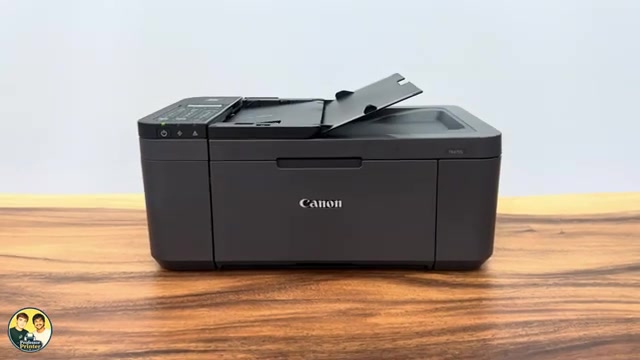
- Load suitable paper centrally in the front tray, portrait orientation and print-side down. Adjust the guides and register the actual size and media type. Open the output tray, support and extension.
- Open the document or page and press Ctrl+P. Under Destination, select the intended printer; use See more if it is not in the short list.
- Check the paper size, page range and copy count, then select Print.
- Wait for the finished sheet and check it. If the printer reports a closed output tray, open the tray and follow the displayed instruction before resuming.
The recording encounters the closed-output-tray error. It should not be treated as evidence that clicking Print alone guarantees a finished page.
If you also need a scan, use the ChromeOS Scan app
The source mentions scanning but does not demonstrate it. Google’s current supported workflow is Settings → Device → Printers and scanners → Scan, or searching Launcher for Scan. Select the actual scanner if it appears, choose the appropriate source and settings, and select a Scan to folder.
Place a document face down on the glass aligned with its mark, close the cover and select Scan. Use Show in folder afterwards and open the saved result. If the scanner is not offered, the saved print destination alone does not confirm scan discovery; check network access and the current Canon/Google compatibility guidance rather than installing a Windows executable.
Questions & troubleshooting
Do I install the Windows Canon driver on a Chromebook?
No. This workflow uses ChromeOS printer settings and the built-in print dialog.
Why is my printer not listed?
Check that it is on and both devices share the same accessible network. On a managed school or work Chromebook, printer administration may require your administrator.
Does adding the printer prove scanning works?
No. The video does not complete a scan. Use the ChromeOS Scan app and confirm the scanner and saved file separately.
Why does it report an output-tray error?
The source left the tray closed. Open the output tray, support and extension, then follow the actual printer message before retrying.
References
- Professor Printer: source demonstration
- Google: current Chromebook printer setup, scanning and saved files
- Canon: exact-model specifications include ChromeOS, with function limits
- Canon: paper loading and output support
- Canon: standard-document glass placement
- Canon: applicable manual explicitly lists TR4720 and TR4755i