Before you start
- Load at least three sheets of A4 or Letter plain paper, as Canon specifies, and ensure the printer can print.
- Handle the report privately: it can contain network information and, when enabled, passwords.
Step 1:Open Print details
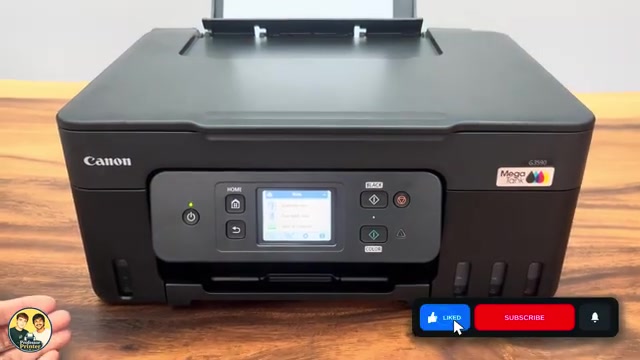
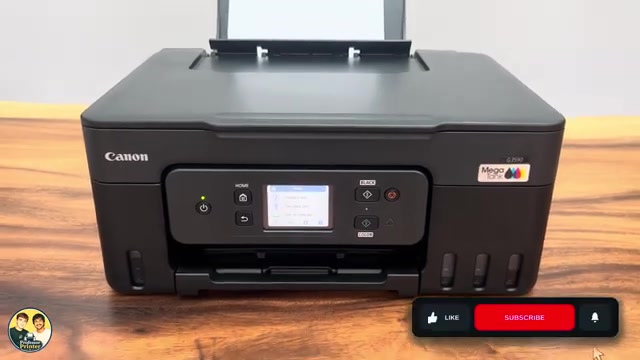
On the printer’s HOME screen, select Setup → Printer settings → LAN settings → Print details. Read the prompt and select Yes to continue.
Step 2:Choose whether to include passwords
When asked whether to print password information, choose OFF if you only need the IP address. Choose ON if you also need the initial administrator password. The printer then prints its network settings.
Step 3:Find the address for your connection
For a printer connected through your wireless router, read the IP Address under Wireless LAN → Infrastructure (item 3-2-12 in Canon’s report). Check the nearby SSID and Connection entries so you are looking at your intended network.
Wireless Direct has a separate IP Address under its own section. Do not use that address as though it were the router-network address. If the intended connection is inactive or the required address is absent, check the connection before trying to add the printer by IP.
Step 4:Find the initial administrator password if requested
With password printing ON, Product Information contains Default Password (item 1-4). Canon defines this as the initial administrator password. It is not the password for your home Wi-Fi and is separate from the Wireless Direct password farther down the report.
If someone has changed the printer’s administrator password, the default value does not reveal or replace that changed password. Use the current administrator password for settings that request it.
Questions & troubleshooting
Can I print just the IP address without passwords?
Choose OFF at the password-printing prompt. The report still contains network information and should be handled carefully.
Why are there two IP addresses?
Canon’s report separates the router-based Wireless LAN connection from Wireless Direct. Choose the section matching how your device connects to the printer.
Why does the printed Default Password not work?
It is the initial administrator password, not a record of a later changed password. Also check that the prompt asks for the printer administrator password rather than your router or Wireless Direct password.