Before you start
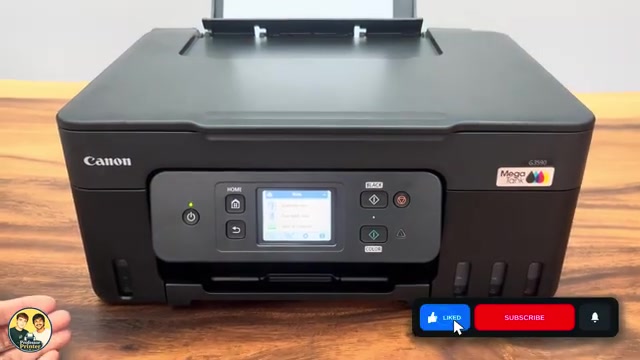
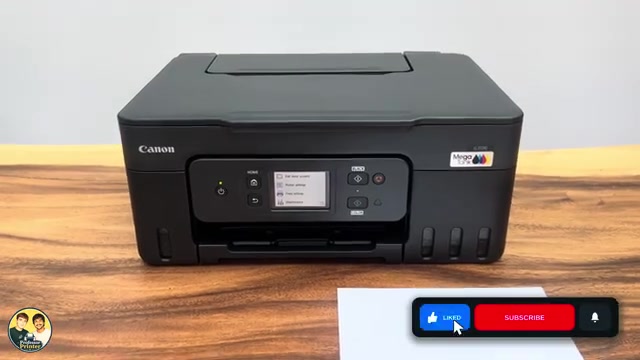
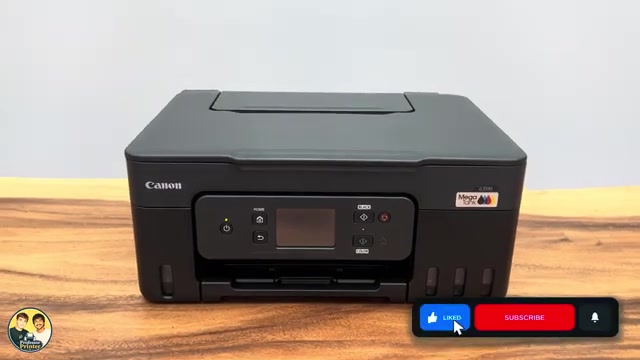
- A new Canon PIXMA G3590 with its supplied printheads, correctly labelled ink bottles and power cord. Check the box contents before discarding packaging.
- A stable level surface, suitable paper, and the phone or Windows computer you want to connect. Know the intended Wi-Fi network and its password.
Step 1:Unpack and remove the protective material
Keep the printer upright and place it on a stable level surface. Remove the packaging and orange transport tape, including the pieces inside the scanning unit and at the rear that the source checks. Check the carton for the separate black and colour printheads, ink bottles and power cord.
The presenter initially wonders whether the supplied heads are spares. In this setup they are installed as part of first use; do not discard them or assume they are already fitted.
Step 2:Power on and follow the first-use screen
Connect the supplied power cord at the rear and to power, then press ON. Select your language on the touchscreen and confirm it. Follow the first-use instructions displayed on your own printer.
Canon’s G3590 setup route specifically directs you through these on-screen preparation prompts. Do not enter the later Head Replacement maintenance procedure or a Stop-button shortcut during this initial sequence.
Step 3:Install the supplied colour and black heads
- When prompted, open the scanning unit/cover. Unpack one head at a time and gently remove its protective label and tape. Do not touch the electrical contacts or nozzle surface.
- When the holder is stationary and the screen directs you to fit the heads, pinch the blue locking-cover tabs and lift the cover open before seating either head. Do not force or stop a moving holder.
- Identify C for colour and B for black. Seat C in the left holder and B in the right holder, matching the marked positions.
- Close the head locking cover and press it down until it clicks. Follow the screen’s Next prompts to continue to ink filling.
Use the on-screen diagrams and the linked Canon head-handling reference if the orientation is unclear. Do not force a head or rely on the source’s “resilient” wording from a different replacement video.
Step 4:Fill all four tanks to the required line
- Match each bottle’s colour label to its tank. Open the appropriate tank cap and bottle cap, taking care not to spill ink.
- Invert and seat the correct bottle straight into the matching inlet without squeezing. Support it while ink flows and observe the tank’s upper-limit line.
- Once ink reaches the upper-limit line, remove the bottle carefully. Close that tank cap securely and recap the bottle. Repeat for the other colours and black.
- Check all four tanks, close the tank covers, then lift the scanning unit slightly and lower it gently. Confirm the screen’s all-four-colours question only after they have actually been filled.
Step 5:Let the printer complete its initial preparation
After confirming the ink fill, let the printer finish its initial adjustments. The source screen gives an approximately seven-minute countdown; use your own screen’s status rather than assuming an exact duration. Do not interrupt the preparation or start another operation during it.
Read the subsequent choices for automatic firmware updates and optional survey participation. Make your choices, then continue until preparation is complete and the printer asks about a computer or smartphone connection.
Step 6:Connect the device you will print from
- For the demonstrated iPhone route, open the printer’s Network icon → Wi-Fi → Wi-Fi setup → Easy wireless connect and choose Start.
- Connect the iPhone to the intended home network and open Canon PRINT from Canon. Allow local-network discovery, choose Search and check the found printer/network. Continue through accessory setup and let the app finish adding the printer. The source iPhone transfers network details without retyping; other configurations may request the router password.
- For Windows on that network, finish the model-specific Canon setup/driver installation. The recording first adds the printer in Printers & scanners, then uses Canon PRINT for Windows to run the remaining software setup. Select your actual G3590/G3090-series device, follow the connection prompts and wait for driver installation and registration to finish.
Use Canon’s G3590 setup link for the supported installer on your system. The separate Wi-Fi guide gives manual-panel and phone alternatives. The recording’s app ratings, broad old-phone claim and universal Microsoft-account claim are not requirements for this guide.
Step 7:Load paper and verify the first print
Load supported paper in the rear tray in portrait orientation, printable side up. Bring the guides to the edges, register the actual size and type on the printer and extend the output tray and support.
From the connected phone or Windows application, select the correct printer and send a short document. Check the physical page before treating setup as complete. The source ends during computer registration; it does not show a completed first test print, so that final confirmation is a check for you to perform.
Questions & troubleshooting
Are the boxed printheads spare parts?
In this new-printer setup they are the heads installed during the first-use prompts. Check the box and follow the printer’s screen before discarding any packaging.
Can I fill just a small amount for first setup?
Use the printer’s first-use fill instructions and tank upper-limit lines. Do not copy the source’s arbitrary partial-fill wording; the initial ink charging must be able to finish.
Does Windows finding the printer mean setup is complete?
It confirms discovery. Finish the supported driver/software setup and registration, then print a document and inspect the page.
Is the G3290 title an instruction to choose a different region?
No. The package and narration identify G3590 here. Select your actual model and region for supplies and software rather than assuming regional names are interchangeable.