Before you start
- A locally available document on an iPhone, completed printer setup, working ink and suitable paper.
Prepare the document before switching networks
Download or open the document while Internet access is available. Wi-Fi Direct links the iPhone to the printer locally; it does not provide Internet or connect the printer to your home router. Complete initial printer setup and load suitable paper first.
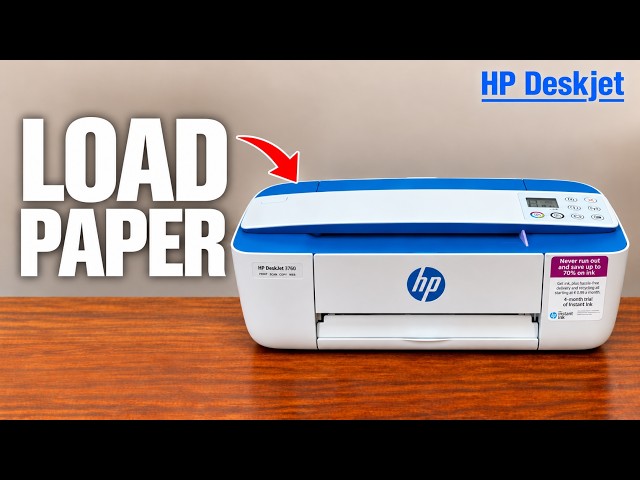
For plain paper, use the rear tray print-side up, short edge down, fit the width guide and extend the output tray. The source uses a locally available document and the iPhone’s built-in Print flow.
Step 1:Enable Direct and find its current details
Check the dedicated Wi-Fi Direct light. If it is off, press Wi-Fi Direct once; do not use the ordinary Wireless button as its switch. A steady Direct light means the feature is on.
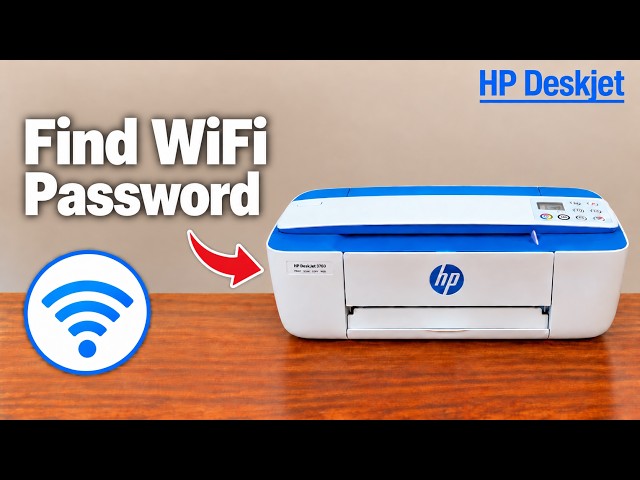
Press Information to print the printer information page and locate its Direct network name/password. If needed, Wi-Fi Direct and Information together print the Direct guide. Use your own details, not the default-looking password spoken in the recording.
Step 2:Join the printer network on the iPhone
Open Settings → Wi-Fi and select the matching DIRECT-…-HP DeskJet 3700 series network. Enter that printer’s Direct password if prompted and wait for the connection checkmark. A no-Internet indication is expected; remain on this local network while printing.
Step 3:Choose the printer in the document’s Print sheet
Open the prepared document and use its Share or menu action → Print. Select this DeskJet from the printer list. Review page range, copies, paper size and orientation, making sure they match the loaded paper and your intended output.
Tap Print and wait for the sheet. Inspect the actual text and page count. The presenter reports a completed page near the end; a printer appearing in the list alone is not a completed print.
Step 4:Return to your ordinary network
When finished, reconnect the iPhone to home Wi-Fi for normal Internet access. If you no longer want Direct available, press its dedicated button once to turn it off and confirm its light goes out. This does not require resetting the printer’s home-network configuration.
If the printer is absent from the Print sheet, verify the iPhone is still on the matching DIRECT network and the Direct light is on. Check the printer for a real paper or ink error rather than resetting working network settings.