Before you start
- The assembled printer, suitable cartridges for its exact model and region, and plain paper.
- An iPhone with Internet access to install the official HP app, plus your own 2.4 GHz home Wi-Fi name and password.
Check the existing printer before changing settings
The recording uses an already assembled DeskJet 2600 and reinstalls existing ink; it is not a complete factory-unboxing demonstration. Start with the printer on, its access doors closed and no paper or cartridge error. If you are unpacking a new printer, remove its shipping materials using its supplied setup sheet before following these checks.
A working cartridge or network connection does not need to be removed just to match the recording. Low-ink indicators are estimates, and a full indicator does not prove that a stored cartridge will print correctly.
Step 1:Load plain paper and extend the output tray
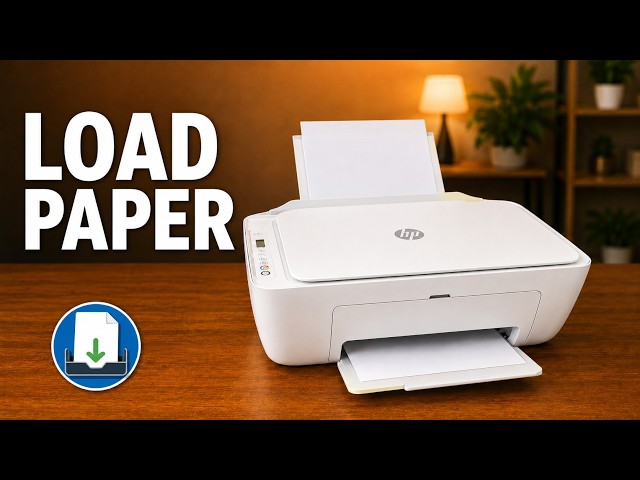
Raise the rear input tray and move the width guide out of the way. Load a neat stack of plain paper with the printable side facing up, without forcing it down, then adjust the guide until it touches the edge without bending the sheets. Open the output tray and its extension. Use one size and type at a time. A4 and Letter are different sizes; select the size you actually load.
Step 2:Check or install suitable cartridges
Open the front output door and inner cartridge-access door. Wait until the carriage is idle and quiet. If suitable cartridges are already seated, leave them in place. If replacement is needed, gently press a cartridge down to release it, then pull it from the slot.
Match new ink to the exact printer and region. Remove the protective tape from a new cartridge while holding its plastic sides; do not touch the nozzles or electrical contacts. Match the black and tri-color slot markings, slide each cartridge into place and push upward until it clicks. Close the access door.
For a newly installed cartridge, finish any alignment prompt. HP’s 2600 procedure uses the printed alignment sheet face down at the glass marks, the lid closed, and Start Copy Black or Start Copy Color to scan it. This completion step comes from HP; the recording only reinstalls its existing cartridges.
Step 3:Install the official app and try normal setup
Use 123.hp.com or HP’s official app-store listing to install the app offered for your printer. HP says the newer HP app replaces HP Smart where available; a legitimate older HP Smart installation is not automatically a fake. Read the actual permission and account prompts.
If the printer is already on your home network, keep the iPhone on that network and add the existing printer. If a new connection is needed, choose Add device and Launch setup. Select this DeskJet if discovered and follow the Wi-Fi prompts.
Step 4:If the older printer is not found
Only if wireless setup needs restoring, with the printer on hold Wireless and Cancel together until Power begins blinking, then allow the brief activity to finish. This removes saved wireless settings, so have your home-network details ready.
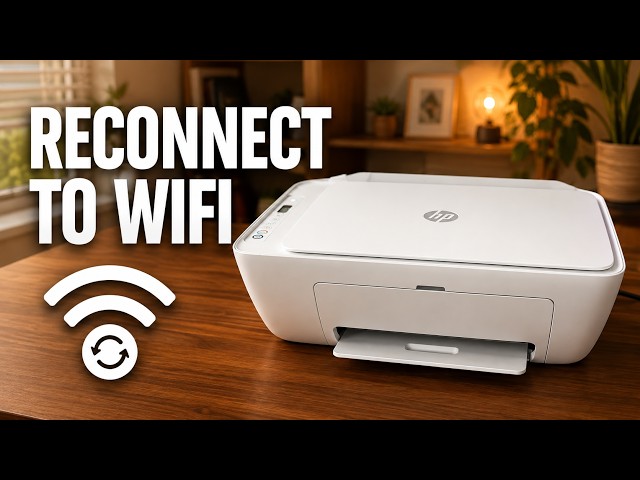
If normal app discovery still fails, use the dedicated reconnect guide for the complete temporary-connection and wireless-wizard route. In the source, the phone joins this printer’s HP-Setup network, adds the existing printer, then opens Printer settings → View all → Advanced settings → Network → Wireless (802.11) → Wireless Setup Wizard.
Select your own 2.4 GHz home network, enter its current password and finish the wizard. Do not assume every printer uses the spoken default password or that local HP-Setup discovery means the router connection is complete. The related reconnect guide includes the documented Wi-Fi Direct controls if a direct connection is required.
Step 5:Return to home Wi-Fi and check a print
Return the iPhone to the same home Wi-Fi selected for the printer. Check that the printer’s Wireless light is steady and that it remains available in the HP app. You do not need to remove an app entry that already works.
For AirPrint, open a document or photo in a supporting iPhone app, choose Share → Print and select this DeskJet. Check the page and paper options, then print and inspect the physical sheet. The source shows home-network discovery and the AirPrint selection screen; it does not show a completed final print.
References
- Professor Printer: source demonstration
- HP DeskJet 2600 controls and wireless setup
- HP DeskJet 2600 paper loading
- HP DeskJet 2600 cartridge handling and alignment
- HP: reconnect after router change
- HP: current app and scanning guidance
- Apple: iPhone AirPrint
- HP — DeskJet 2600 print-side orientation and print quality