Before you start
- A Canon PIXMA TS3750i, supplied starter cartridges and power cable.
- Plain A4 or Letter paper appropriate to your setup; the recording uses A4.
- The current home Wi-Fi name and password, an iPhone with Canon PRINT, and a Windows computer for the desktop section.
Set up the printer, then prove it can print
Prepare the cartridges and rear-tray paper before connecting the TS3750i to home Wi-Fi. The recorded iPhone connection succeeds, but the first print needs a paper-size and media-type correction. Windows is added afterward on the same network.
Step 1:Remove shipping protection and power on
Remove the external tape and marked protection inside the printer, including the orange shipping piece behind the front access cover. Close the cover, connect the supplied power cable and press ON. Let the printer finish its initial movement before installing the cartridges.
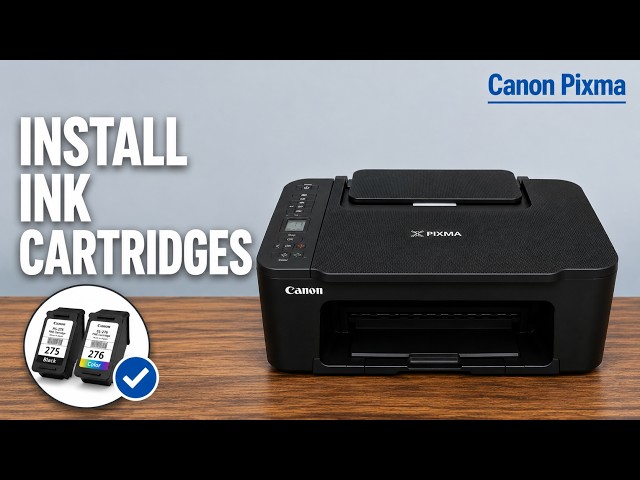
Step 2:Install and lock both starter cartridges
- With the printer on, open the cartridge-access cover and wait for the holder to stop completely. Do not move it by hand.
- Lower the cartridge lock levers. Unwrap each starter cartridge and remove its protective tape immediately before installation, without touching the electrical contacts or nozzle area.
- For the TS3700 layout documented by Canon, colour goes in the left slot and black in the right. Check the labels inside your TS3750i, insert each cartridge straight into its holder, and raise the lock lever until it clicks.
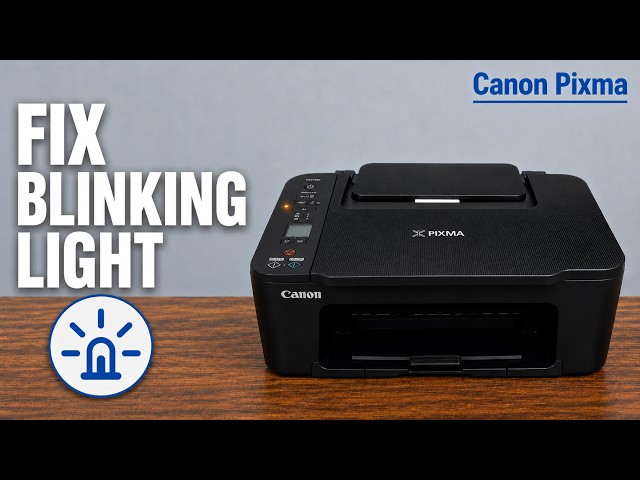
- Close the cover and wait for initialization. If an LCD error remains, read the code and use the related blinking-light guide before continuing.
Step 3:Load plain paper in the rear tray
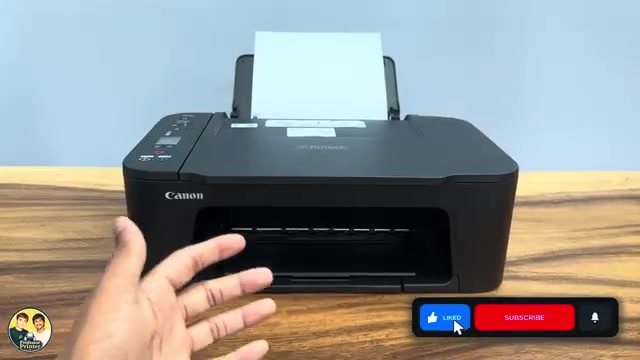
Raise the rear paper support and extend the output tray. Load the neat stack vertically against the right side of the rear tray, with the print side facing you; bring the left guide to the paper edge without squeezing it and stay below the load-limit mark. When the paper status and size flash on the LCD, use Paper Select to choose the loaded size and press OK. The recording uses A4; Canon’s setup paper-error instructions also allow Letter. Keep this registered size consistent with the paper and the app’s print settings.
Step 4:Connect the iPhone and save the printer
- Put the iPhone on the intended home Wi-Fi and open Canon PRINT. Allow local-network access for discovery; optional usage-data choices are separate.
- Check that the printer is switched on and choose Search. The recording’s first discovery attempt is interrupted because the printer is off.
- When Canon PRINT asks to connect the phone temporarily to the printer, select Join for the identified printer.
- Check the wireless-router name offered by the app. Enter that home network’s current password and confirm it.
- Wait for network setup to finish and select Save for the discovered printer. Confirm the app lists the printer before sending a job.
Step 5:Correct paper settings before the first print
- Choose a document or image in Canon PRINT. Before printing, set the paper size to the loaded size and the media type to the actual paper; the demonstration uses A4 plain paper.
- If the app reports that the current settings are not supported, return to the paper settings. In the source, changing the media type to plain paper and using the option to print with the paper set on the printer resolves the attempt.
- Use the printer’s registered-paper option only after checking that its displayed size agrees with the sheets in the tray. Confirm the settings and send the job again.
- Wait for the physical page. The presenter reports a successful mobile print and comments on the printed page after the correction; you do not need to redo Wi-Fi simply because the earlier paper settings were wrong.
Step 6:Install the printer on Windows
- Put Windows on the same home Wi-Fi used for the printer and iPhone. Open the official Canon PRINT software from the Microsoft Store.
- Choose its setup/add-printer route. Allow the local-device discovery requested by the Canon installer and select the detected printer.
- Continue through the required Canon driver installation. Read each prompt; optional data-sharing choices are not required steps in this guide.
- If the current app differs from the recording, use Canon’s exact-model setup site in References. Do not substitute software from an unrelated printer or a third-party driver site.
Step 7:Check Windows with a small test job
- Select the installed Canon printer in a Windows Print dialog or use the installer’s test-print option.
- Confirm the paper size and type, send the job and wait for the page to reach the output tray.
- Check the printed result and any LCD message. A listed printer or a job leaving the computer is not proof that the physical page completed.
The source clearly completes the mobile print. Its Windows section finishes by initiating a test print; this guide does not turn that brief ending into a claim that every printing, scanning or maintenance function was tested.
Questions & troubleshooting
Canon PRINT cannot find the printer.
The video first checks that the printer is switched on. Also check the app’s local-network permission and that the phone is on the intended Wi-Fi. Follow the app’s model-specific connection prompts if discovery still fails.
What does “current settings are not supported” mean here?
In the recorded attempt, the paper size and media type were wrong for the plain-paper job. Select the size actually loaded and plain paper, then verify any printer-registered paper option matches those sheets before retrying.
Do I need to run wireless setup again on Windows?
The demonstrated route adds the printer after it has joined home Wi-Fi through the phone. Keep Windows on that same network and select the discovered printer; a separate new network is not the goal.
An orange light appears during setup.
Read the LCD error code and use the related blinking-light guide. Paper and cartridge errors need their own checks rather than repeating the network setup.