Before you start
- The printer must already be connected to the same Wi-Fi network as the iPhone or iPad. Complete network setup first if needed.
- Load the intended paper in the rear feeder, register its size/type and leave room for the output tray. Keep the printer’s paper-configuration messages enabled.
Step 1:Confirm the printer and Apple device are on the same network
Check the phone or tablet’s Wi-Fi selection and the printer’s connection status. AirPrint is the printing route after network setup, not a substitute for connecting the printer to the router.
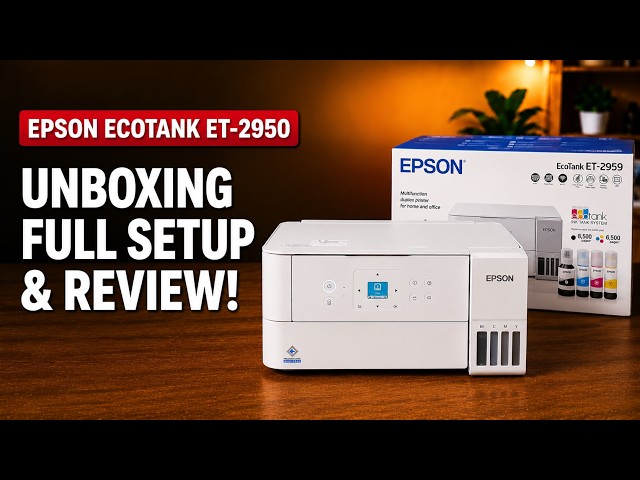
This task is confirmed for ET-2950 and ET-2959. The video’s statement that every EcoTank has identical hardware and AirPrint support is not the compatibility basis.
Step 2:Open the item’s Print action
- Open the photo, document or webpage in an app that supports printing.
- Tap the app’s Share, More or Actions control and find Print. Scroll the actions list if necessary.
- Tap the printer selection field, such as No Printer Selected, and choose your Epson printer.
The source demonstrates a photo. Apple notes that not every app supports printing; if Print is absent, check that app’s help rather than resetting the printer.
Step 3:Review the available options and send the job
Check the preview, paper size, number of copies and page range. Review colour and quality options when the app/printer offers them; the exact set can vary. Tap Print to send the job.
Wait for the finished sheet and check its content and orientation. The presenter reports a successful photo print. That result does not mean every app or file exposes the same options.
If the printer is missing
First check power and that both devices are on the same local network. In the printer’s Settings → Printer Setup → Paper Source Settings, keep Paper Setup Auto Display enabled: Epson says disabling paper-configuration messages prevents AirPrint use.
If the printer’s network connection itself is failing, use its Connection Check report and the Wi-Fi guide. If the network is connected but discovery is blocked on a managed or guest network, ask its administrator about device-to-device access rather than repeatedly resetting the printer.
Questions & troubleshooting
Do I need Epson Smart Panel to use AirPrint?
No printer driver or Epson printing app is required for this AirPrint workflow once the printer is on the same network. Smart Panel can still be used separately for setup or other printer functions.
Why is there no Print action in my app?
Not every app supports printing. Check the app’s actions menu and help. This is different from a printer failing to join Wi-Fi.
Why did AirPrint disappear after changing paper prompts?
Epson specifically links AirPrint availability to paper-configuration messages. Re-enable Paper Setup Auto Display and check the connection.