Before you start
- The demonstrated HP DeskJet 2920, its supplied setup cartridges and power cable.
- Plain paper, your home Wi-Fi name and password, and an iPhone with the official HP app for the demonstrated setup.
- A Mac on that home network if following the optional computer and scanning sections.
Check the model and choose the parts you need
The presenter identifies this printer as a DeskJet 2920 in the 2900 series. The source title names 2955 / 2952; family membership does not make their regional ink supplies interchangeable. Follow the instructions and supply labels for your exact printer.
Complete paper, cartridge and alignment setup first. The next section connects it with an iPhone. The Mac sections are optional if you also want that computer to use the printer.
Step 1:Remove packing and power on
Remove the shipping tape. Open the front access areas and remove the internal cardboard protection beside the cartridge area. Close the covers, connect the power cable and turn the printer on. Let its startup movement finish.
Step 2:Load the rear tray
Raise the rear paper support. Move the width guide outward, put a neat stack of plain paper in the rear feeder, and bring the guide against the paper edge without bending the sheets. The paper should sit in the feeder without being pushed down forcefully.
Step 3:Fit the supplied cartridges
- Open the cartridge access area and wait for the carriage to stop in the accessible position.
- Unpack the setup cartridges and remove their protective tape. Avoid touching the nozzles and electrical contacts.
- Match each to the slot labels: the source shows colour on the left and black on the right. Slide the cartridge in at a slight upward angle, then push up until it clicks.
- Close the access door and let the printer prepare its alignment page.
Step 4:Scan the alignment sheet
When the alignment page prints, place it printed-side down on the scanner glass at the corner indicated by the page and scanner markings. Close the lid. Press Black Copy or Color Copy to scan it; the source uses Color Copy, and HP’s DeskJet 2900 instructions allow either.
Wait for the alignment scan to finish. HP describes a blinking A while the sheet awaits scanning, a moving indicator during the scan, then the ready state. This scan adjusts alignment; it does not print another copy of the page.
Step 5:Connect with the HP app on the iPhone
- Put the iPhone on the home Wi-Fi you want the printer to use. Open the official HP app, enable Bluetooth and allow the local discovery permissions requested during this setup.
- Choose Add device and the new-printer setup option. Select the detected DeskJet and confirm the intended home Wi-Fi.
- Follow the connection prompts. When the app asks, press and release the flashing Information button on the printer to confirm setup.
- Continue until the app shows the printer. Read the region, privacy and subscription choices individually; they are not all the same decision.
Step 6:Add the demonstrated Mac on the same network
Connect the Mac to the same home Wi-Fi used by the printer. Open the HP app and allow local-network discovery if asked. Choose Add device, then the option to choose an available printer. Select your DeskJet 2900 entry from the network list.
The recording shows the Mac finding the printer after the phone has completed its Wi-Fi setup. If it is not listed, check that earlier connection before resetting or starting a different printer setup.
Step 7:Save a scan on the Mac
In this recording the HP app does not offer the needed scanning route. The presenter opens Print Center, selects the DeskJet and chooses Scan to open the system scanning interface. This is an observed workaround, not a claim that every HP app lacks scanning.
- Place the document face down on the scanner glass and close the lid. Open the scanner for this DeskJet. Apple also documents System Settings → Printers & Scanners → your printer → Open Scanner when that option is available.
- In the scanning window, choose the destination in Scan To. Use Show Details if needed to select the document size, file name and format. Choose the settings offered by your scanner; the general Mac interface can show options that this printer does not support.
- Check the preview or Overview, then choose Scan. Open the saved file in the destination you selected and confirm that the expected page is present.
Questions & troubleshooting
The printer shows A after printing the alignment sheet.
HP identifies this as the alignment stage. Put the sheet printed-side down in the indicated scanner position, close the lid and press Black Copy or Color Copy. Wait for the scan and ready state; no second printed page is expected from this alignment scan.
The app asks me to press a flashing Information button.
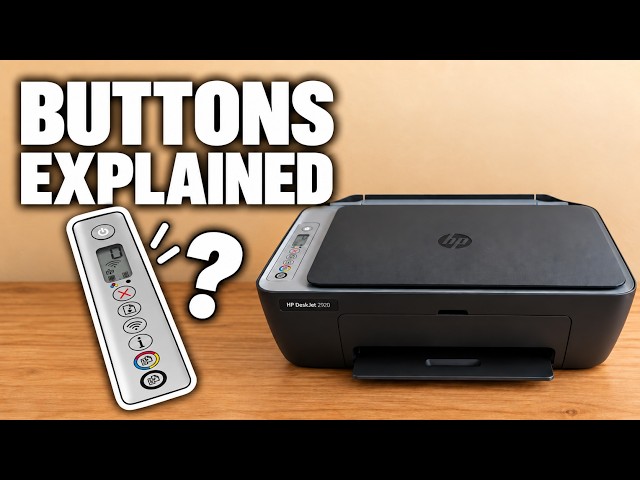
HP’s control-panel guidance identifies a blinking white Information button as a setup-confirmation request. Press and release it when the setup app asks. A different light or error message needs its own instructions.
The Mac cannot find the printer.
First check that the phone’s Wi-Fi setup completed and that the Mac uses the same home network. The source adds the Mac after the printer is already connected to the router.
Where did my Mac scan go?
Check the Scan To destination selected in the scanning window. Apple allows either a folder or an app as the destination; choose a known folder before scanning if you want a file you can locate easily.
My ink number differs from the source video.
Use the cartridge listed for your exact printer and region. A shared DeskJet 2900 family name does not establish that the same supply number works across regions.
References
- Professor Printer: source setup demonstration
- HP DeskJet 2900: cartridge installation and regional supplies
- HP DeskJet 2900: alignment indicators and copy-button scan
- HP DeskJet 2900: control-panel buttons and setup confirmation
- Apple: scan a document and choose where to save it
- HP: exact model group and regional cartridge information