Before you start
- The printer must be powered on and ready. Know your router’s current network name and Wi-Fi password, including capital letters.
- Keep the phone or computer on the intended network. A router label gives the original credentials only if they have not since changed.
Choose one setup route
Use the control-panel route below if you know the router details. Smart Panel is an alternative phone-assisted route, not a second process you must repeat after a successful connection. Neither route requires clearing all printer settings.
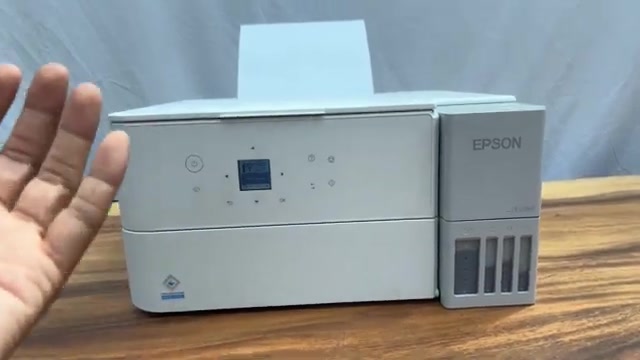
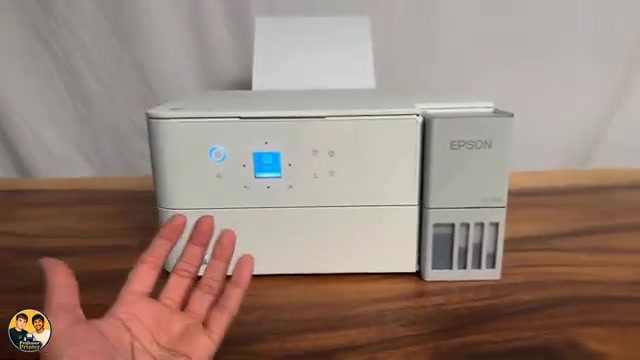
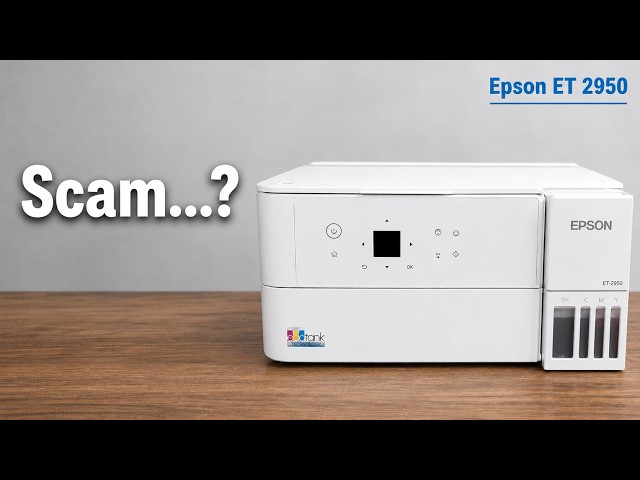
These instructions are confirmed for ET-2950 and ET-2959. The source’s “any EcoTank” claim is wider than the supported scope.
Step 1:Connect using the printer’s Wi-Fi Setup Wizard
- Press Home. Use the arrows to select Wi-Fi Setup and press OK. Select Wi-Fi, press OK to proceed, then choose Wi-Fi Setup Wizard.
- Wait for the network list. Select the exact network you intend to use and press OK. Do not choose a different name simply because it is first or has a strong signal.
- Enter the router’s current Wi-Fi password using the arrows and OK. Use the character-type control for capitals, digits and symbols; passwords are case-sensitive.
- Select the on-screen OK, then press the physical OK button to submit. Follow any report choice and wait for the setup-complete message. Confirm OK to finish.
If the intended name is absent, refresh the list. Epson also provides Other SSIDs for entering a known network name directly, or its model-specific app/setup route. Do not invent a nearby network’s credentials.
Step 2:Alternative: use Epson Smart Panel
- Connect the phone to the intended Wi-Fi and install Epson Smart Panel from Epson’s official support link. Turn on Bluetooth if the setup asks for it and allow the local-network/device-discovery permissions needed for setup.
- Open the app and choose to set up a new product. Continue through discovery and select your actual printer. If it is already connected, use the app’s connected-product selection instead of resetting it.
- If the product is password-protected, enter its current printer administrator password. This is a different credential from the router’s Wi-Fi password.
- Proceed to Wi-Fi connection settings, check the intended network, enter the router password when asked and confirm. Wait until the app reports that the product and phone are connected.
The app demonstration initially fails to discover the printer and later succeeds after a normal restart and app reinstallation. That is one reported attempt, not proof that reinstalling is always necessary. Check power, app permissions and network selection first.
Step 3:Confirm connection from the device that will print
On the phone or computer using the same network, select the Epson printer in the relevant print app or finish its supported driver setup. Load a sheet, send a short document and inspect the physical output. A setup-complete message confirms network setup; it is not itself a printed test page.
If setup fails, load plain paper and open Settings → Network Settings → Connection Check. Follow the prompt to print the connection report and use its actual error code with Epson’s solutions. Keep the report private because it contains network information.
Questions & troubleshooting
Should I choose the first network in the list?
Choose your intended network by its exact name. Position and signal strength do not prove that the first result is your router.
Is the printer administrator password the Wi-Fi password?
No. The administrator password protects printer settings. The router’s Wi-Fi password joins your home network. Use the credential requested by the current prompt.
Must I delete Smart Panel if discovery fails?
No. The source reports that combination helping once, but first check printer power, permissions and the intended network. A normal restart is less disruptive than reinstalling, and a connection report can identify the actual failure.
Does phone-assisted setup mean printing uses Bluetooth?
No. This guide connects the printer to the router’s Wi-Fi network. Any requested discovery permission does not turn it into a Bluetooth printing procedure.