Before you start
- Have the exact printer model, region of purchase and Windows system details ready. Check Canon’s current driver availability for that combination.
- For this recording’s route, the printer and PC use the intended router network. Canon also documents initial wireless setup through its computer installer; a phone is not universally required.
Step 1:Choose the exact-model Canon setup
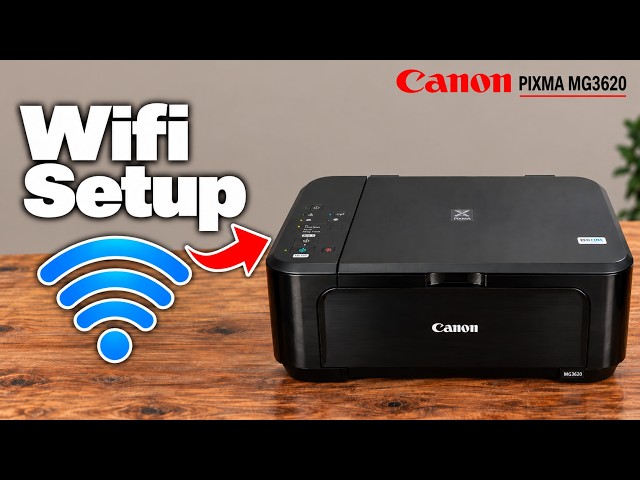
Open Canon’s official setup portal or exact-model support page. Select your region, the model on your printer and your Windows version; download the offered setup package from Canon. The source enters MG3650S even though its title says MG3620, so do not copy its model selection onto a different device.
The recording first downloads a Microsoft Store Canon app but does not use it for the successful installer sequence. That preliminary download and a new Microsoft account are not required steps for the Canon installer route described here.
Step 2:Start setup and choose wireless LAN
- Open the Canon setup file and choose Start Setup. Confirm the region and read the licence and optional survey choices.
- When the installer asks for connection type, choose Wireless LAN Connection for this router-based route. Allow the genuine Canon installer’s requested system permission if you intend to install it.
- If the printer is already connected, let the installer search that network. If the installer asks for cableless setup, follow its model-specific instruction: hold Wi-Fi until ON flashes, then press Color and Wi-Fi; the Wi-Fi lamp should flash quickly with ON lit.
- Select the intended detected printer and continue. If detection fails, read the installer’s actual message and check printer/PC network and discovery permissions before changing settings.
Step 3:Finish the required components
Let the driver installation finish and continue through the completion screen. Install the Canon scanning component needed for IJ Scan Utility if you intend to scan. Other offered creative/photo applications are optional; downloading every old utility does not establish that it is required or compatible with your current Windows version.
The source suggests restarting after an unspecified error and pressing Stop. That is not a reproducible remedy for every install failure. Use Canon’s model-specific troubleshooting for the actual error; do not reset the printer or disable security wholesale.
Step 4:Check printing and scanning separately
- In Windows Printers & scanners, confirm the correct Canon device is present. Open a document and select that printer in Print.
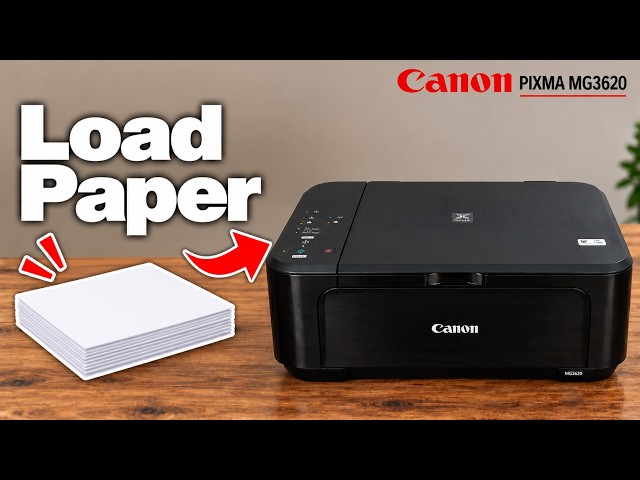
- Load matching paper print-side down and open the output tray and support. Print a small test and inspect the actual output.
- If scanning is needed, open Canon IJ Scan Utility, select the correct product and scan a page. Finish the save and open the resulting file in its configured folder.
The recording skips its optional test print and does not demonstrate a completed new scan here. The related print/copy/scan guide provides that task’s full controls; use the checks above to establish your own result.
What Windows Add device can and cannot establish
The source also points to Windows Printers & scanners → Add device as an alternative detection route when the printer is already on the network. If Windows offers the correct device, follow its installation prompts. Being listed does not guarantee every Canon maintenance tab or scanning component is installed.
Canon IJ Scan Utility and Microsoft Windows Scan are different programs. Do not expect the former’s Document/Photo/Settings buttons inside the latter or assume a print-only installation has proved scanning.
Questions & troubleshooting
Must I connect the printer with a phone first?
No. This recording starts from an existing network connection, but Canon’s Getting Started instructions also provide a computer wireless installer route. Follow the available exact-model installer.
Should I choose MG3650S because that is typed in the video?
Only if that is actually your model. The article’s named models are supported by their applicable Canon documentation; the video title does not make another regional model’s download the right choice.
Does Add device install every Canon utility?
It may add printing support, but that alone does not establish the presence of Canon IJ Scan Utility or all maintenance functions. Check those separately.
References
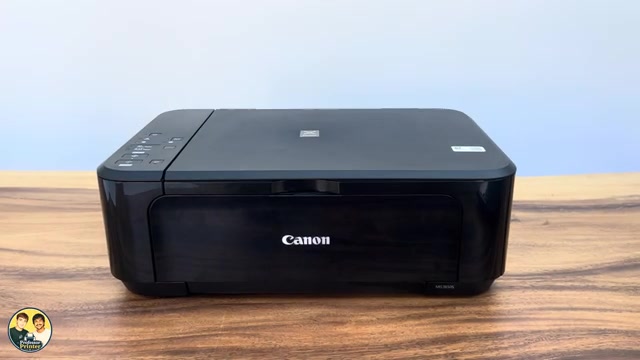
- Professor Printer: source demonstration
- Canon: computer setup file, wireless method and software selection
- Canon: cableless setup requested by an installer
- Canon: exact MG3620 support and current driver selection
- Canon: official setup portal
- Canon: wireless discovery troubleshooting
- Canon: IJ Scan Utility document scan
- Canon: MG3600 manual explicitly includes MG3620 and MG3650