Before you start
- Have the intended network name, current password and permission to use it.
- Finish physical printer setup first.
Prepare the intended network
Disconnect Ethernet if you intend to use Wi-Fi: HP says an Ethernet connection disables wireless networking on this family. Have the correct router network name and current password ready, and put the computer or phone on that same network.
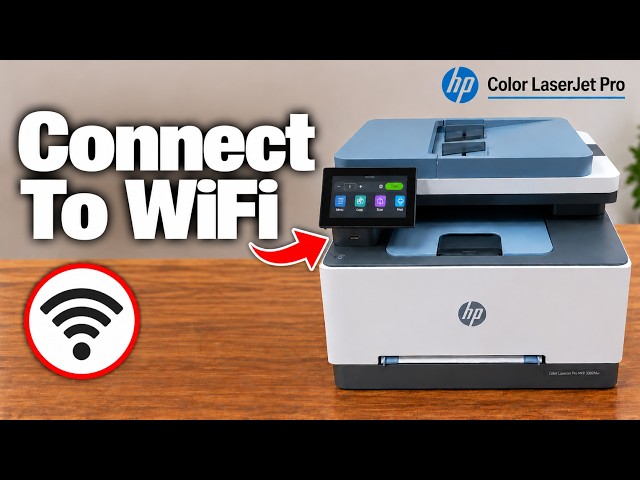
Step 1:Open the Wi-Fi Setup Wizard
- On Home, open Menu → Settings under Utilities → Network.
- Open Wi-Fi and turn it on if necessary.
- Choose Wi-Fi Setup Wizard and let the printer search for networks.
Step 2:Choose your router and enter its password
Select the network you intend the printer to use. Enter its current password with the touchscreen keyboard, checking capitals, numbers and symbols. Use the password visibility control only where others cannot read it.
Confirm the entry and submit it, following the on-screen OK prompts. This is the router password, not the administrator PIN or Wi-Fi Direct key.
Step 3:Confirm connection and test the device you will use
Wait for the printer’s connection result. The presenters report a successful connection in both recordings; do not assume a universal fixed connection time. Read the actual error if it fails.
Check the current network details and then select or add this printer on your phone or computer. Send a small job and inspect the finished output. A successful router connection alone does not install the required software on every device.