Before you start
- The supplied setup cartridges, power cable and plain A4 or Letter paper.
- An iPhone with the official HP app and access to the intended home Wi-Fi.
- Disconnect any Ethernet cable before Wi-Fi setup; HP says a wired Ethernet connection disables Wi-Fi.
- For the final section, a Mac connected to that same home network.
Follow the printer’s own first-time setup prompts
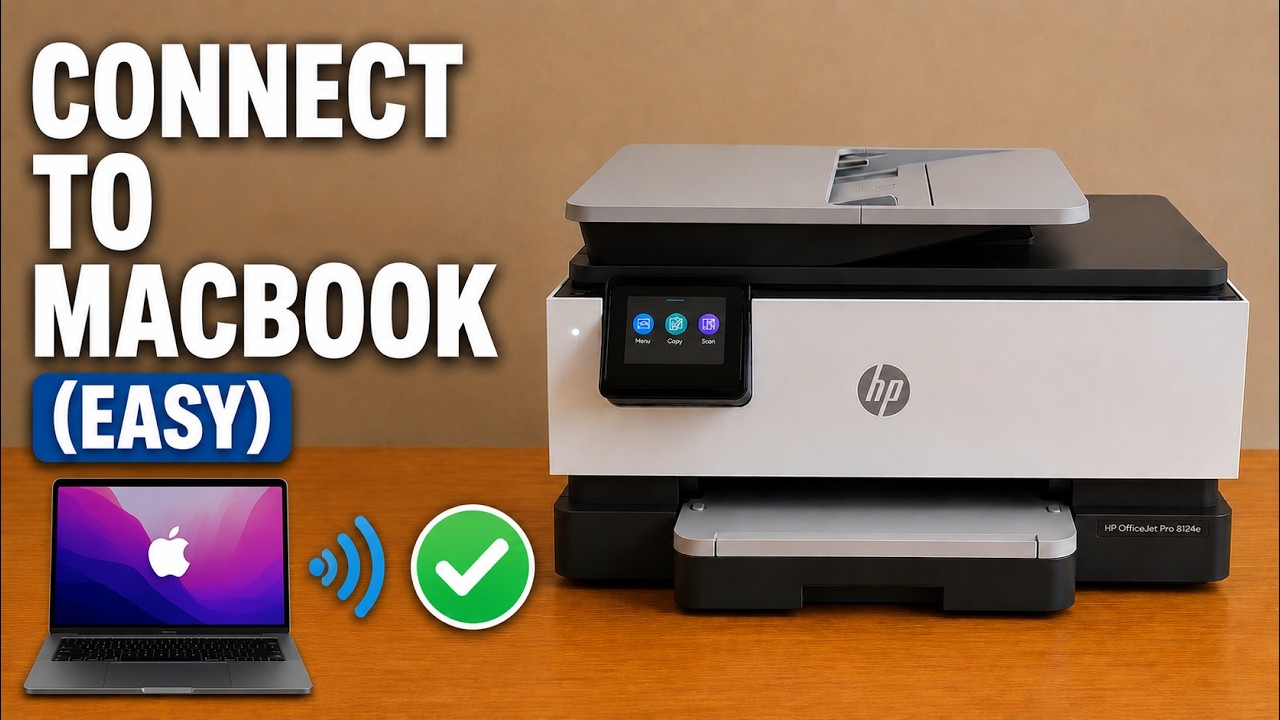
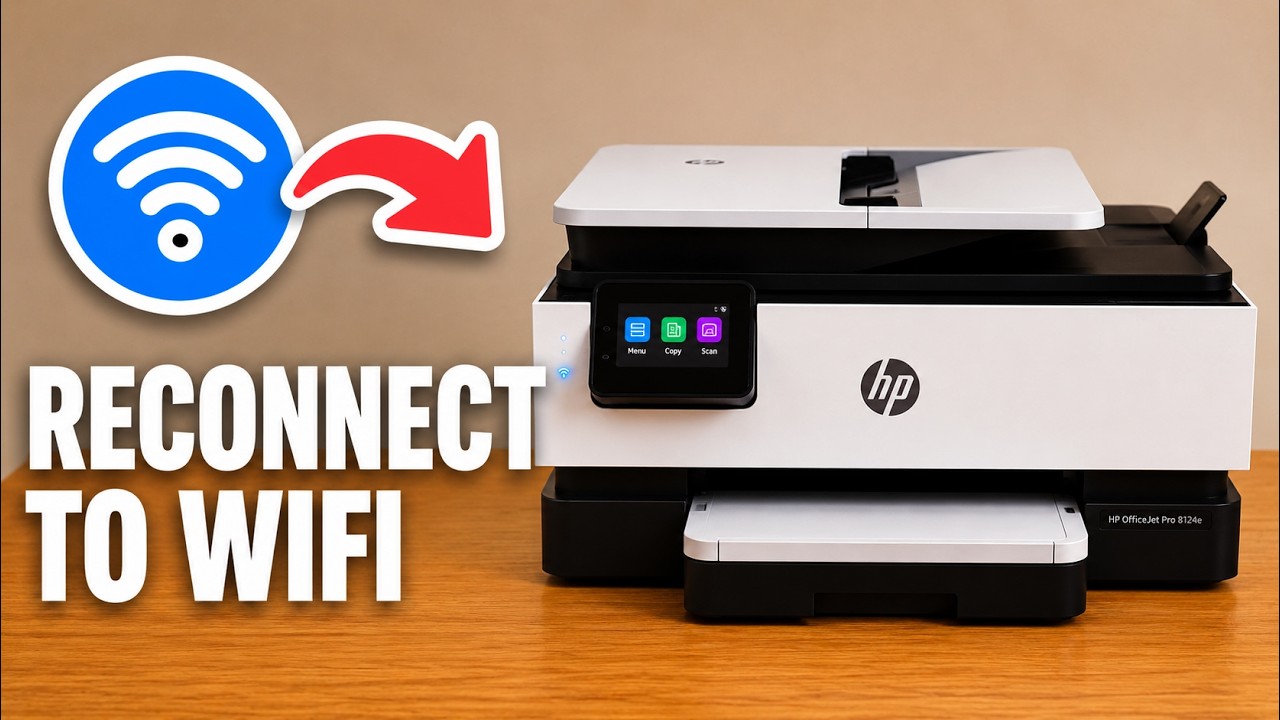
The printer shown is HP OfficeJet Pro 8124e. The source video combines hardware setup, the HP iPhone app and adding the networked printer to a Mac. Its wider OfficeJet model claims do not establish identical setup for every device.
Use the cartridges supplied with this printer for first-time setup. Their number varies by model and region; the number in the recording is not a substitute for checking your own printer. Keep the home Wi-Fi name and password available even if your phone offers to share them.
Step 1:Unpack, power on and select your region
Remove the exterior tape and packing, including the material under the scanner lid and inside the paper tray. Connect the supplied power cable, turn the printer on and wait for its first setup screen. Choose your language and actual country or region.
Use the setup link shown on the printer or in its supplied guide. In the source, an iPhone camera opens the displayed HP setup QR code; check that the destination is an HP page before continuing.
Step 2:Load paper and adjust the guides
Pull the input tray forward and remove any remaining cardboard or tape. Slide its guides apart and load a flat stack of plain A4 or Letter paper for setup, with the print side facing down. Match the tray’s size markings; A4 and Letter are different sizes.
Move the guides against the paper edges without bowing them, close the tray and confirm the paper settings shown on the touchscreen. Extend the output tray before printing the alignment sheet.
Step 3:Install the supplied setup cartridges
Open the front door from its right-side recess, then lift the cartridge access door by its handle. Wait for the carriage to stop and remove the shipping restraint indicated in the setup guide. Unwrap the supplied cartridges and remove their protective orange caps as directed on the packaging; avoid touching the exposed ink outlets or contacts.
Match each cartridge’s color-coded letter to its slot. Insert the leading end, then press the rear down until it clicks into place. When all four are seated, lower the access door and close the front door. Let the printer finish checking the cartridges.
Step 4:Complete the printer’s alignment check
Choose Align when the touchscreen asks. Let the alignment sheet finish printing, then place it printed-side down on the scanner glass, lined up with the indicated corner. Close the lid and select Scan as prompted. Wait for the alignment result before removing the sheet.
If alignment reports an error, resolve it using the screen’s message rather than assuming the printer is ready. The source presenter reports completion after scanning the sheet.
Step 5:Connect the new printer through the HP iPhone app
Use the official app made by HP Inc. Put the iPhone on the home Wi-Fi you want the printer to use and enable Bluetooth for setup discovery. Open Add device → Set up and connect a new printer → Launch setup, then select this OfficeJet.
In the recorded iPhone workflow, the phone offers to share its Wi-Fi connection with the printer. Check the network and confirm the requested sharing. If your app asks for a Wi-Fi password instead, use that network’s password. When the printer asks you to approve setup, touch Allow on its own display.
Wait for the connection to finish and the wireless light to become steady. Read the remaining privacy, account, HP+ and optional subscription screens before choosing; the source’s personal subscription preferences are not a requirement of this guide.
Step 6:Check printing from the phone
Once the app reaches the printer’s controls, choose Print documents and select a short document. Check the preview, paper settings and copy count before choosing Print. Keep the output tray extended and inspect the resulting page.
The video describes its first document printing from the iPhone app. If an unfinished setup message remains, follow its actual prompt; do not assume every such warning can safely be skipped because the source encountered one.
Step 7:Add the already-connected printer on a Mac
Put the Mac on the same home network. In the source, Print Center’s add control opens the available-printer list; select the exact OfficeJet entry and choose Add. The printer then appears in the Mac’s list.
The source also adds it in the HP Mac app: choose Add device, then choose an available printer because the Wi-Fi setup is already complete. Select the OfficeJet and add it. These are ways to add the connected device, not another router setup.
Questions & troubleshooting
The iPhone app does not find the new printer.
Check that the printer is on and ready for setup, that the phone is on the intended Wi-Fi and that Bluetooth/setup permissions are available. Use the printer’s setup instructions before reinstalling apps or restoring factory settings.
Should I connect the Mac as a new printer again?
After the printer is on home Wi-Fi, add it as an existing or available printer from a Mac on that same network. The source does not repeat router setup for the Mac.
Does this show the Windows setup too?
No. The presenter mentions Windows, but the recorded computer is a Mac. Use the applicable HP Windows instructions for that separate workflow.