Before you start
- The printer is on and its initial paper and ink preparation is complete.
- Know the intended router network and its current password. Put the phone or computer on that network.
Choose one route for your device
The source presents three alternatives: Canon PRINT on iPhone, Manual connect on the printer and Canon’s setup installer on Windows. You do not need to repeat all three to connect one printer.
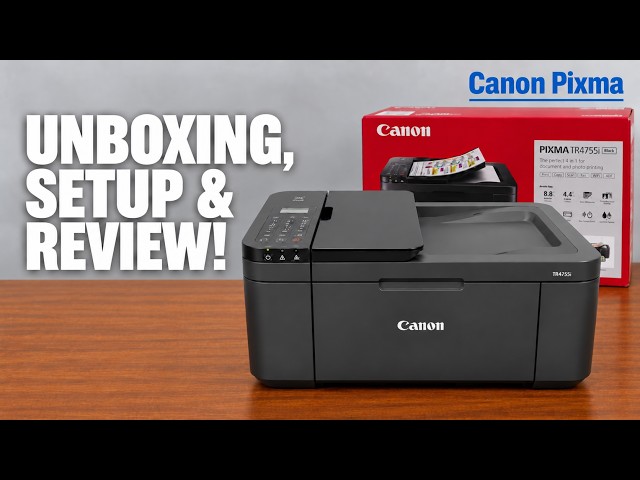
The Windows portion selects TR4755i even though the video title names TR4722. This guide is scoped to TR4755i, which Canon explicitly includes in its TR4700-series manual. Choose your exact model and region when downloading software; do not substitute the source title’s regional number.
Option A: use Canon PRINT on iPhone
- On the printer, enter Easy wireless connect. Canon documents holding Menu/Wireless connect for 3 seconds; you can also choose Setup → Wi-Fi setup → Easy WL connect. Continue when the printer directs you to the phone.
- Open Canon PRINT on the iPhone. Allow its local-network access so it can find the printer. Read other consent and permission prompts individually.
- Choose Search. When the app requests joining the temporary Canon setup network for this printer, choose Join. This temporary connection is part of setup, not your final home-network selection.
- Check the proposed home Wi-Fi name. Enter that router’s current password when requested and confirm. Do not use the printer’s administrator password in this field.
- Wait for the printer to report the Easy wireless connection is complete, press OK on the printer, and let the app finish adding it.
The recording uses an iPhone. Canon PRINT is also available on Android, but its prompt order is not demonstrated as identical here.
Option B: use the printer’s control panel
- Press Setup, select Wi-Fi setup and press OK. Select Manual connect and press OK.
- Choose your wireless router from the list and press OK, then OK again at the password prompt.
- If Router overlap appears, use the choice that matches your network. For one router, select Use a single router and identify that router’s MAC address; for several routers sharing the name, select Use multiple routers. Do not simply select the first MAC address.
- Enter the router password with the keypad, including the correct letter case. Use the character-type key for capitals, lowercase or numbers as needed, then press OK.
- When Connected appears, press OK, then COPY to leave setup. If you started setup in software, return to that software and finish its remaining installation screens.
A failed connection is not automatically proof of a mistyped password. Check the displayed message and Canon’s matching troubleshooting before changing unrelated settings.
Option C: finish Canon’s Windows installer
- Enter Easy wireless connect on the printer, using Setup → Wi-Fi setup → Easy WL connect or Canon’s 3-second Menu/Wireless connect method.
- Open Canon’s official setup site, select your correct region and TR4755i, then choose the computer connection setup for your supported Windows version. Download only the installer provided for that selection.
- Run the downloaded Canon installer, review its licence and permission prompts and choose Start Setup when offered.
- When the installer finds the printer, check the proposed Wi-Fi network and choose Connect. Follow any credential prompt, then wait for connection and driver installation to finish.
- Complete the installer rather than closing it as soon as Wi-Fi connects. If you want Canon PRINT for Windows, the recording obtains it from Microsoft Store; that app is a separate interface, not proof that every driver-installation step has finished.
Windows version and Store sign-in screens can change. The source does not establish that a Microsoft account is universally required for every possible way of printing.
Confirm the printer is ready for the actual task
Verify that your device finds the correct printer and that no printer error is blocking the job. Send a short test document and inspect the page. A Wi-Fi connection or an Online label alone does not confirm a finished print.
The source reports successful connection for its routes but ends the Windows segment around installer completion. Its unrelated on-screen print error is not evidence that the network connection failed or that every error can be ignored.
Questions & troubleshooting
The app cannot find the printer.
Check Easy wireless connect is active and the phone has local-network access. Confirm that the final network selected in the app is your intended router network.
What is Router overlap?
Canon says more than one router with the same name was found. Choose a single known router by its MAC address or the multiple-router option for your actual shared-name network; do not select an unknown entry merely because it comes first.
The video title names TR4722. Which installer should I choose?
Use your own exact model and region. The source’s Windows demonstration selects TR4755i, and this article is scoped to that model; the title is not permission to install an arbitrary regional package.
References
- Professor Printer: source demonstration
- Canon: TR4700-series Wi-Fi menu options
- Canon: Easy wireless connect and 3-second control
- Canon: Manual connect and final COPY button
- Canon: Router overlap and correct MAC address
- Canon: failed manual connection checks
- Canon: exact-model setup entry
- Canon PRINT mobile app