Check the model and keep its setup guide
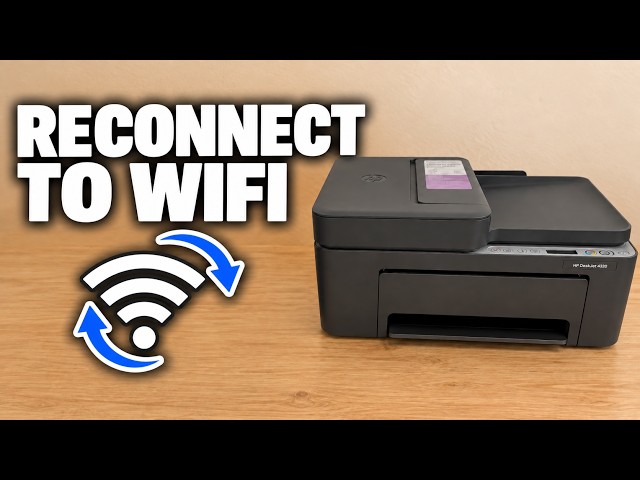
The recording is titled 4355, but the narrator identifies its unit as 4320. This written procedure uses HP’s 4300-series instructions for the named models. Regional cartridge numbers are not interchangeable. Have the included setup cartridges, plain A4 or Letter paper and your own Wi-Fi details ready. The network demonstration uses an iPhone; a Mac is added later.
Step 1:Remove the packing and turn on
On a stable, level surface, remove outer packaging and shipping tape. Open the front and cartridge-access doors and remove the cardboard holding the carriage. Check the scanner and document-feeder areas for remaining packing, then close the covers.
Keep the supplied quick-start guide. The presenter discovers another piece of tape near the end; check all indicated packing locations before use. Connect the supplied power cord and turn on.
Step 2:Load the rear input tray
Raise the input tray and slide the width guide left. Insert a modest stack in portrait orientation, printable side up, until it stops. Move the guide against the edge without bending it. Lower the output tray and extend its support.
Do not use the video’s guessed 120-sheet capacity as a loading limit. Avoid overfilling and match the software’s paper settings to the actual sheets.
Step 3:Install the supplied setup cartridges
With the printer on, open the cartridge-access door and wait for the carriage to stop. Unpack the included cartridges and remove protective tape using its tabs. Hold the plastic sides without touching contacts or nozzles.
Follow the slot markings: tri-color left and black right. Slide each cartridge into its slot at a slight upward angle and push upward until it clicks securely. Close the access door. When buying ink later, use the supply specified for your exact regional printer, not 308 simply because it appears in the recording.
Step 4:Scan the alignment sheet
Let the alignment page finish printing. Put it printed-side down on the scanner glass at the indicated corner and engraved guides, then close the lid.
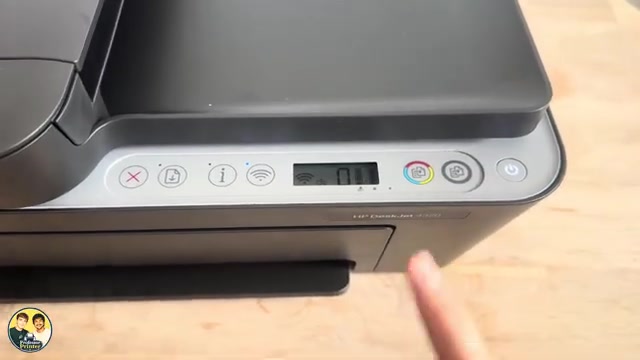
Press Black Copy to scan the sheet, as HP’s manual specifies. Wait for the moving display symbol or blinking A to return to the ready state. This scan aligns the cartridges; it does not print another ordinary copy.
Step 5:Connect from the iPhone HP app
Join your intended Wi-Fi network on the iPhone and enable Bluetooth for discovery. Open the official HP app, checking its publisher rather than its review count. Choose Add device, launch new-printer setup and select this DeskJet.
If Apple accessory setup offers to share the phone’s network, check the selected network and continue. Otherwise follow the actual prompts with your own credentials. When requested, press and release the flashing Information button on the printer. Wait for the connection result.
Step 6:Complete setup and check your own print
Follow the account requirements and choose optional data-sharing, subscription and update preferences deliberately. Do not treat the presenter’s blanket skip advice as permission to ignore a setup error. Keep power connected during any firmware installation.
Once the correct printer appears in the app, print a small document and inspect the physical page. A steady Wi-Fi light indicates a network connection, not Internet access or a completed print. The video shows AirPrint selection but does not complete an AirPrint job.
Add the connected printer on a Mac
The recording also opens the official HP app on a Mac on the same network. Choose Add device, select an available or existing printer, then add this DeskJet.
The Mac lists the printer and an available firmware update. The recording does not install that update, test every function or demonstrate identical Windows steps.