Before you start
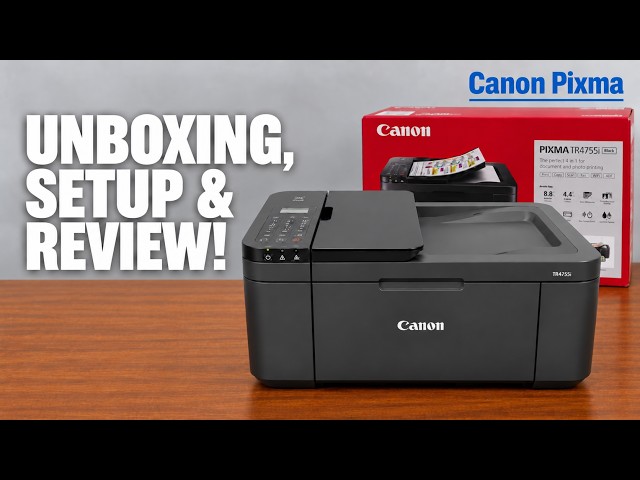
- A Canon PIXMA TR4755i, its supplied starter cartridges and power cable.
- Plain paper that matches the size selected on the printer and in the print settings.
- The current home Wi-Fi name and password, an iPhone with Canon PRINT, and a Windows computer for the desktop steps.
The route from the box to a first print
Start with the cartridges and front-tray paper, use Canon PRINT to join your home Wi-Fi, and then add the printer to Windows on that same network. The goal is a real printed page, not merely a printer appearing in an app.
Step 1:Remove shipping protection and turn on
- Remove the packaging and marked shipping tape. Check the accessible front and scanner areas for the orange protective pieces shown in the setup instructions; leave normal printer parts in place.
- Close the covers, attach the supplied power cable and press ON.
- Follow any language and region prompts on the LCD. Let the printer finish its initial movement before reaching the cartridge holder.
Step 2:Install both starter cartridges
- Open the front covers to reach the cartridge holder. Wait until the holder is stationary; do not pull it into position.
- Lower each cartridge locking cover. Remove the cartridge’s protective tape just before fitting it, keeping fingers away from the contacts and ink outlets.
- Match black and colour to the labels inside this TR4755i. Insert each cartridge into its marked holder, then raise its locking cover until it closes securely.
- Close the inner access cover. If the LCD reports a cartridge error, resolve that message using the TR4700 manual before continuing.
Step 3:Load the front input tray
Open the front input and spread the guides. Centre the plain-paper stack in portrait orientation with its print side facing down. Advance it gently as Canon’s loading guide shows; the paper-registration screen appears when the stack is loaded. Bring the guides to both edges without squeezing the sheets and keep the stack below their tabs. Open the output tray, pull out its support and open the extension. On the LCD, use OK and the left/right controls to register the loaded size and Plain paper.
Step 4:Join home Wi-Fi using Canon PRINT
- Connect the iPhone to the home Wi-Fi that the printer should use, then open the official Canon PRINT app.
- On the printer, use the setup menu’s Wi-Fi setup → Easy Wi-Fi connect route shown in the recording.
- Allow the app’s local-network discovery permission and select Search. Join the printer’s temporary network only when the Canon setup prompt asks.
- Check the home Wi-Fi name offered by the app and enter that network’s current password. The temporary printer connection is part of setup; it is not the final home-network connection.
- Wait until the printer says Easy Wi-Fi connect is complete, acknowledge it with OK, and save the discovered TR4700 series printer in Canon PRINT.
Step 5:Add Windows and use the official fallback if needed
- Put the Windows computer on the same home network as the printer. Open Canon PRINT from the Microsoft Store and choose Add printer if following the recorded app route.
- If the app completes normally, keep that installation. If it fails as in the recording, open the Canon official setup link in References and select your exact model and region.
- Choose the computer/smartphone connection route and download the model-specific installer. Run it, choose Start Setup and select the detected TR4700 series printer when asked.
- If that installer explicitly requests Easy Wireless connect mode, Canon identifies the control as Menu/Wireless connect: hold it for three seconds, then return to the installer prompts. This is not a factory reset.
- Finish the required Canon software installation before trying the test print. An optional data-sharing or extra-software choice is separate from the required printer connection.
Step 6:Confirm the setup with an actual page
- Open a small document in Windows and choose Print. Select the newly installed TR4700 series printer rather than another printer or a PDF destination.
- Check that the selected paper size and type match the sheets in the front input. Send the job with the output tray extended.
- Wait for the physical page and check the result. If the printer displays an error, read that message before repeating the network setup.
The presenter reports that Windows setup succeeded and starts a test print at 21:32. The captions describe paper feeding near the end of the recording; the written completion check above asks you to confirm your own finished page rather than treating app discovery as proof of printing.
Questions & troubleshooting
Canon PRINT finds the printer but then says setup failed.
This is the failure shown in the Windows section. Use the exact-model installer from Canon’s official setup site, select the detected printer, and finish the required software installation. Finding the device alone does not mean the installation finished.
The phone connects, but Windows cannot find the printer.
Check that Windows and the printer are on the same home Wi-Fi. The phone’s temporary link during setup is not the network Windows should stay on. Keep the printer on and use Canon’s exact-model connection prompts if discovery still fails.
Should I repeat the three-second button hold until printing works?
No. The Menu/Wireless connect hold starts Easy Wireless connect when the installer asks for it. A paper or cartridge error needs its own remedy, and an already installed printer should be checked with a print before restarting setup.
Can I load blank paper in the top document feeder?
Use the front paper input for this setup and test print. The document feeder accepts originals for functions such as scanning or copying; it is not the paper source used by these steps.