Before you start
- The supplied ink bottles and both printheads for the HP Smart Tank 5107.
- Unused plain white A4 paper and room to open the front door and rear paper support.
- An iPhone with the official HP app, Bluetooth enabled and the current 2.4 GHz home Wi-Fi name and password.
Fill the tanks before installing the printheads
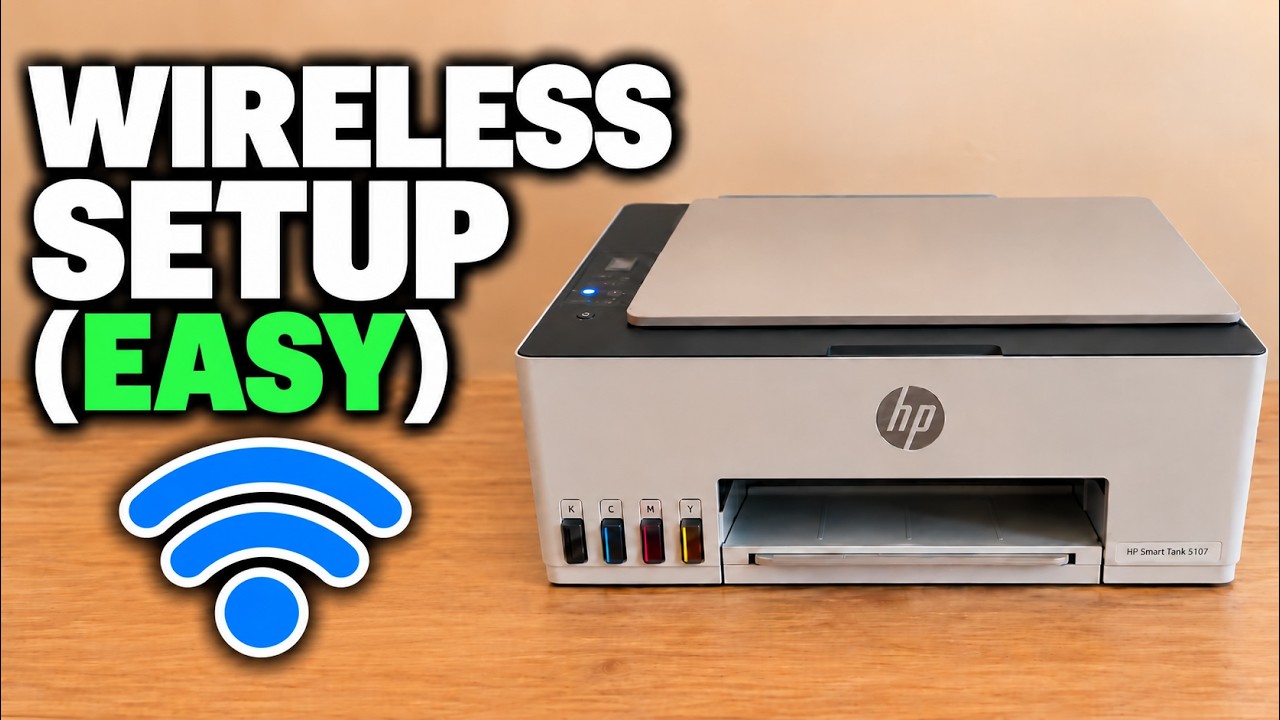
The source unit is an HP Smart Tank 5107, shown on its box and front label. Work in this order: unpack and power on, fill all four tanks, install the two printheads, load paper, align, then finish the network setup. A printhead is not an ink cartridge: the bottles fill the tanks, while the separate printheads deliver that ink to the page.
Step 1:Remove the packing material and switch on
Put the printer on a flat surface. Remove the exterior tape, the packing inside the front access area and the protective material on the scanner glass. Check the rear as well. Connect the supplied power cable and switch on; leave the printer on for filling and printhead installation.
Step 2:Fill the four color-matched tanks
Open the front door and the cap for the tank you are filling. Open the matching ink bottle, place its tip squarely onto that tank’s fill nozzle and let the ink flow. Check the color labels each time. Do not squeeze a bottle or overfill a tank; stop when it reaches full rather than assuming every bottle must be emptied.
Lift the bottle away carefully, stand it upright and close both bottle and tank caps. Repeat for all four tanks. Keep any remaining ink upright with its lid closed. Close the front door and wait about 15 seconds so the printer can detect the filled tanks.
Step 3:Remove the guard and install both printheads
Reopen the front door and wait for the carriage to move to the center and stop. If it does not, close the door for 15 seconds and reopen it, with the printer still switched on. Remove the orange tape from the printhead cover, press and release the blue latch, and lift the cover. Remove the orange shipping guard, keeping it upright.
Unpack each printhead. Pull its top plug out and peel away its protective contact tape without touching the copper contacts or nozzles. Match the colored and black printheads to the labels in the carriage. Slide each into its slot and gently push at a slight upward angle until it snaps in. Close the printhead cover securely, then close the front door.
Step 4:Load plain paper without forcing it into the feed
Raise the rear input support and move the paper-width guide left. Put a small, flat stack of unused white A4 paper into the rear tray, then bring the guide against its edge without bending the sheets. Extend the output tray so the alignment page has support.
The source initially pushes the paper too far into the feed and has to reload it. Stop at the normal resistance; do not force the stack deeper. A paper-related error needs its displayed code checked rather than assuming every error has that same cause.
Step 5:Scan the printed alignment sheet
Let the alignment sheet print. Open the scanner lid and place that sheet printed-side down against the glass’s indicated alignment corner. Close the lid and press the blinking Copy button when prompted. Wait while the sheet is scanned; HP says the blinking A disappears when alignment is complete. Remove the sheet from the glass afterward.
If the sheet has not printed, check the paper loading and resolve any displayed error before continuing. The source reloads paper and restarts before its sheet prints; that experience does not mean every setup needs a restart.
Step 6:Connect through the HP app on an iPhone
Connect the iPhone to the intended home Wi-Fi and enable Bluetooth for discovery. Obtain the official HP app through HP’s setup page. In the app, choose Add device → Set up and connect a new printer → Launch setup. Select the discovered Smart Tank and choose Setup.
Check the home-network name, enter its Wi-Fi password and continue. When the app requests it, press and release the Information button on the printer once. Keep the app open while it prepares the printer and joins the network. The source reaches “Printer connected to Wi-Fi” and the wireless indicator becomes steady.
Step 7:Finish setup and add another device if needed
Complete the app’s remaining setup screens. Read account, privacy, update and optional-service choices separately; those choices are not all the same setting. Do not treat an unfinished or failed screen as proof that every app feature is ready merely because Wi-Fi has connected.
For the Mac shown later in the video, connect it to the same home Wi-Fi, open the HP app, choose Add device and choose an available printer. Select this Smart Tank from the list. The source demonstrates discovery in the Mac app; it does not show a Windows setup or a completed document print.
Questions & troubleshooting
The carriage does not move to the middle for printhead installation.
Check that the printer is on and all four tanks have been filled. HP says to close the front door for about 15 seconds, then reopen it and wait for the carriage to stop. Do not drag the carriage into position.
Should I empty the entire black bottle into its tank?
No. Stop when the tank is full. HP notes that the black bottle can have ink left; forcing the remainder into the tank risks overfilling.
My phone sees the printer, but another device does not.
First finish joining the printer to home Wi-Fi. Put the other device on that same network and add the existing printer; a temporary setup connection is not the same as the completed home-network connection.