Before you start
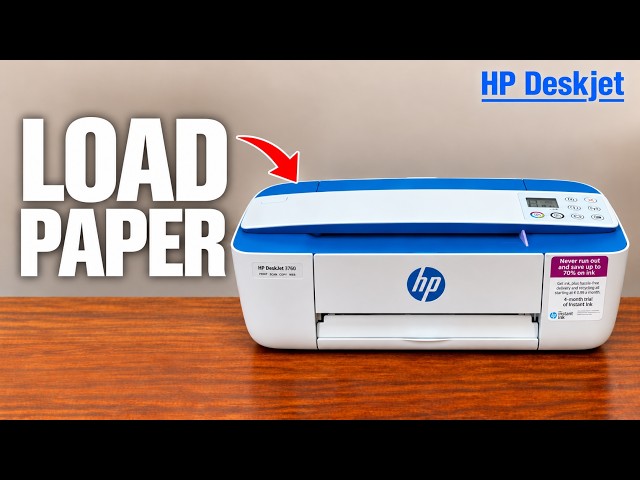
- Plain paper and sufficient ink for a network report.
- For home-network settings, a computer already on the same network as the printer.
Decide which address you need
The printer’s address on your home network and the address used over Wi-Fi Direct are different connection contexts. Use the home-network address from a device on that network. The recording connects Windows to Wi-Fi Direct; that address should not be assumed to work after you return to the router.
Step 1:Print the network configuration page
With plain paper loaded and the printer on, press Wireless and Information together. HP documents this combination for the wireless test report and network configuration page. Find the IP address or hostname on the configuration page.
Step 2:Use the address on the same network
Keep your computer connected to the same network as the printer. Type the address or hostname printed on your own configuration page into the browser’s address bar. This opens the printer’s embedded web server when the connection is available; it is not a public website.
Alternative: open settings over Wi-Fi Direct
If you specifically need the direct connection, turn it on with the separate Wi-Fi Direct button. Press Information to print the printer information page, then use your own DIRECT network name and password to join it from the computer’s Wi-Fi menu. HP documents http://192.168.223.1 for opening this printer’s settings while connected through Wi-Fi Direct.
This temporary connection may interrupt the computer’s Internet access. Return to your normal network when finished.
The Windows path shown in the video
The recording opens Printers & scanners, uses Add device, selects the discovered printer, then opens Device information to read its address. This is an alternative shown on that Windows interface, not a requirement for printing the configuration page.
What you should have
An address associated with your printer and the connection you intend to use. If it stops working after changing networks, print a fresh configuration page instead of assuming the old address is permanent.