Before you start
- Use a suitable printer USB cable and a compatible computer port or adapter. Keep the printer upright and leave access to the rear USB socket.
- Finish physical printer setup first. The computer needs internet access to obtain Epson software; the printer does not need to join Wi-Fi for this direct USB connection.
Step 1:Get the exact-model software from Epson
Open Epson Setup Navi and enter the exact model from the printer label, then choose Setup and the Windows installation/connection package. You can also use the exact-model Epson support page; verify its Windows selection before downloading.
Step 2:Connect the normal USB socket directly to the computer
With the printer upright, identify its rear USB port and fit the cable in the correct orientation without force. Connect the other end to the computer. Follow any connection-timing instruction in the current Epson installer; if it asks you to wait before connecting, use that sequence.
The source has the cable attached before device detection. It does not require putting the printer on its side. Avoid a USB hub for the initial connection if detection is unreliable.
Step 3:Run the Windows setup and select USB
- Open the Epson download, check its publisher at the Windows permission prompt and read the licence. Make your own choices for optional usage-data collection.
- Select the direct USB connection when prompted and confirm the printer detected on that cable. If physical setup is queried, confirm only work you actually completed.
- Install the print driver and Epson Scan 2 if you need computer scanning. Review other offered applications separately instead of accepting every optional item.
- Finish the setup and keep the USB cable connected. If both USB and network queues already exist, choose the entry for the connection you intend to use.
Step 4:Verify printing and scanning separately
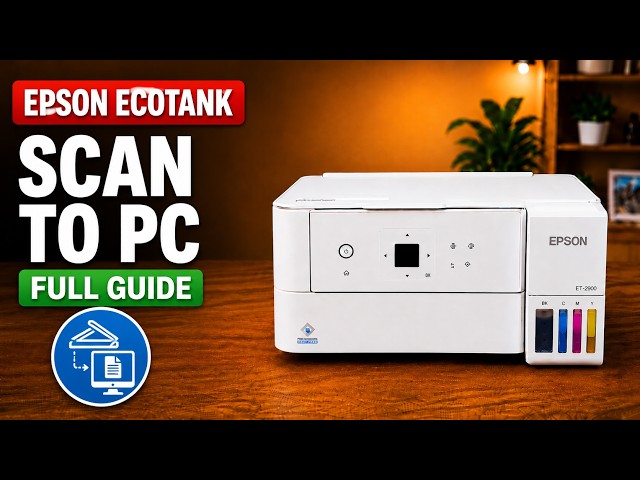
Print a small document to the selected USB printer and check the physical page. Then open Epson Scan 2, choose the scanner, place a document face down at the scanner-glass corner mark and preview it. Select a destination and file format, scan, and open the saved file.
The source reaches an ET-2950-series entry in Epson Scan 2 but reports that the application is not responding. That is not a successful scan demonstration. Use the checks here to establish the actual result on your computer; seeing the model name is only detection.
Step 5:If the device does not respond
Check that both cable ends are fully seated and the printer is on with no blocking LCD error. Connect directly rather than through a hub; try another appropriate port or cable if necessary. Confirm that the Epson software matches the model and Windows version.
If printing works but scanning fails, check the scanner selected in Epson Scan 2 and use the linked scanner-error guide. A Wi-Fi or full factory reset is not a routine cure for a direct USB cable or application problem.
Questions & troubleshooting
Does the printer need Wi-Fi for this method?
No. This is a direct cable connection to Windows. The computer needs access to Epson’s download site for installation, while the USB cable carries the printer connection.
Can I disconnect the USB cable after setup?
Keep it connected while printing or scanning through this USB setup. Wireless operation needs a separately configured network connection.
Did the source demonstrate a completed scan?
No. It detected an ET-2950-series scanner entry but the app was not responding. Verify your own printed page and saved scan rather than treating that listing as proof.