Before you start
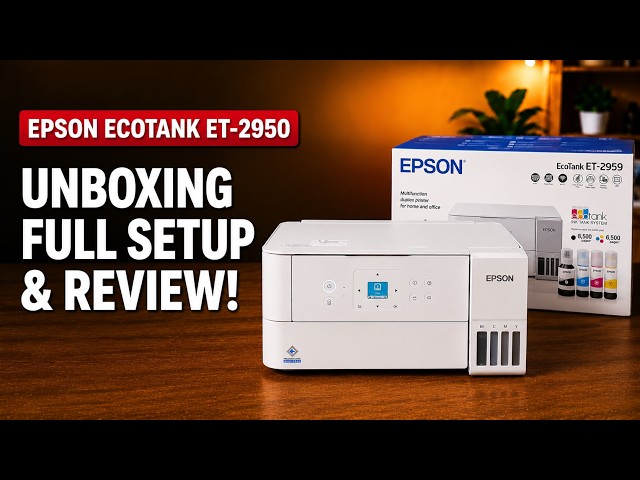
- An Epson EcoTank ET-2959, its supplied ink bottles and power cable. Verify any replacement bottle against this exact model and market.
- Plain paper for the initialization/alignment prompts; the recording uses A4.
- An iPhone with Epson Smart Panel, the home Wi-Fi name and current password, and a Windows computer for the desktop checks.
- Access to the printer’s own administrator password if requested; this is different from the router’s Wi-Fi password.
Complete ink setup before the first print
For the ET-2959 shown here, the sequence is Epson Smart Panel, all four ink tanks, initial ink charging, home Wi-Fi, paper and alignment, then Windows software and output checks. Do not skip charging or alignment merely because the app already detects the printer.
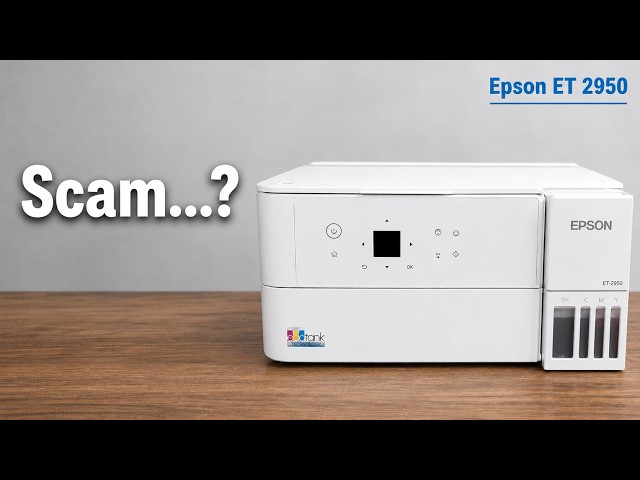
The source video is titled ET-2950, but its box and narration identify ET-2959. Epson’s ET-2959 support page links to the ET-2950-series setup instructions used to corroborate this guide. Follow the bottle and regional instructions for the exact model on your printer.
Step 1:Unpack and start Epson Smart Panel
- Remove the marked shipping protection, checking the accessible lids as directed by the supplied setup sheet. Connect power, turn on the printer and choose the language.
- Choose the mobile-device setup route when the printer asks. Scan the displayed setup QR code or open Epson Smart Panel, the app named in the recording.
- Choose Set up a new product and continue. Allow the discovery permissions requested for this setup, including the local-network and Bluetooth prompts shown on the iPhone.
- Select the printer matching your unit and confirm it. Wait for the app’s ink-setup instructions before proceeding.
Step 2:Fill every matching tank to its upper line
- Open the ink tank cover and the cap for the colour you are filling. Match the exact bottle type and its colour to the printer and tank label.
- Hold the bottle upright while removing its cap, then place it vertically into the matching inlet without squeezing it.
- Watch the level. Epson says flow stops at the upper line; do not try to force the rest of a bottle into a full tank. Remove the bottle carefully when filling finishes.
- Close that tank cap securely and repeat for the remaining colours. Check all required tanks are filled and all caps and the tank cover are closed before confirming in the app.
Step 3:Start and finish initial ink charging
Confirm the filled tanks and closed cover in Epson Smart Panel, then choose Start when requested for initial ink charging. Keep the printer powered on and allow the process to finish. The recording reports roughly eleven minutes; the completion message on your printer is the checkpoint, not a fixed stopwatch time.
Step 4:Enter the right password for each prompt
- Continue to Wi-Fi setup with the iPhone on the home network the printer should join.
- If asked for the printer administrator password, use the password belonging to this printer: its password label for an unchanged initial password, or the current password if it was changed.
- Confirm the intended wireless-network name. When the app asks for the Wi-Fi password, enter the router network’s current password, not the printer administrator password.
- Wait for network setup and initialization to report completion before moving on. Do not treat a weak-signal or communication message as a successful connection.
Step 5:Print, scan and finish the alignment sheet
Raise the rear paper support, open the guide enough for the sheets and load plain paper without forcing it. Bring the guide to the paper edge without squeezing it. Have the paper in place before you begin the printer’s alignment prompts.
- Acknowledge the initialization/alignment prompt with OK as requested. Use Start when the printer asks to print the alignment sheet, then wait for printing to finish.
- Place the printed sheet face down on the scanner glass, matching the sheet’s alignment mark with the position shown on your printer’s prompt. Close the lid.
- Press Start when asked to scan the alignment sheet. Leave the sheet in place while the adjustment is running.
- Wait for the adjustment-complete message and acknowledge it before removing the sheet.
Step 6:Add Windows on the same network
- Connect Windows to the same home Wi-Fi as the printer. Open Epson’s official Setup Navi link and select the exact ET-2959 model.
- Choose Setup, then Installation and connection settings, and download the model-specific software.
- Run the Epson installer, confirm that the printer is on and its ink setup is complete, and let the required software download.
- Select the printer discovered on the network and complete installation. Read optional additional-software and data-sharing choices separately from the required connection steps.
If no printer is listed, check the computer’s network before repeating ink or wireless initialization. The presenter specifically reports having to correct the computer’s network during this recorded setup.
Step 7:Check a printed page and a saved computer scan
- Open a small document or image in Windows and choose Print. Select the Epson printer, set the paper size/type to match the loaded sheets, send the job, and confirm the physical page reaches the output tray.
- Open Epson Scan 2. Place the original face down on the scanner glass against its alignment marks and close the lid. Use Preview if needed to check the captured area.
- Check the scan settings and destination selected in your Epson Scan 2 session, then use Scan. The presenter names Documents as the destination in this recording; your configured folder may differ.
- Open the resulting file from your selected destination and check that it contains the expected page. A preview alone does not prove that the final scan file was saved.
Questions & troubleshooting
Epson Smart Panel does not find the printer.
Check that the printer is on, that you selected Set up a new product, and that the discovery permissions shown by the app are allowed. Follow the exact-model setup help if it still is not found. The source’s broad recommendation to delete and reinstall the app is not treated as the first step or a guaranteed fix.
Which password goes in the app?
Read the prompt. The printer administrator password belongs to the printer; the Wi-Fi password belongs to your home network. Use the current value for that credential, not a password visible in someone else’s video.
The Windows installer cannot find my ET-2959.
First check that Windows is on the same home network the printer joined. The recording explicitly identifies this as a discovery problem during setup. Do not refill tanks or redo charging to solve network discovery.
Where is the scan I just made?
Check the destination selected in Epson Scan 2. Documents is the presenter’s stated destination, not a universal location. A Preview image is not proof that a final file was saved; complete Scan and open the file from the selected folder.
The phone shows a scanning communication error.
That failure appears in the recording and is not shown being resolved. Read the actual message and use Epson’s model-specific scan/connectivity help. A successful computer print does not establish that this phone scan completed.