Start with the supplied setup materials
This guide follows the ENVY 6132e setup recording and HP’s applicable 6100e instructions. Have the included cartridges, unused plain A4 or Letter paper and access to your own Wi-Fi network ready. The phone portion uses an iPhone; the later computer example uses Windows.
Use the supplied setup cartridges and your actual country or region. Cartridge numbers, account requirements and offers can vary. Do not copy a PIN, wireless name or region choice from the recording.
Step 1:Remove packing and turn the printer on
Remove the outer packaging and shipping tape. Open the indicated access areas and remove internal packing material, then close the covers. Keep the printer level on a stable surface.
Connect the supplied power cord and turn on the printer. Choose your language and actual country or region on the touchscreen. Follow the displayed setup sequence; the recording’s decision to select a different country is not a recommendation.
Step 2:Load plain paper
Pull out the bottom input tray and slide the paper guides apart. Add a small, neat stack of unused plain A4 or Letter paper with the printable side facing down without exceeding the tray limit.
Move the guides against the edges without bending the sheets. Close the tray and extend the output support. Confirm the actual paper size if prompted.
Step 3:Install the included cartridges
Open the cartridge access door and wait until the carriage stops. Remove each setup cartridge from its packaging and pull off its protective tape. Hold the plastic sides without touching the electrical contacts or ink nozzles.
Match the black and tri-color cartridges to the slot markings. Insert each cartridge and push it upward until it snaps securely into place, then close the access door gently. The number printed on the recording’s cartridges is not a universal replacement recommendation.
Step 4:Finish the alignment scan
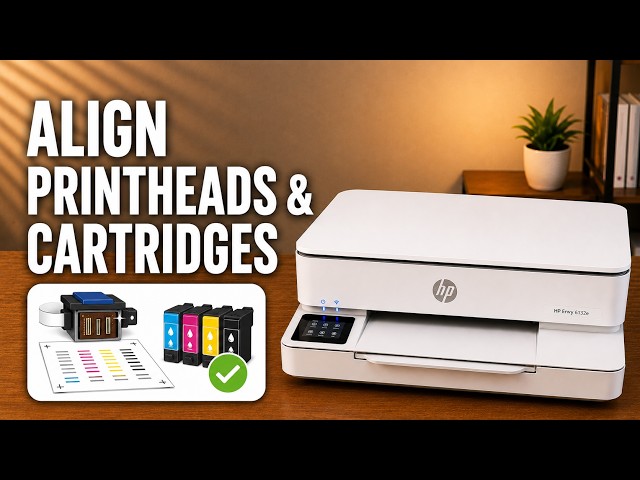
At the new-cartridge alignment prompt, choose Align to print the alignment sheet and wait for printing to finish. Put its printed side face down on the scanner glass at the marked top-left corner and close the scanner cover.
Choose Scan on the alignment prompt and wait for completion. Printing the sheet alone does not finish alignment. The dedicated alignment guide shows that final prompt and completion state.
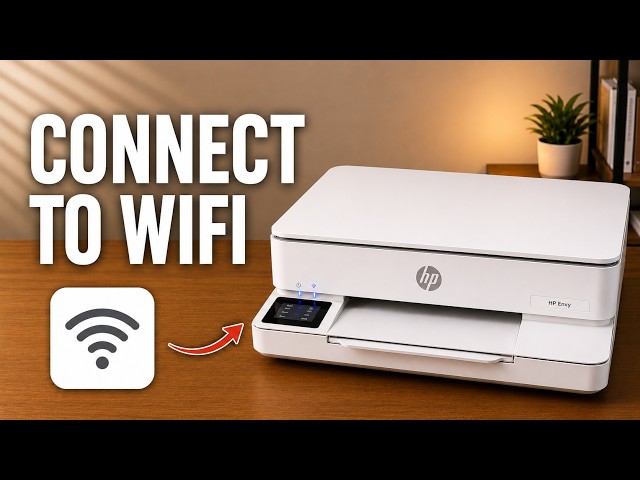
Step 5:Connect using the HP app
On the iPhone, install the official HP app from HP’s setup route or the App Store, checking the publisher. Start adding a new printer and select the ENVY being set up.
Follow the app’s network prompts. If it offers to share your phone’s Wi-Fi details, read and approve that request only for your own intended network. Confirm the Allow prompt at the printer when requested. Keep the phone nearby and wait for the connection process to finish.
A steady Wi-Fi light indicates a wireless connection, not proof of Internet access. Resolve an Internet unavailable message before completing services that require Internet access. If discovery fails, use the linked Wi-Fi guide rather than resetting a connection that already works.
Step 6:Read the account and service choices separately
Follow the HP account and setup requirements actually displayed for your printer. HP+ and Instant Ink are different: HP+ activation itself is free, while Instant Ink is an optional ink subscription. HP+ has account, Internet and Original HP cartridge requirements. Read the terms before activating a service.
Choose optional data-sharing preferences yourself. The recording’s blanket accept/skip advice and claims about paid HP+ do not replace the choices and conditions on your own screen. Do not interrupt an installing firmware update because setup appears slow.
Step 7:Add the connected printer on your computer
For the Windows example, install the official HP app from Microsoft Store, choose to add an existing printer and select this ENVY on the same network. If a printer PIN is requested, use the label on your own device and keep it private.
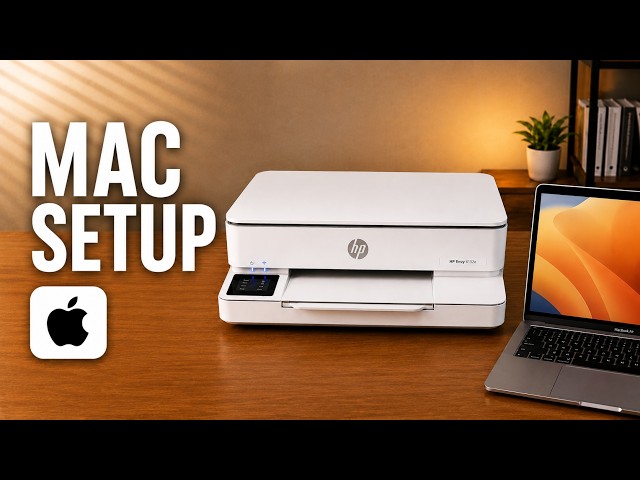
Complete the displayed requirements and check that the intended printer appears in the app. For a Mac, use the separate Mac connection and scanning guide; the recording does not demonstrate identical steps on every operating system.
Step 8:Confirm setup with your own print
Open a short document, select this printer and send one page. Check that the physical page is complete and correctly oriented. The recording skips its optional test print, so the article does not claim that it demonstrates that final check.
If setup reports an unresolved error, keep its exact wording and use the matching guide. Seeing the printer in a list is useful, but it does not prove that every print or scan function has been tested.