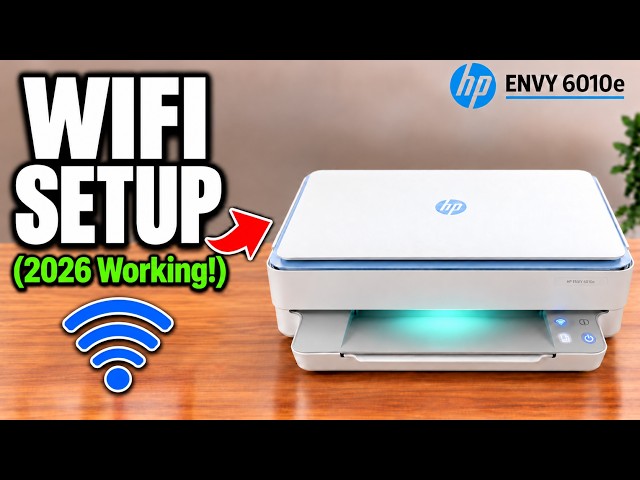
Before you start
- Paper for the information sheet.
- A phone or computer with Wi-Fi.
Connect directly to the printer
Wi-Fi Direct lets a phone or computer join the printer’s own wireless network without connecting the printer to your home router. Use the printer’s direct-network password, rather than your home Wi-Fi password.
Step 1:Print the Wi-Fi Direct information sheet
With paper ready in the printer, hold the Information button, marked with an i, for three seconds. The control buttons light up. Press Cancel and Information together to print the Wi-Fi Direct information sheet.
Find the Wi-Fi Direct network name and password in the section headed iOS, macOS and Microsoft Windows. Keep the sheet beside you; your own printer’s details are the ones to use.
Step 2:Enable Wi-Fi Direct
Hold Information for three seconds again. Then press Information, Cancel and Resume together. These are the white i, red Cancel and green Resume controls shown on the lit panel.
Step 3:Join the printer network on your device
Open your phone’s Wi-Fi settings and select the DIRECT network that matches the name on your information sheet. Enter its printed password when asked. The printer network appears among the ordinary Wi-Fi choices.
Once your device shows it is connected, choose the printer in your printing app or print menu. This walkthrough establishes the direct connection; it does not require the printer to join your home router.