Browse by task

Wi-Fi & connectivity

Browse help with connecting your printer and staying connected.

104 guides

Browse printers
HP DeskJet 2600 series

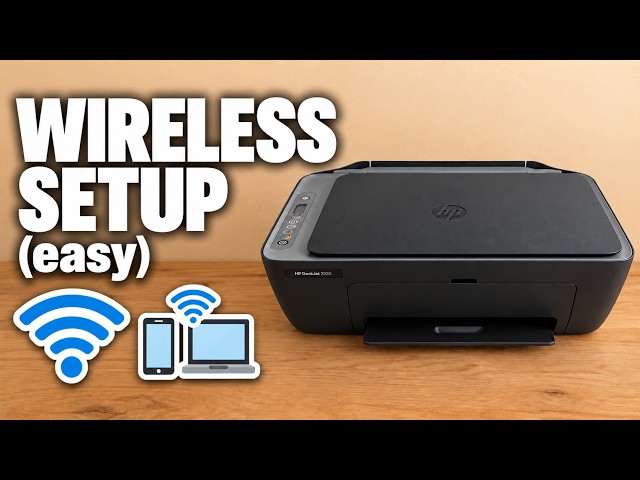
Reconnect an HP DeskJet 2600 to Wi-Fi

Reconnect a DeskJet 2600 after a router, Wi-Fi name or password change. Try HP app setup, use the demonstrated recovery if discovery fails, then check the printer from home Wi-Fi.

Wi-Fi & connectivityRead & watch
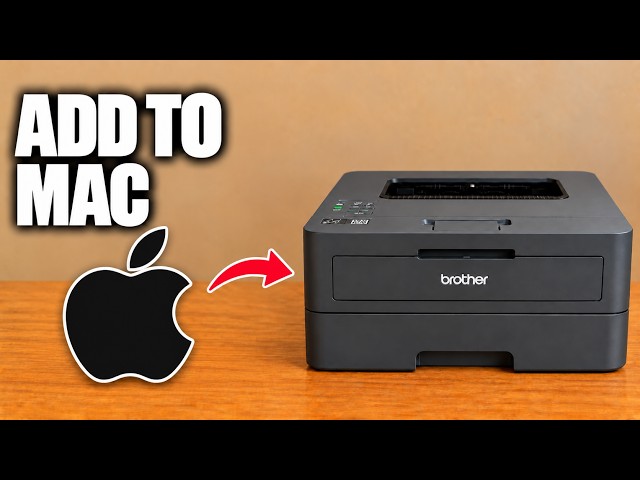
Brother HL-L2445DW

Add Brother HL-L2445DW to a Mac

Add the networked HL-L2445DW in macOS Printers & Scanners, then select it for a small print check.

Wi-Fi & connectivityRead & watch
Brother HL-L2445DW

Reset network settings on Brother HL-L2445DW

Restore the HL-L2445DW’s network configuration when you need to set it up again, with the connection and password consequences clear before you confirm.

Wi-Fi & connectivityRead & watch
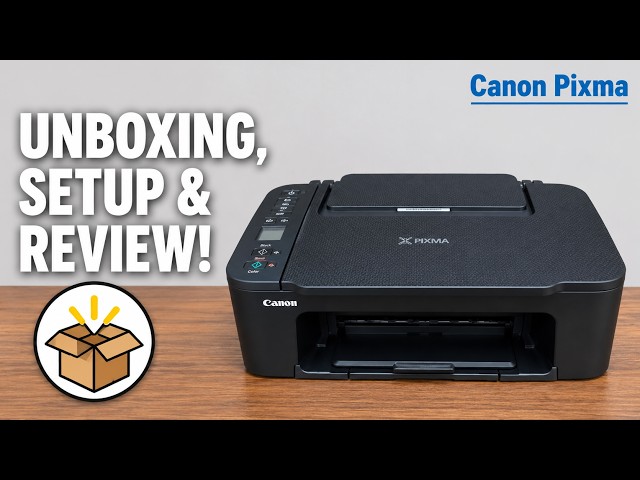
Canon PIXMA MG3620

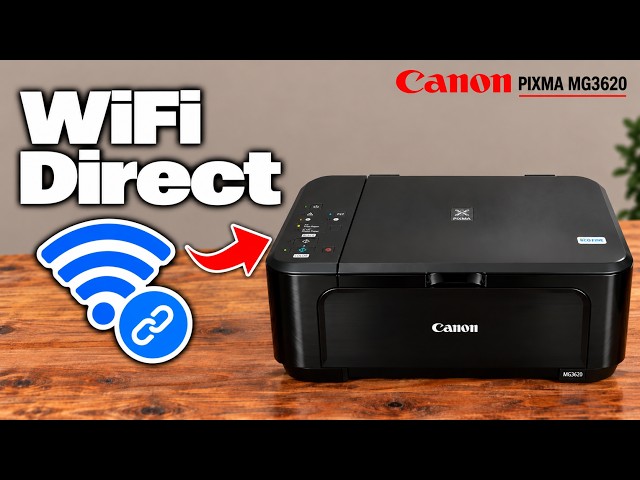
Use direct Wi-Fi on Canon PIXMA MG3620 and MG3650

Enable the printer’s access point, join its own network with the current access-point password and print locally. This replaces the router connection; it does not provide internet access.

Wi-Fi & connectivityRead & watch
Canon PIXMA MG3620

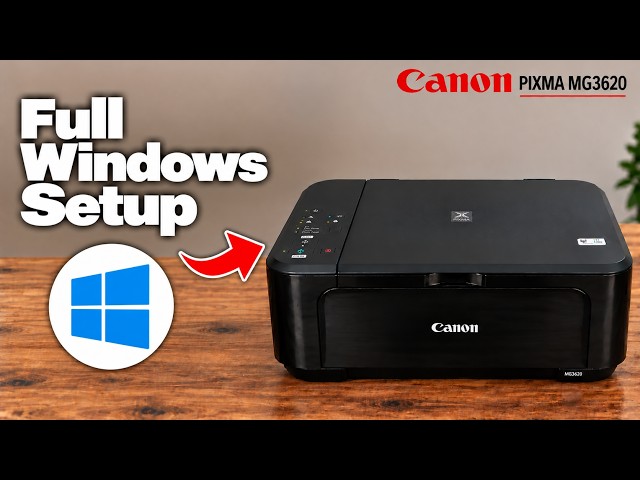
Set up Canon PIXMA MG3620 or MG3650 on Windows

Use Canon’s exact-model setup software, select wireless LAN and complete driver installation before checking a print and a saved scan. The phone route is one option, not a Windows requirement.

Getting startedRead & watch
Canon PIXMA TR4755i

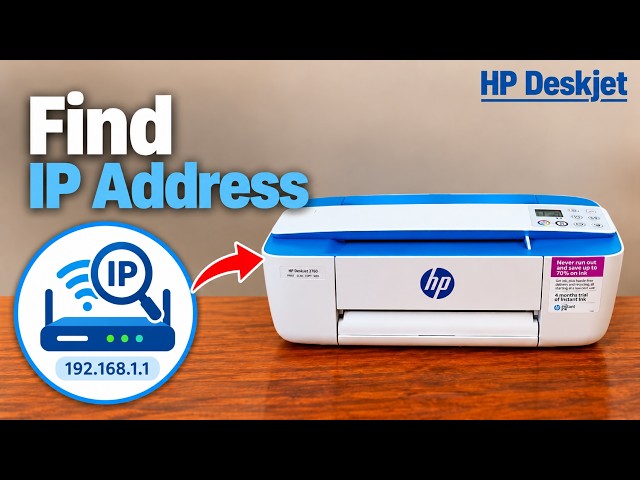
Find the IP address of Canon TR4755i and TR4720

Print LAN details from the LCD, then read the IP Address entry for the connection you are using. The router connection and Wireless Direct have separate report sections.

Wi-Fi & connectivityRead & watch
Canon PIXMA TR4755i

Reset network settings on Canon TR4755i and TR4720

Choose LAN settings inside Reset setting to clear the printer’s network configuration. Network printing, scanning and faxing stop until you set up the intended connection again.

Wi-Fi & connectivityRead & watch
Canon PIXMA TR4755i

Set up Canon TR4755i or TR4720 with USB on Windows

Connect the printer’s rear USB port to your computer, run Canon’s exact-model installer and choose USB Connection. Complete the driver installation and verify a test print.

Getting startedRead & watch
Canon PIXMA TS3750i

Connect a Canon PIXMA TS3750i to Wi-Fi from Windows

Use Canon PRINT on Windows to discover the printer, transfer network settings and finish driver installation. Confirm the selected printer and test communication after setup.

Wi-Fi & connectivityRead & watch
Epson EcoTank ET-2400

Reconnect Epson ET-2400 / ET-2860 to Wi-Fi

Reset the old connection, restore pairing mode and reconnect through Epson Smart Panel, keeping the printer password separate from the router password.

Wi-Fi & connectivityRead & watch
Epson EcoTank ET-2856

Connect an Epson ET-2856 or ET-2850 to Wi-Fi

Use the printer’s Wi-Fi Setup Wizard with your router’s current password, or add it through Epson Smart Panel. Check the connection before sending a job from your phone or computer.

Wi-Fi & connectivityRead & watch
Epson EcoTank ET-2856

Reset network settings on an Epson ET-2856 or ET-2850

Use Restore Default Settings → Network Settings to clear the printer’s network configuration, then set up the intended connection again. Keep the broader full-reset option separate.

Wi-Fi & connectivityRead & watch
Epson EcoTank ET-2856

Set up an Epson ET-2856 or ET-2850 with USB on Windows

Enable PC Connection via USB if needed, install the exact model’s Epson software and choose the USB connection. Keep the data cable connected when printing or scanning through that entry.

Getting startedRead & watch
Epson EcoTank ET-2856

Troubleshoot Wi-Fi on an Epson ET-2856 or ET-2850

Use the network connection report to identify the failed connection, then check the current network name, password, signal and device access. Avoid changing unrelated settings on a guess.

TroubleshootingRead & watch
Epson EcoTank ET-2856

Set up an Epson ET-2856 or ET-2850 on Windows over Wi-Fi

With the printer and Windows computer on the intended network, add the printer and install the exact model’s Epson software if you need its scanning and maintenance controls. Verify the setup with a test page.

Getting startedRead & watch
Epson EcoTank ET-2950

Find the administrator password on Epson ET-2950

For a printer administration prompt, check the product’s PASSWORD label; if that label is absent, Epson lists the serial number as the default. This is separate from the router’s Wi-Fi password and the Wi-Fi Direct connection password.

Getting startedRead & watch
Epson EcoTank ET-2950

Connect an Epson ET-2950 or ET-2959 to Wi-Fi

Choose your router’s exact network in Wi-Fi Setup Wizard, or use Epson Smart Panel on your phone. Complete setup and check a print from the same network.

Wi-Fi & connectivityRead & watch
Epson EcoTank ET-2950

Epson ET-2950 connected but not printing on Windows

Check the LCD error, correct network and selected print queue before reinstalling anything. A connected status does not prove that the current job reached the right printer.

TroubleshootingRead & watch
Epson EcoTank ET-2950

Connect Epson ET-2950 to Windows with a USB cable

Use a direct USB connection and Epson’s exact-model Windows software, then verify a printed page and saved scan. Keep the cable connected whenever you use this USB setup.

Getting startedRead & watch
Epson Expression Home XP-2205

Find the Epson XP-2205 administrator password

Find the printer’s own default administrator password, understand when the serial number applies, and keep it separate from Wi-Fi passwords.

Getting startedRead & watch
Epson Expression Home XP-2205

Set up Epson XP-2205 on a Mac over Wi-Fi

Install the available Epson software for your macOS version, allow local discovery and add the XP-2205 with its matching printer driver.

Getting startedRead & watch
HP DeskJet 2600 series

Use Wi-Fi Direct on an HP DeskJet 2600

Connect an iPhone directly to a DeskJet 2600 for local printing, using the printer’s own network details without clearing its home Wi-Fi settings.

Wi-Fi & connectivityRead & watch
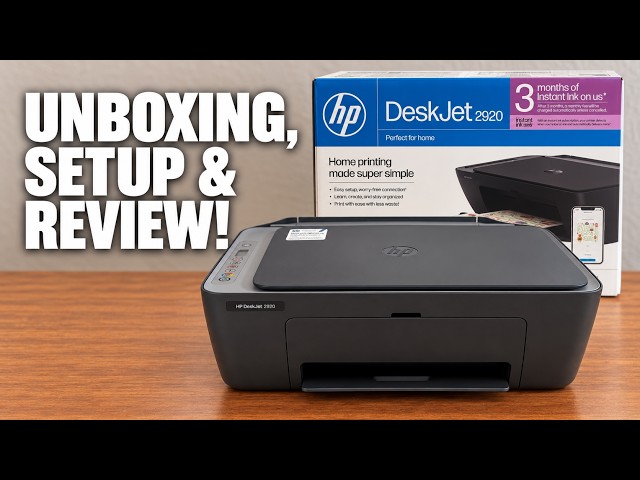
HP DeskJet 2920

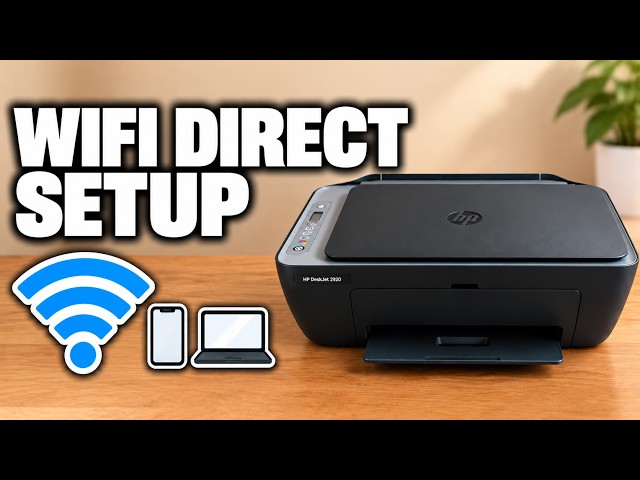
Use Wi-Fi Direct on an HP DeskJet 2920

Enable the DeskJet 2920’s Direct network, print its connection details and connect an iPhone without resetting an existing home-network connection.

Wi-Fi & connectivityRead & watch
HP DeskJet 3755

Reset the Wi-Fi settings on an HP DeskJet 3755

Clear the saved wireless configuration with the documented Wireless and Cancel controls, then run setup again. This is not a full factory reset or a repair for ink and paper faults.

Wi-Fi & connectivityRead & watch
HP ENVY 6100 series

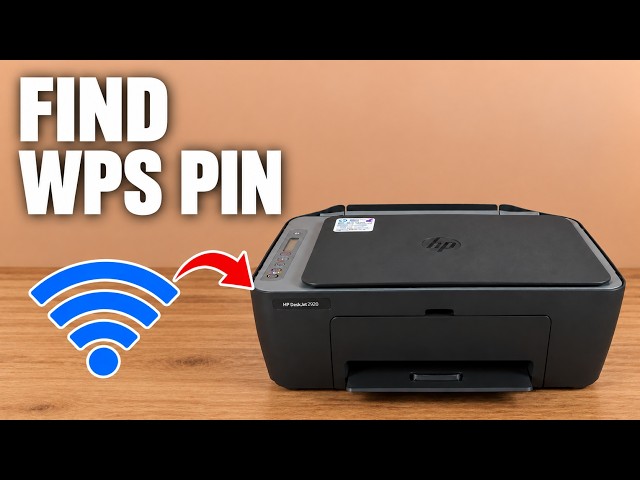
Find the admin PIN on an HP ENVY 6100e

Locate the ENVY 6100e’s default printer PIN and distinguish it from the router password and Wi-Fi Direct credentials.

Wi-Fi & connectivityRead & watch
HP ENVY 6100 series

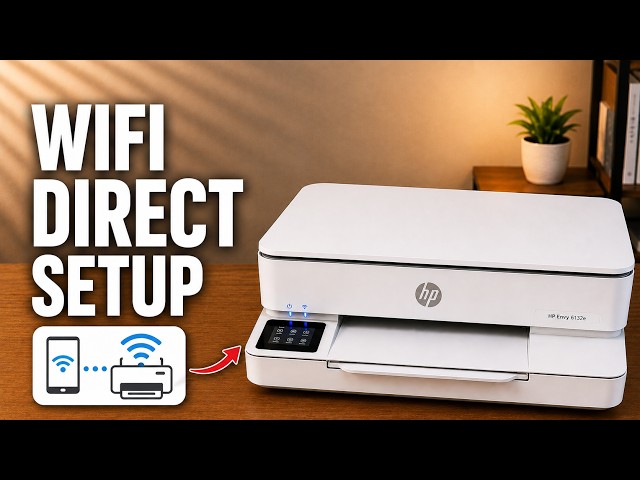
Use Wi-Fi Direct on an HP ENVY 6100e

Connect an iPhone directly to the ENVY 6100e’s own wireless network, find its password and return to normal Wi-Fi afterward.

Wi-Fi & connectivityRead & watch