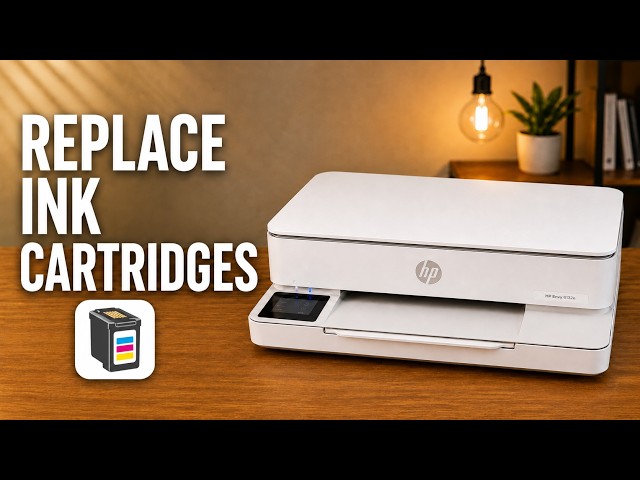
HP ENVY 6120e
HP ENVY 6120e: replace ink and check estimated levels
Remove and seat the cartridges in an HP ENVY 6120e, check estimated ink levels, and know when alignment is expected after fitting a new cartridge.
Ink & tonerWatch video
Find model-specific help with printer ink and toner.
Remove and seat the cartridges in an HP ENVY 6120e, check estimated ink levels, and know when alignment is expected after fitting a new cartridge.
Find the black toner supply indicator in Brother Mobile Connect, or check estimated toner and drum life on the printer’s LCD.
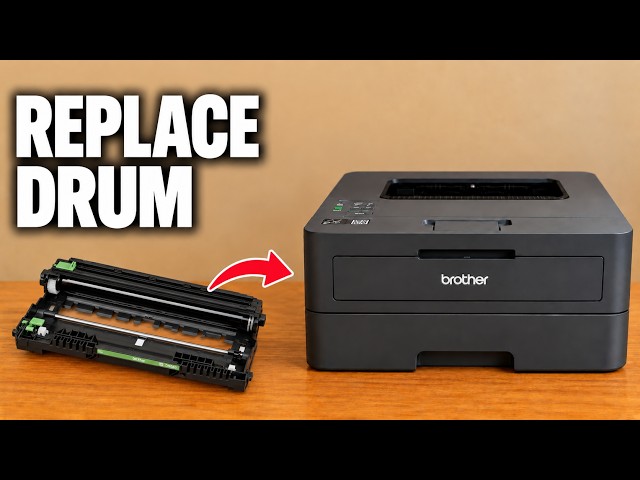
Move the toner cartridge into a new drum, reinstall the assembly and reset the drum counter. Reset the counter only when a new drum has been fitted.
Fit the toner into its separate drum unit, clean the corona wire and refit the assembly. Initial installation and replacement have different starting points.
Print a nozzle check, run regular Cleaning for missing lines and use Deep Cleaning only when the pattern is not improving.
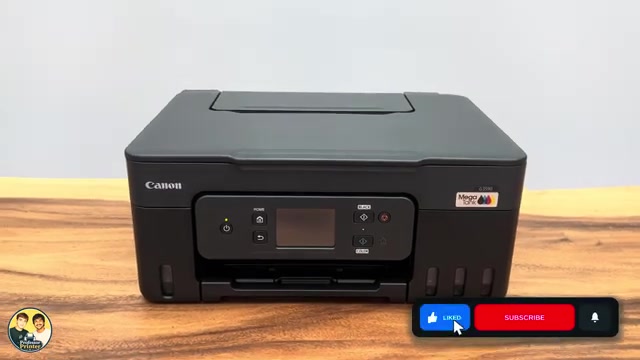
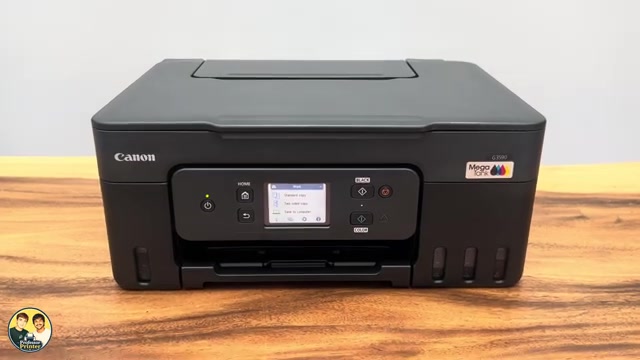
Refill the Canon PIXMA G3590 with the correct ink colours up to the upper limit line, close the tanks and reset the level count only when the required tanks are full.
Use the G3590 Head Replacement menu, check ink and maintenance capacity, fit the colour and black heads in their correct holders, then check the output.
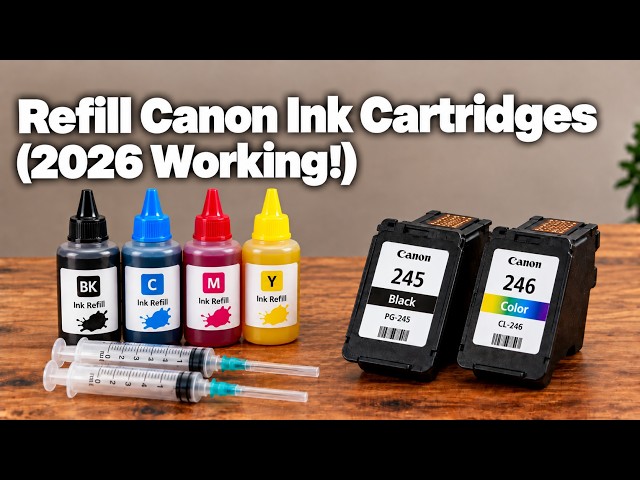
Refill the PG-540 black cartridge and the colour cartridge shown in Professor Printer’s video, using separate syringes, the demonstrated ports and slow injection.
Read the black and colour cartridge estimates in Canon PRINT, a browser or the Canon Windows driver. Used or refilled cartridges can report unreliable levels; an error needs its actual support code.