Check your printer’s own supply label
Open the front door and locate the supply label. Compare the black and cyan, magenta and yellow bottle numbers with the ink you intend to use. HP also provides supplies lookup by printer and country/region.
The video’s 31 and 32XL examples belong to its demonstrated regional supplies. Do not assume those numbers apply to every country or every Smart Tank. A matching-looking bottle or an unverified shopping listing does not establish compatibility.
Step 1:Prepare a low tank and the matching bottle
Keep the printer upright on a level surface. Open the cap of the tank that needs ink, and match its colour with the bottle. Open bottles only when you are ready to fill; keep ink away from children and never put it in your mouth.
HP documents two bottle closures. For a coloured twist-cap, open that cap. For a white flip-cap on a new bottle, first unscrew the cap, remove its seal, replace and tighten the cap, then flip open the top. Follow the closure actually supplied with your bottle.
Step 2:Seat the bottle on the matching tank
Turn the opened bottle upside down over the matching tank inlet and seat it until it clicks into position. Let the ink flow without squeezing the bottle. If it does not drain immediately, HP says to remove it and reinsert it correctly rather than forcing or squeezing it.
Watch the tank while filling and follow the bottle and printer’s fill indication. Do not add ink to an already full tank or try to force the entire bottle into it. The source demonstrates topping up only part of a bottle; it does not establish an exact refill quantity for another printer.
Step 3:Remove the bottle and close the tank
Lift the bottle away carefully, return it upright and secure its cap. Close the tank cap firmly. Repeat only for the other tanks that need ink, matching each colour before attaching a bottle.
Close the front door. Store remaining ink upright with its cap secured in a cool, dark place. Check that the caps are closed and the tank levels are visible before printing again.
If the ink does not match
Stop before adding it. If incorrect ink has already entered a tank, contact HP for the exact recovery procedure. Do not invert a filled printer or improvise a draining container: HP’s handling instructions require keeping the printer horizontal to avoid leaks and damage.
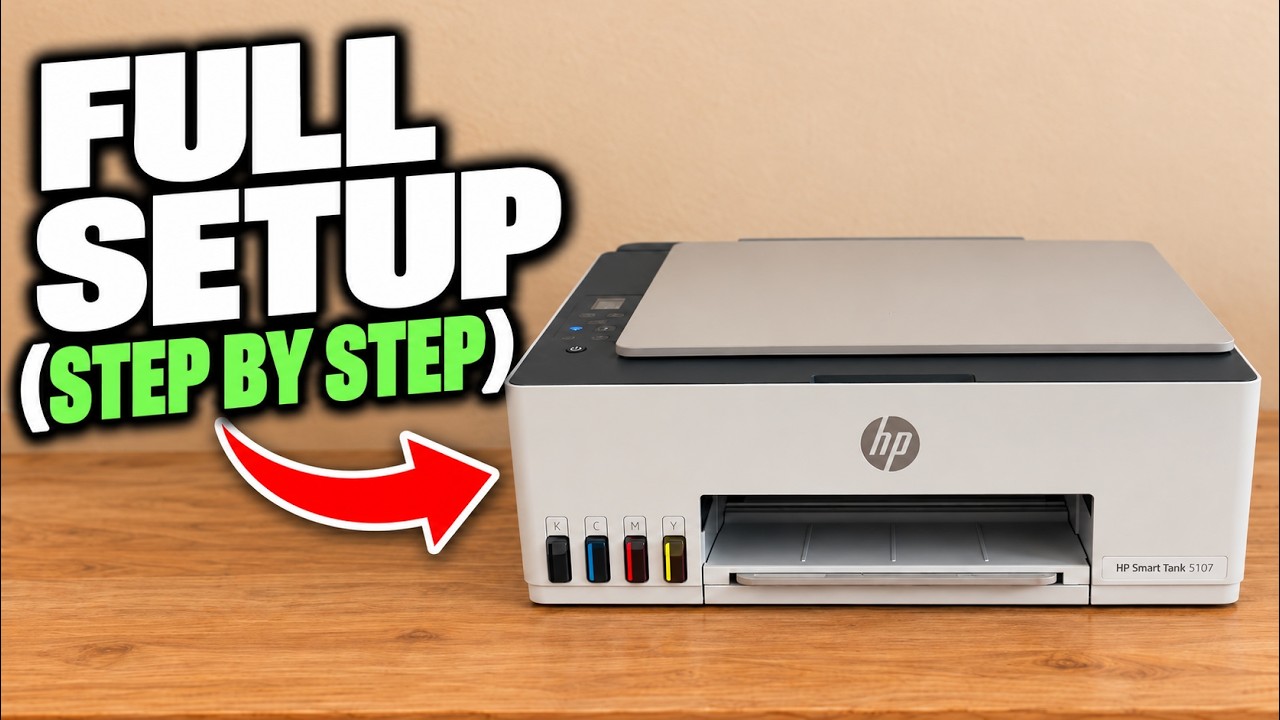
This refill procedure does not replace initial printhead installation and alignment on a new printer. Complete the separate first-setup workflow if this is its first fill.