Before you start
- Replacement cartridges confirmed for your exact printer and region.
- Plain white paper loaded for the alignment page.
Confirm the replacement before opening it
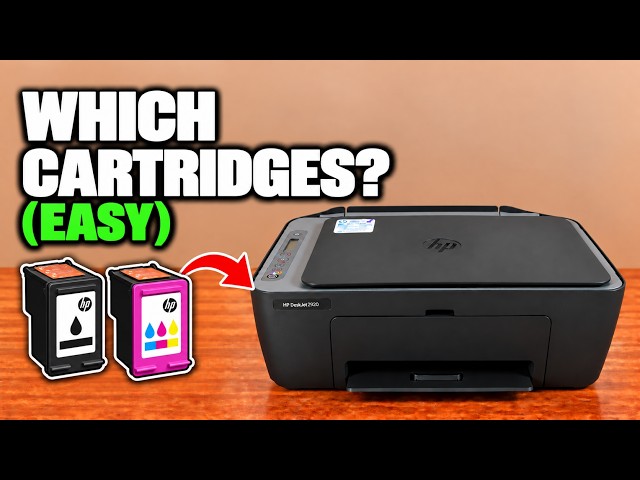
Read the cartridge-installation label inside your own printer, or check HP’s exact model and region supply information. The source unit uses 308; a cartridge that looks similar or fits physically is not enough to establish compatibility. Keep the new cartridge sealed until you are ready to install it.
Step 1:Open access with the printer on
Turn the printer on. Open the front output door, then the inner cartridge access door. Wait for the carriage to move into reach and stop completely before putting your hand inside. Do not force it out of its parked position.
Step 2:Release the cartridge you are replacing
Press down gently on the cartridge to release it, then pull it toward you. Hold its plastic sides. You only need to remove the cartridge that needs replacing; keep the other correctly installed cartridge in place.
Step 3:Remove the protective tape
Unpack the correct replacement and remove its shipping tape using the pull tab. Leave the printed circuit attached. Avoid touching the copper-coloured contacts or ink nozzles, and do not put the protective tape back on.
Step 4:Fit colour on the left and black on the right
Check the position markings inside the printer. Slide the cartridge into the matching slot at a slight upward angle, then push it up into place until it clicks. It should be securely seated. Repeat for the other cartridge only if you are replacing it too, then close the access door.
Step 5:Complete the new-cartridge alignment
When a new-cartridge alignment page prints, place it print-side down on the scanner glass according to the page’s diagram and the glass position mark, then close the scanner lid. HP’s 2900 manual specifies pressing Black Copy to scan this automatic alignment page. Wait for the alignment scan to finish; this routine should not produce an ordinary extra copy.
This is the automatic alignment after installing new ink. If you started alignment from the HP app instead, finish using the app’s Scan alignment page prompt. The separate alignment recording shows why pressing Copy during that app workflow can simply make a copy.
Check the printer’s ready state
Confirm that the alignment or cartridge error has cleared, then print a small document and inspect the actual output. A displayed ink estimate is useful information but is not a guarantee of print quality. If E0 or a blinking cartridge icon remains, read the app message and check the indicated cartridge’s seating and compatibility before repeatedly reinstalling it.