Before you start
- A powered HP DeskJet 2600 series printer.
- The replacement cartridge specified for your exact regional model, if replacement is needed.
- Plain paper if the printer requests an alignment page after new ink.
Confirm the cartridge for your printer
Check the supply number on your exact printer and in HP’s regional cartridge information before opening a replacement. A cartridge that physically fits is not necessarily compatible. Replace the cartridge that needs it; the demonstration removes both only to show the process.
Step 1:Open the front cartridge area
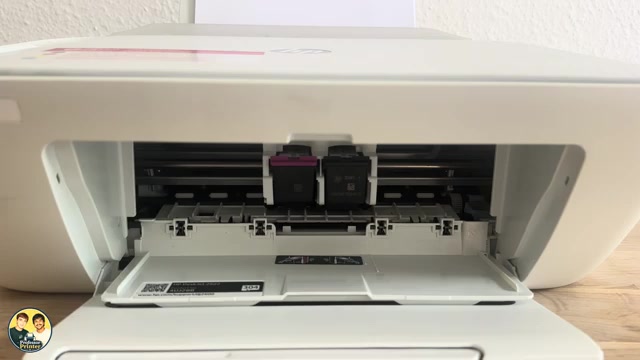
Leave the printer on. Lower the front output/access panel, then open the inner cartridge-access door. Wait until the carriage moves into reach and stops before touching a cartridge.
Step 2:Release the cartridge and slide it out
Press the top of the cartridge downward gently to release it, then pull it toward you out of the slot. Do not pull on the carriage itself or force the holder. Handle the cartridge by its plastic body.
Step 3:Prepare the correct new cartridge
Unpack the replacement and remove its protective tape using the pull tab. Avoid touching the electrical contacts and ink nozzles. Remove the designated tape only; do not peel away parts of the cartridge body or reapply the tape.
The original recordings refit existing cartridges; the additional installation demonstration also unpacks new cartridges and removes shipping tape. Its spoken 301 number is not a verified recommendation for your printer. Use your own label and HP’s regional supply chart.
Step 4:Seat it in the labelled slot
Keep the label facing upward and match the cartridge to the slot markings: colour is on the left and black on the right in these recordings. Slide it into the slot and press it into place until it clicks securely. Repeat only for another cartridge that needs replacing.
Step 5:Close and complete any requested alignment
Close the cartridge-access door and allow the printer to recognise the cartridges. HP’s 2600 instructions say an alignment sheet prints after installing new ink. The recordings do not demonstrate every new-cartridge alignment prompt, so complete the manufacturer-documented scan below when that page appears.
To finish alignment when that sheet prints, place it printed-side down on the scanner glass according to the engraved placement guides, then close the lid. Press Start Copy Black or Start Copy Color. The printer scans the sheet to align the cartridges; wait for it to finish before removing the sheet.
Questions & troubleshooting
The replacement fits but is not recognized.
Recheck the supply number for the exact model and region, the matching slot and whether protective tape remains. Follow the specific printer message and HP’s cartridge guidance if the error persists.
Do I need to replace both cartridges?
Replace the cartridge that needs replacement. Removing both in a demonstration is not a requirement to buy a pair.
The carriage does not move into reach.
Check that the printer is on and that the inner cartridge-access door is open. Let it stop on its own. Do not drag the carriage into position.