Before you start
- Have the correct replacement for the exact printer and its market. Read your printer’s installation label and HP’s current regional supplies table before buying.
- Load plain paper in the rear tray and extend the output tray for any automatic alignment page. Leave the printer powered on for cartridge access.
Step 1:Check the supply number before opening a new pack
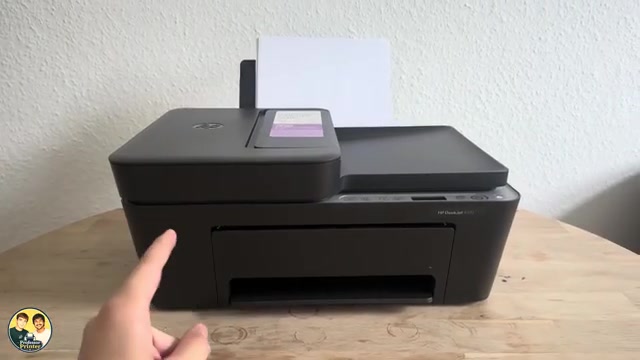
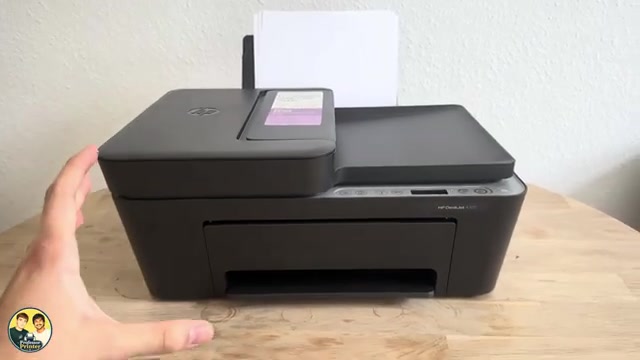
Open the front door and inner cartridge-access door, then read the cartridge installation label. You can identify the listed supply number without removing a working cartridge. The HP app’s Supported Supplies or Supply Status also identifies supplies.
The source unit uses 308-labelled cartridges. HP’s current 4300 table lists 68 for North America/Greater Asia Pacific, 308 or 308e for its EMEA DM grouping, and different numbers for other market groups. Check your actual unit and region; physical fit alone does not confirm compatibility. The source’s guess of “64 or 68” is not a buying instruction.
Step 2:Wait for the carriage, then release the required cartridge
With the printer turned on, open the front and cartridge-access doors. Wait until the carriage reaches the centre and becomes still and quiet. Do not pull the carriage into position. Press the cartridge downward to release it, then draw it toward you out of the slot. Handle it by the sides.
Replace only the cartridge that needs replacing; the recordings remove and reinstall both existing cartridges to demonstrate the motion. Keep cartridges outside the printer for as little time as possible.
Step 3:Remove shipping tape and seat the replacement
- Take the new cartridge from its packaging and remove the protective nozzle tape by its pull tab. Do not peel off the attached circuit or touch the electrical contacts or nozzles. Do not reapply the tape.
- Use the installation diagram: tri-colour goes on the left and black on the right. Slide the cartridge into its slot at a slight upward angle, then push up until it clicks into place.
- Check that it is fully seated, repeat only if another cartridge needs replacing, and close the cartridge-access door. Keep the output tray open for printing.
Step 4:Complete the new-cartridge alignment when prompted
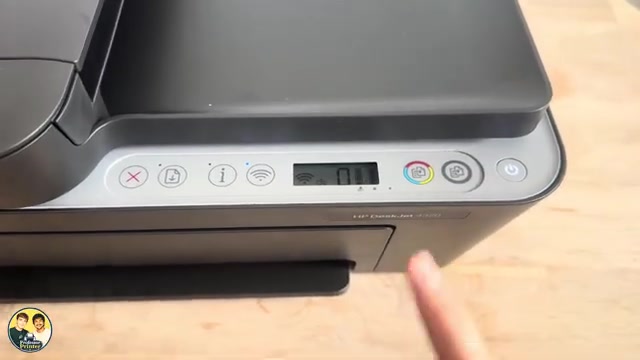
If the printer prints an alignment page, follow that page’s instructions. For the automatic new-cartridge alignment described in HP’s manual, put the printed page face down against the scanner-glass guides, close the lid, then press Black Copy to scan it. Wait until the blinking A or processing animation returns to the ready state. This alignment scan does not print another copy.
The videos reinstall existing cartridges and do not demonstrate a new-cartridge alignment cycle. The complete alignment step above comes from HP’s applicable manual; do not confuse it with a separately initiated app alignment workflow.
Step 5:Check the status and a printed sample
After alignment or normal initialisation, check that the relevant cartridge error has cleared and print a small sample. Ink-level bars are estimates, not proof of a perfect installation or exact remaining quantity. If E0 or a flashing cartridge icon remains, follow the specific cartridge-error guide rather than forcing the carriage or resetting Wi-Fi.
Questions & troubleshooting
Must I change both cartridges together?
No. Replace the cartridge that needs replacing. Both recordings remove both existing cartridges for demonstration; this does not make paired replacement mandatory.
Can I use the number mentioned in the video for another region?
Check your exact printer label and HP’s regional table. The article does not turn the presenter’s overseas guesses into compatibility claims.
Why did no alignment page print after reseating?
The source reseats used cartridges. New-cartridge alignment is conditional on the printer’s prompt; follow any page or app instructions actually shown.
Does blinking A mean the cartridge is defective?
A blinking A after an alignment page is an alignment prompt. Complete the prescribed scan and wait for the printer to return to ready.
References
- Professor Printer: source demonstration
- HP: exact 4300 replacement sequence
- HP: current regional cartridge table, including 4320 and 4355
- HP: supplies, removal/insertion and automatic alignment, printed pages 27–29 and 36
- HP: exact DeskJet 4320 specifications
- HP: exact DeskJet 4355 specifications
- Professor Printer: supporting source
- Professor Printer: supporting source