Before you start
- Ink bottles specified for your exact printer and region, with each colour matched to the tank label. Do not choose a bottle solely from a similar model’s video title.
- Keep the printer upright and level. Protect the surrounding surface from ink and keep the bottles out of children’s reach.
Step 1:Open the cover and the correct tank
Canon specifies that the printer should be on. Open the scanning unit/cover, then carefully open the cap of the tank you intend to refill. Match the colour printed on the tank to the bottle; the black tank is separate from the yellow, magenta and cyan group.
Do not touch the tubes or other internal parts. The source calls the bottles cartridges at one point, but this procedure fills tanks from bottles and does not replace a cartridge.
Step 2:Insert the bottle and fill to the upper line
Hold the bottle upright while gently removing its cap. Do not shake or squeeze it. Align its tip with the matching tank inlet, slowly turn it upside down and insert it. Support the bottle by hand while ink flows.
Watch the tank’s marked level. Canon instructs filling to the upper limit line and removing the bottle when the ink reaches that line. Do not continue adding ink above it. If ink does not flow, slowly remove and reinsert the bottle as Canon directs; do not force or squeeze it.
Step 3:Close the tank and bottle securely
Lift the bottle slightly and remove it while slowly tilting it. Secure its cap and store it upright. Close the tank cap fully. Repeat only for other tanks that need refilling, using the corresponding colour.
Do not leave bottles standing in the printer. To close the scanning unit/cover, lift it slightly and lower it gently. Ink can stain surfaces; the source’s no-spill wording is not a guarantee.
Step 4:Reset the count only after the required refill
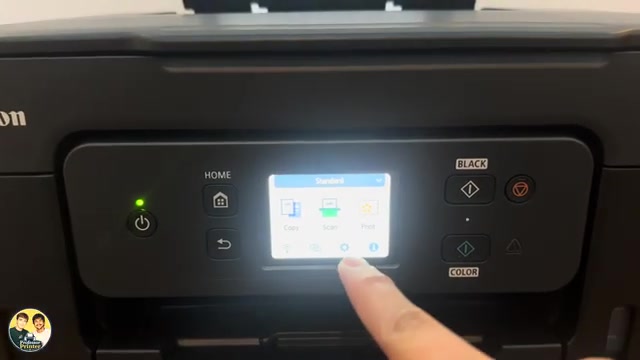
If remaining-ink notifications are enabled, Canon requires resetting the remaining-ink count after refilling the tanks to their upper limit lines. Open HOME → Setup → Printer settings → Other printer settings → Ink level monitor → Reset ink level count and follow the printer’s confirmation.
If notifications are disabled, keep checking the tanks visually and refill as needed. After closing everything, confirm that any refill message has cleared and that the actual levels are within the marked range.
Questions & troubleshooting
Can I squeeze the bottle to make it fill faster?
No. The source explicitly warns against squeezing, and Canon describes controlled filling by inserting and supporting the bottle. If ink is not flowing, slowly remove and reinsert it.
I only added a little ink. Should I reset the counter?
Do not reset a tank’s count as full when it is not full. Canon requires refilling to the upper limit line before the corresponding count reset.
Does a full tank guarantee good print quality?
No. If output stays faint or streaked despite sufficient ink, Canon directs you to its maintenance procedure. Repeatedly topping up is not the same as checking the nozzles.