Step 1:Read the printer display
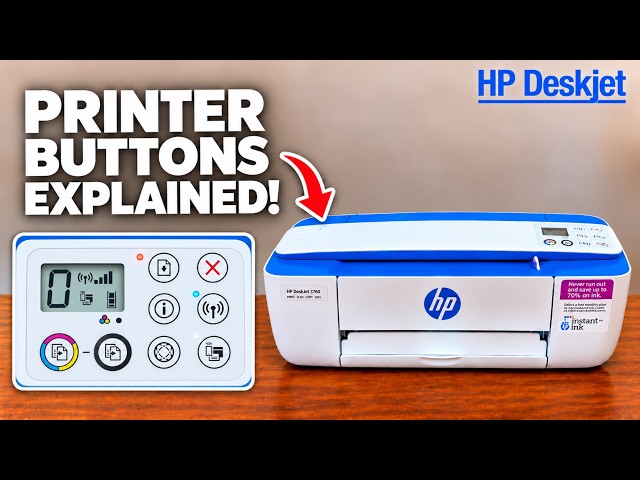
Turn the printer on and look at the two ink icons on its display. The left icon represents tri-colour; the right represents black. The remaining segments provide a quick estimate without connecting a phone.
Step 2:Open the supply estimate in the HP app
If this printer is already added to the official HP app, select it and open its supply-level display. In the recording, the estimates appear on the device screen; tapping them opens the estimated-supplies detail. Menu placement can vary with the app version.
Step 3:Optional: use the printer’s own settings page
The source also opens Printer settings → Advanced settings, then Tools → Product information → Cartridge level gauge in the printer’s web interface. Use this as an alternative view when that interface is available, not as a more accurate measurement.
Use the readings to plan, not to count pages
HP describes these values as estimates. The video’s claim that one display is more accurate than another is not established. A low reading is a reason to have a replacement available; it does not by itself require immediate replacement while print quality remains acceptable.
What you should see
Separate estimated levels for black and tri-colour, or an unavailable reading that should be interpreted with the cartridge’s history. The half-full reading in the source is that printer’s example, not a target for yours.