Before you start
- A compatible new cartridge for your exact printer and region; keep the printer powered while waiting for the replacement position.
Check the exact regional cartridge first
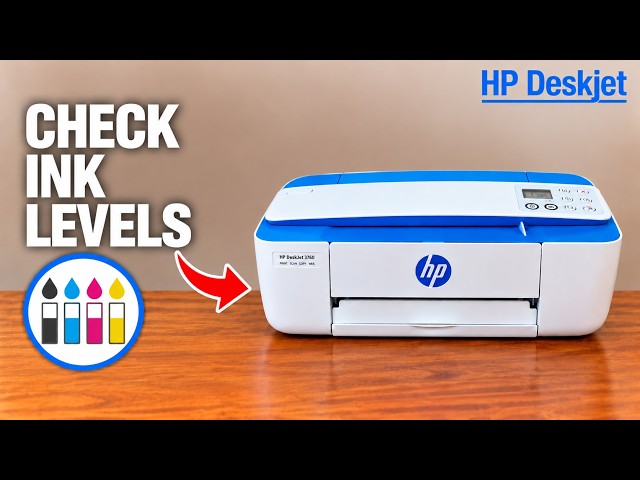
Read the cartridge identification inside your own access door and use the exact-model, country/region supply listing. The source narrator identifies a 3760 and names HP 304; that number must not be transferred to every 3755 or 3700-family printer.
Have the required new cartridge ready. Replace only the cartridge that needs changing, keeping the other installed. Avoid touching its electrical contacts or nozzle surface; do not set an exposed nozzle down on a surface.
Step 1:Wait for the carriage to come to rest
Turn on the printer. Open the front cartridge access door and wait until the carriage reaches the centre and stops completely. Do not stop it with your hand or push it along the rail.
For replacement, press down gently on the old cartridge to release it, then pull it toward you out of its slot. For a first installation, begin with the corresponding empty slot.
Step 2:Remove the tape and seat the cartridge
Unpack the new cartridge and remove its protective plastic tape using the pull tab. Keep fingers away from the electrical contacts and ink nozzles.
Match the marked slot: tri-colour on the left and black on the right when facing the open printer. Slide the cartridge in at a slight upward angle, then push upward until it clicks securely into place. Use the normal seating movement; do not keep applying force if the part or orientation is wrong.
Repeat for the other cartridge only if needed, then close the access door. Allow the printer’s preparation to finish before starting another task.
Step 3:Check recognition and an actual printed page
Read any cartridge warning on the panel or in the HP software. If a newly installed cartridge is not detected, recheck its correct regional identity, removed tape and secure seating using the same safe access steps.
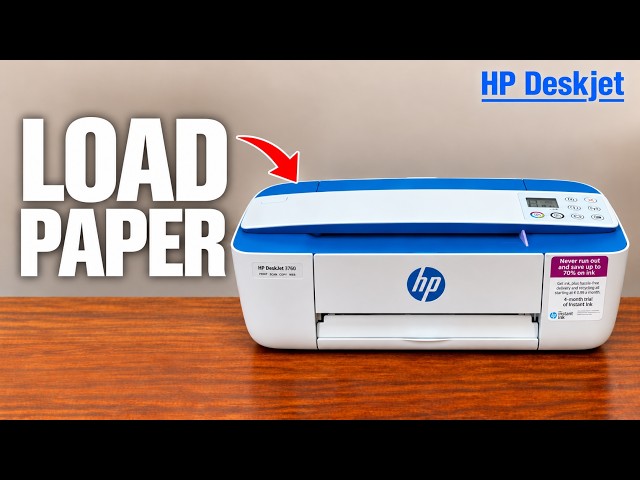
Load suitable paper, extend the output tray and print a small document. Inspect black text and colour areas. Mechanical noises or full-looking ink bars alone do not prove a successful printed result; the recordings do not show a completed test after replacement.
If the software requests alignment, complete its actual instructions. If printed lines remain crooked, use the related quality/alignment guide. Missing colours call for diagnosis rather than repeated removal or wiping the nozzle.