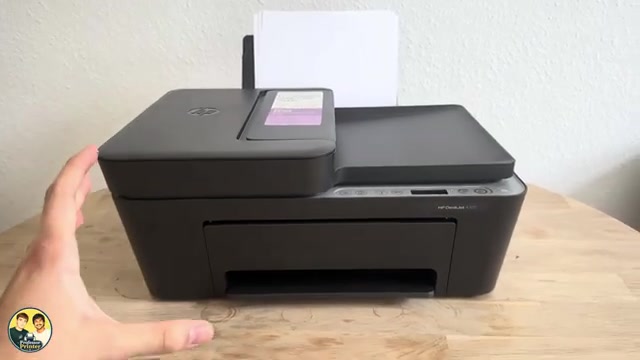
Before you start
- The printer must be powered on with its cartridges installed. To use the app, select the correct connected printer.
Step 1:Read the printer’s two ink icons
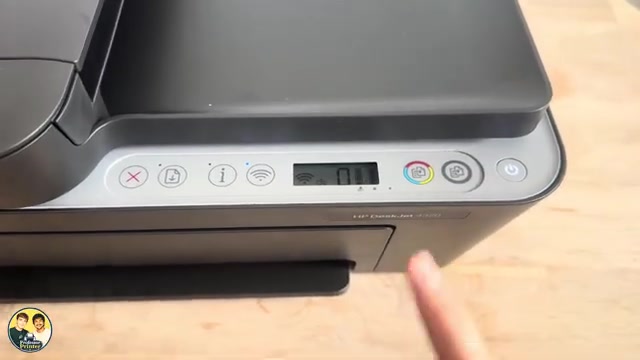
On the control-panel display, the left ink-level icon represents the tri-colour cartridge and the right icon represents black. Read these as estimates. A flashing icon with an error is a cartridge status message, not simply a precise low-ink measurement.
Step 2:Check supplies in the HP app
Open the HP app and verify that your intended printer is selected. Read Estimated Supply Levels near the printer image; open that area for more detail. HP’s current manual also names Supported Supplies or Supply Status after selecting the printer image. App layout can change.
You do not need to buy through a promotional offer just to read the information. A low estimate is a reason to have a replacement available, not proof that a cartridge must be discarded while output remains acceptable.
Step 3:Optional: view the printer’s own Supply Status page
In the recorded app, Printer Settings → View All → Advanced Settings opens the printer’s embedded web page. The presenter locates Tools → Product Information → Supply Status. Use this only for your own printer on the intended network; the panel/app routes above are sufficient for a quick check.
Interpret the result before replacing ink
HP says these indicators are for planning. A refilled, remanufactured or previously used cartridge can have an inaccurate or unavailable estimate. Ink is also used during initialisation and servicing, so the article does not adopt the video’s simplified “pages since installation” calculation as HP’s exact algorithm.
If print quality is acceptable, keep printing while preparing the correct replacement when needed. If a cartridge error appears, read the HP software message and follow the matching error procedure; buying ink based only on an unexplained icon can miss a seating or compatibility problem.
Questions & troubleshooting
Are these exact percentages?
No. HP calls them estimates for planning. The app and panel are not a measurement of the precise ink volume.
Why did the level disappear after refilling or changing printers?
HP says estimates can be inaccurate or unavailable for refilled, remanufactured or previously used cartridges. Judge the print and actual error message as well.
Can I skip the Advanced Settings website?
Yes. The panel and HP app provide the simpler routes. The embedded page is optional and must be identified as your own printer.