Before you start
- Use adequate light to see the ink in each front tank window. For the optional app check, the correct printer must already be added to Epson Smart Panel.
Inspect all four tank windows
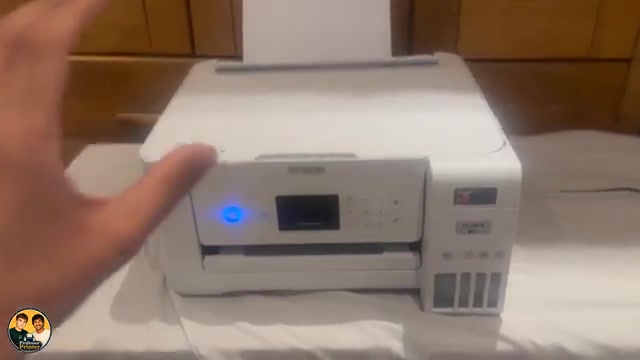
Find the black, yellow, magenta and cyan tank windows at the front of the printer. Compare the visible ink level in each with its marked upper and lower lines. Inspect every tank individually; one well-filled colour tells you nothing about the others.
Epson warns that continued use with ink below the lower line can damage the printer. If a tank is low, use the model’s documented refill procedure before carrying on. This check does not require opening a bottle or changing a setting.
Compare the optional Smart Panel estimate
Open Epson Smart Panel with the intended printer selected, and refresh its status as the source demonstrates. Read the displayed estimates, then compare them with the physical windows.
The presenter reports that the app looks almost full while the physical tanks are nearer halfway. Treat that as an example of why an estimate cannot replace looking at the tank, not a guarantee that printing or cleaning is safe.
Choose the next action from the actual level
If the windows show sufficient ink for the intended task, this check is complete. If the displayed estimate is wrong, the Set Ink Level control can adjust it to the observed amount; changing that setting does not add ink.
Questions & troubleshooting
Which is the actual ink level: the app or the window?
Look at the tank window for the actual liquid remaining. The app and driver status are estimates.
Does refreshing the app refill or reset the tank?
No. Refreshing requests status. Refilling and deliberately adjusting the recorded level are separate actions.