Before you start
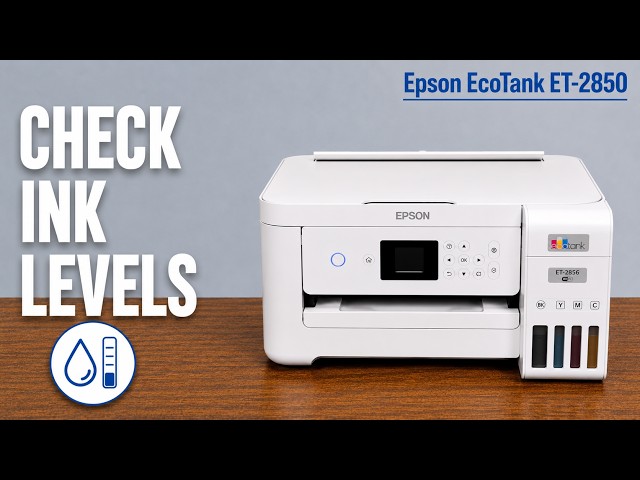
- Load plain paper in the rear feeder and extend the output tray. Check the actual ink in all four tanks and resolve any displayed error before starting.
Print the test pattern
Turn the printer on and press Home. Select Settings → Maintenance → Nozzle Check with the arrow buttons, confirming with OK. Follow the paper prompt and press the indicated Start control to print the pattern. Let the sheet finish feeding.
Inspect every black and colour pattern
Look for broken lines, missing segments, faint sections or an absent colour in the printed nozzle pattern. The presenter describes the example as complete; compare your own sheet rather than assuming the same result.
A complete pattern means no cleaning is needed for this check. Choose No at the missing-segments question and finish. A visibly crooked sheet or wrong photo colour with a complete nozzle pattern may need a different investigation.
Choose the matching next action
If some segments are missing, choose Yes and follow the Head Cleaning prompts. When cleaning finishes, inspect the next printed pattern. Stop as soon as it is complete.
If most lines are absent, Epson directs you to leave the nozzle-check dialogue with No and consider Power Cleaning after checking its stricter ink and waiting requirements. Use the related missing-colours guide for that decision.
Questions & troubleshooting
Is a nozzle check the same as an alignment sheet?
No. This pattern checks whether ink is being printed through the nozzles. Alignment addresses the position of printed lines and is a different maintenance task.
Should I clean if every segment is present?
No. Exit the pattern check. A previous faulty photo alone does not justify repeated cleaning when the nozzle pattern is complete.