Before you start
- Replacement cartridges confirmed for your exact 6010e and sales region.
- Plain paper in the input tray for the new-cartridge alignment sheet.
Step 1:Check the supplies and let the carriage stop
Confirm the replacement cartridge against your exact printer’s label or HP’s model-and-region supplies information. The family name alone does not establish that ink from another country is compatible. Load plain paper and turn the printer on.
Lift the cartridge access door using the side grips until it stays open. This opens the cartridge area beneath the scanner; it is separate from lifting only the scanner lid. Wait until the carriage has moved into its access position and is idle and silent.
Step 2:Lift the cartridge latch
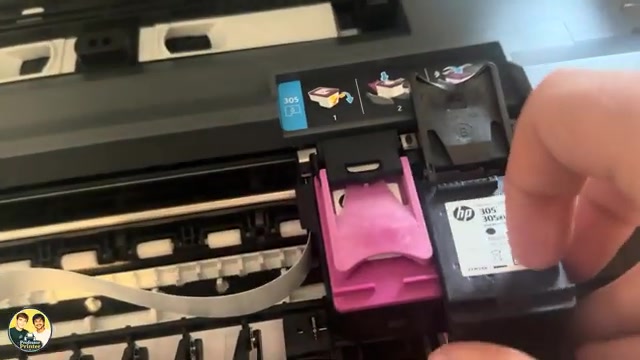
Lift the hinged latch on the cartridge being replaced and remove that cartridge from its slot. There is a separate latch for black and tri-color. Leave the other cartridge in place if it does not need replacement. Handle cartridges by their plastic sides.
Step 3:Remove the tape, insert and close the latch
Unpack the new cartridge and remove its protective plastic tape using the pull tab. Do not touch the copper-colored contacts or ink nozzles, and do not reapply the tape.
Match the cartridge to the color-coded slot, insert it, then lower its latch and press down until it snaps closed. Repeat for the other cartridge only if necessary. Close the main cartridge-access door gently; do not force it against an unclosed latch.
Step 4:Scan the alignment sheet
After new-cartridge installation, HP says the printer automatically prints an alignment page. Lift the scanner lid and place that sheet printed-side down on the glass at the indicated guides. Close the lid and press Start Copy Black.
Wait for the printer to scan the sheet. HP identifies the Cancel light turning off as the completion state. These final alignment instructions come from HP; the short source recordings stop after closing the cartridge-access door.
Check that the printer is ready
Remove the alignment sheet from the glass and try a short print. If the printer reports a missing or incorrectly installed cartridge, check that its protective tape was removed and that the correct latch is fully closed. Read the actual app error rather than buying a different cartridge on a guess.
If alignment does not complete or a cartridge error remains, use the exact-model support page. Do not substitute the ENVY 6100e touchscreen alignment workflow for this 6010e button sequence.