Before you start
- The selected printer reachable in Canon PRINT for the phone method; panel lamps can be checked locally.
Step 1:Open the printer’s information in Canon PRINT
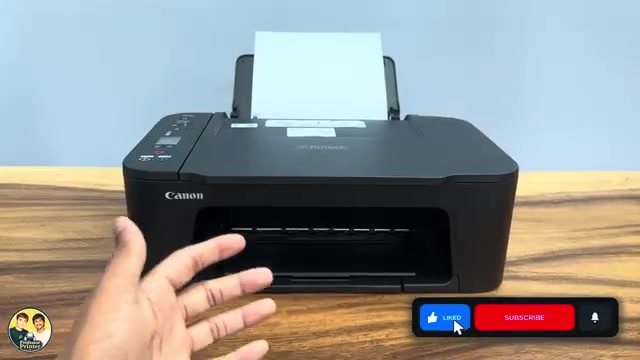
Turn on the printer and open Canon PRINT on the phone already connected to it. On the app’s Home screen, tap your selected Canon printer to open its information. Read the estimated black and colour ink levels and any accompanying warning.
If the printer is unavailable, restore app communication before treating a missing estimate as empty ink. The source demonstrates the phone interface; it does not establish identical desktop controls. You do not need to open the cartridge cover merely to read a working estimate.
Step 2:Use the printer’s ink lamps as a second check
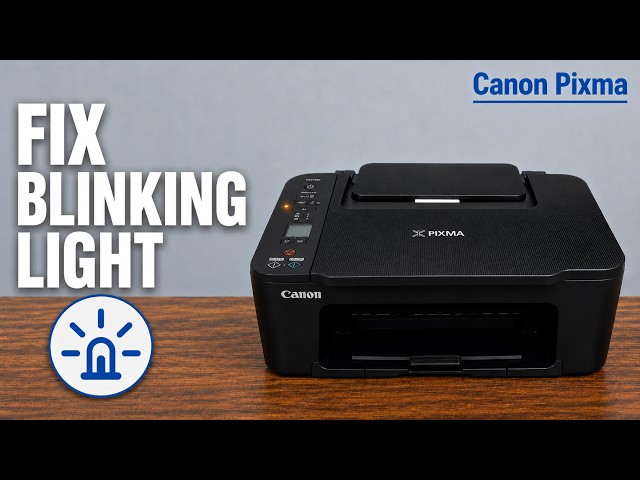
In copy standby, inspect the separate Black Ink and Color Ink lamps. A steady ink lamp means that ink is running low: prepare the correct replacement and watch output quality. Flashing ink and Alarm lights indicate an error; read the full LCD code. Canon notes that the Alarm lamp does not flash for every error.
Use the related error guide for the actual code. A cartridge not recognised, a low estimate and a known empty cartridge require different decisions.
Treat the display as an estimate
Canon’s level detector treats a new FINE cartridge as full and then tracks remaining ink. With a previously used cartridge, the indication may be incorrect. The video also calls the displayed levels estimates; neither its bar nor a preparation sound is a measurement of liquid remaining.
If a newly changed cartridge is not recognised, use the replacement guide to check the correct part, removed protective tape and locked installation after waiting for the carriage. Do not reset the whole printer or assume a regional cartridge number from a thumbnail.