Before you start
- Look directly at each black, cyan, magenta and yellow tank window. Software bars are estimates, not physical measurements.
- If a tank needs ink, complete the correct refill procedure first. Changing the displayed level adds no ink and must not be used to bypass a low tank.
Choose Set Ink Level rather than an unjustified full reset
Use Set Ink Level when you need the displayed bars to reflect the actual remaining ink. Epson separately lists Reset Ink Level for setting a refilled tank to 100%. Do not mark a partly filled tank as full just to remove a warning.
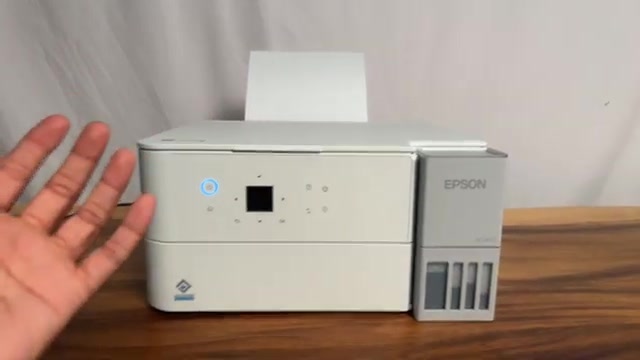
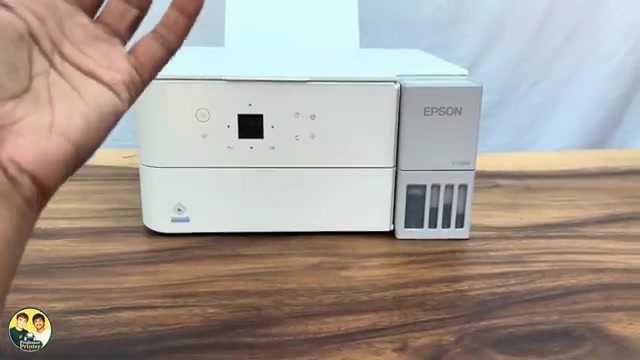
The recording starts with app bars showing full while the visible tanks are at different levels. It demonstrates the adjustable Set Ink Level screen, despite using “set or reset” in its introduction.
Step 1:Adjust each colour to its actual tank level
- From the printer’s Home screen, open Maintenance. Select Set Ink Level with the arrows and press OK.
- Select black, BK, and use the displayed level controls to choose the bar closest to the ink visible in that tank. Confirm with OK.
- Repeat for cyan, C; magenta, M; and yellow, Y, using each colour’s own tank rather than copying the same bar across all four.
- Review the selected levels, confirm OK as prompted and use the displayed completion control to save and finish.
The bars are coarse estimates. The source’s particular levels belong to its printer; do not copy those positions onto yours.
Step 2:Check the updated estimate and continue checking the tanks
Return to the printer status in Epson Smart Panel with the correct printer selected. The source reports the changed bars appearing there immediately. Confirm that your selected values were saved, but keep using the physical tank windows to judge the actual remaining ink.
If the issue follows an actual refill
Epson says to complete the ink-level reset after refilling and select every tank that was refilled. Otherwise the displayed level may not change. For a full refill, follow the upper-line fill procedure and its on-screen reset; for a partial level, do not claim the tank is at 100%.
This guide changes the estimate only. It does not provide bottle compatibility or a substitute for the separate refill instructions.
Questions & troubleshooting
Will resetting the bars put ink in the tubes?
No. This changes the printer’s estimate; it neither fills a tank nor performs cleaning or flushing.
Why do the app bars not change after adding ink?
Epson says the level reset must be completed for the tanks actually refilled. Follow the refill completion prompts and select all refilled colours.
Are the new bars an exact measurement?
No. They are estimates selected to correspond to the visible tank levels. Continue checking the actual tanks, particularly before maintenance.