Before you start
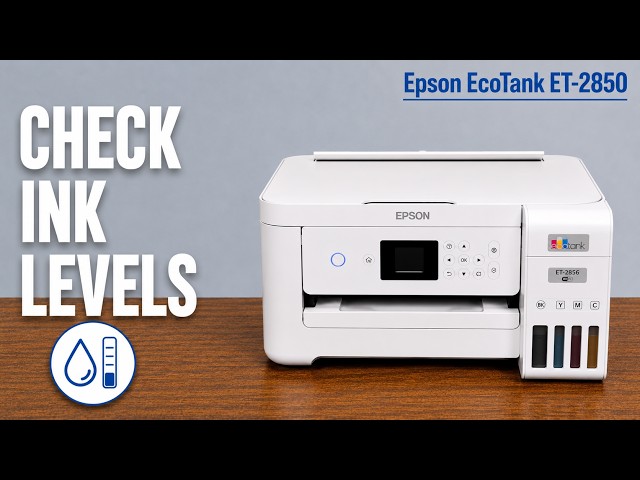
- Turn the printer on and inspect the actual level in all four tank windows. Do not use an estimated app display as your measurement.
Open Set Ink Level
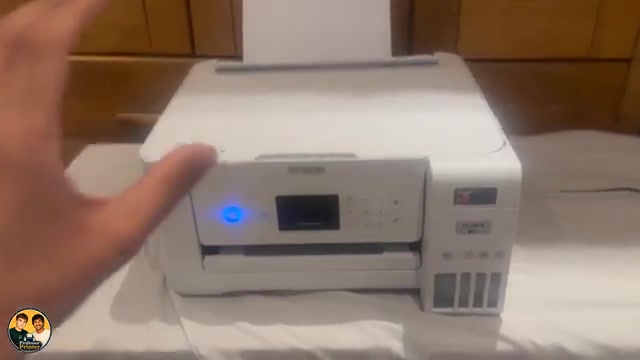
Press Home and use the arrow buttons to select Settings, then Maintenance. Confirm with OK. Move to Set Ink Level and press OK. These are the menu names in the demonstrated ET-2856 workflow and the applicable Epson manual.
Match each colour to its tank window
Choose each colour shown on the display and use the controls indicated on that screen to match its recorded level to the actual tank. Confirm the selection with OK and continue through black, yellow, magenta and cyan as prompted.
The source selects different amounts for the different tanks. Do not copy those amounts: they describe that printer at the time of recording, not yours. Follow the screen’s final confirmation to save your selections.
Check the saved estimate
Refresh the correct printer in Smart Panel if you use it. The presenter reports that the new display now resembles the physical levels more closely. Check your own tanks again; the screen remains an estimate.
Questions & troubleshooting
Is this a waste-ink or maintenance counter reset?
No. This adjusts the ink-level estimate. It does not service the waste-ink pads, override a service message or repair a print-quality fault.
Can I skip refilling by increasing the displayed level?
No. The tank still contains the same amount of ink. Base printing and cleaning decisions on the actual level and Epson’s task requirements.