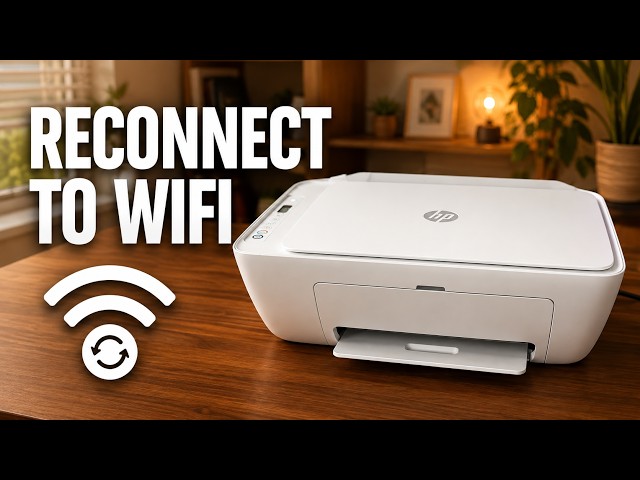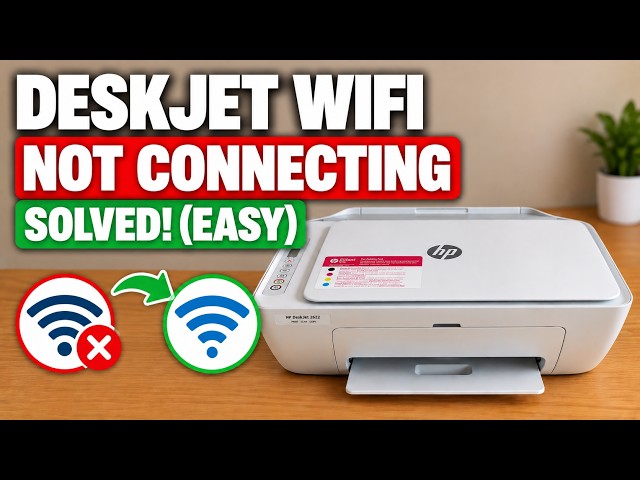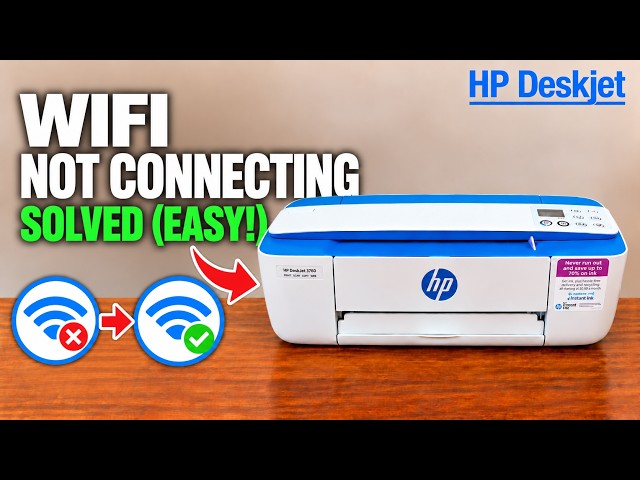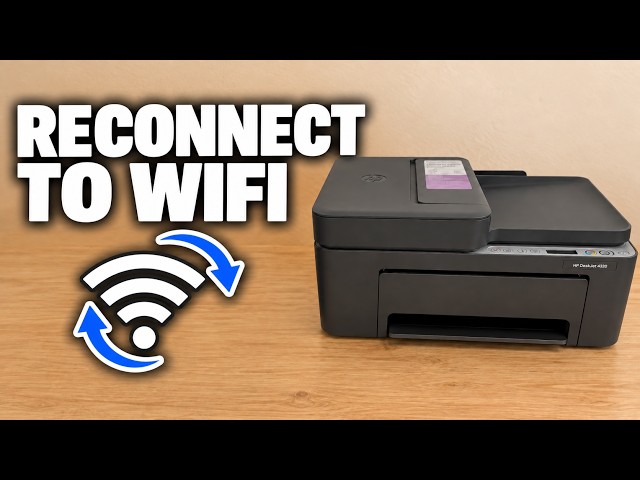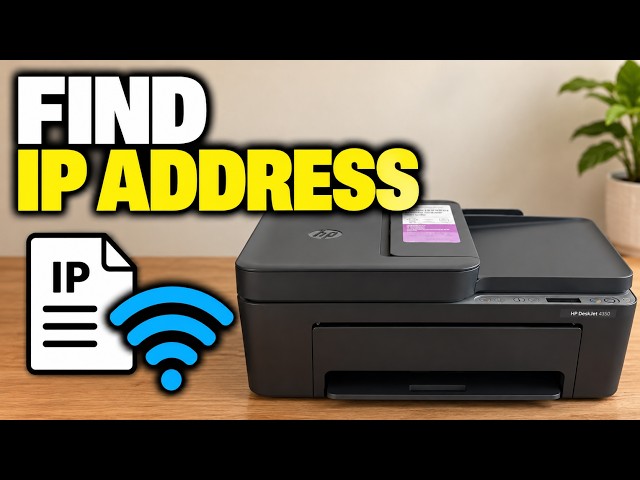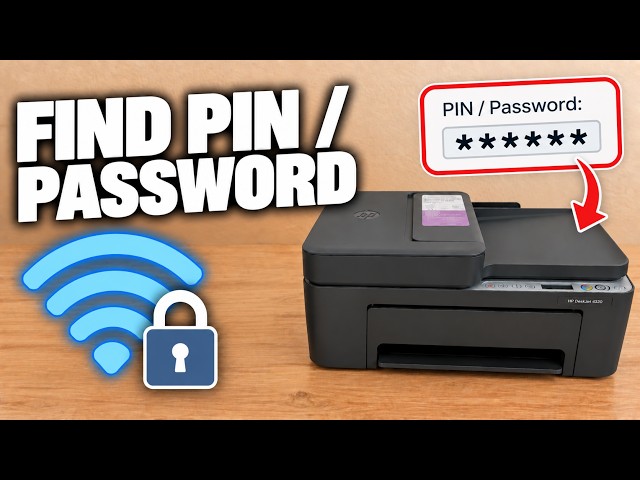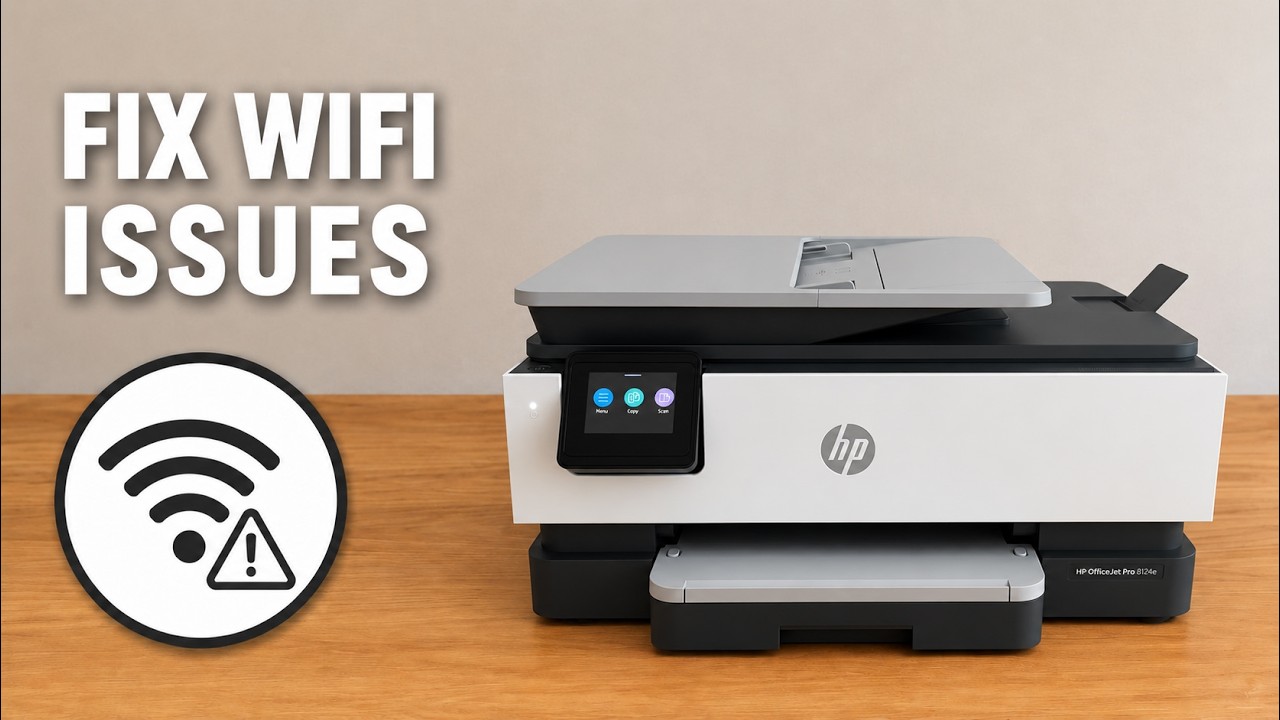
HP DeskJet 2600 blinking Wi-Fi light: what to check
A flashing blue wireless light means the DeskJet 2600 has not joined a wireless network. Check its light and connection stage before changing any saved settings.
Browse help with connecting your printer and staying connected.
A flashing blue wireless light means the DeskJet 2600 has not joined a wireless network. Check its light and connection stage before changing any saved settings.
Reconnect a DeskJet 2600 after a router, Wi-Fi name or password change. Try HP app setup, use the demonstrated recovery if discovery fails, then check the printer from home Wi-Fi.
Find where DeskJet 2600 setup is stopping: app discovery, the temporary printer connection, or the home network. Check the working connections before resetting wireless settings.
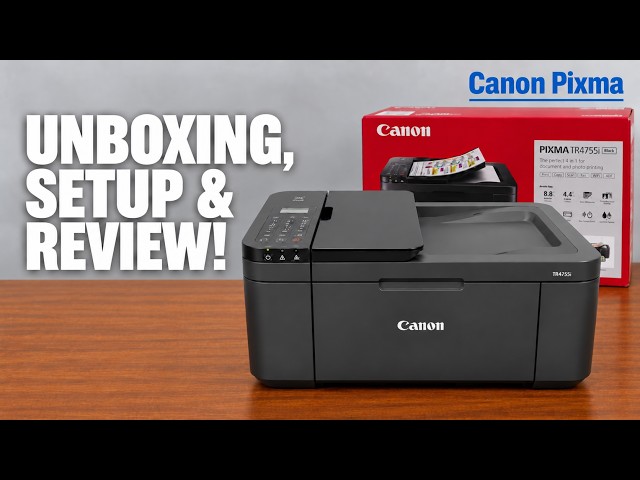
Install the TR4755i cartridges and paper, connect with Canon PRINT on an iPhone, then add Windows using the official installer if app setup fails.
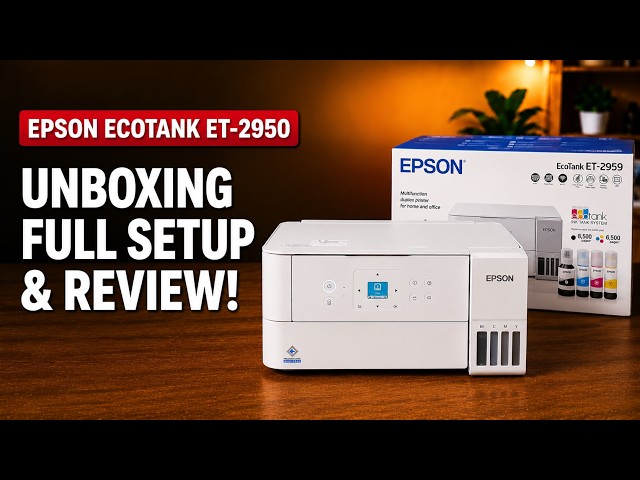
Set up the ET-2959 with Epson Smart Panel: fill and charge the ink, join Wi-Fi, complete alignment, then check Windows printing and Epson Scan 2.
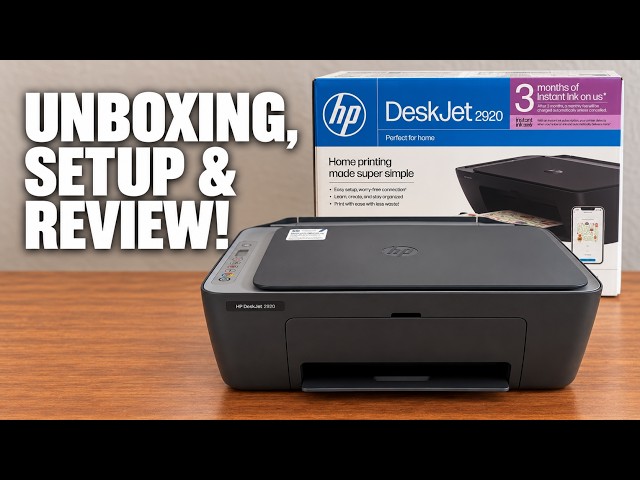
Set up the demonstrated DeskJet 2920 with paper, cartridges, alignment and iPhone Wi-Fi setup, then add it on a Mac and save a scan.
Install the TS3750i cartridges and rear-tray paper, connect with Canon PRINT, correct the first-print paper settings, and add the printer on Windows.
Add the networked HL-L2445DW in macOS Printers & Scanners, then select it for a small print check.
Use Brother Mobile Connect to register the HL-L2445DW, supply the home Wi-Fi password and check that setup finishes on the intended network.
Read the printer’s home-network IP address from its LCD or Brother Mobile Connect without changing the network configuration.
Find the printer on the same network, add it in Windows Printers & scanners and select it when printing a document.
Restore the HL-L2445DW’s network configuration when you need to set it up again, with the connection and password consequences clear before you confirm.
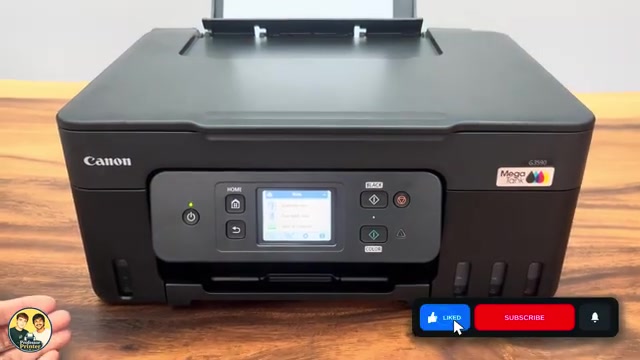
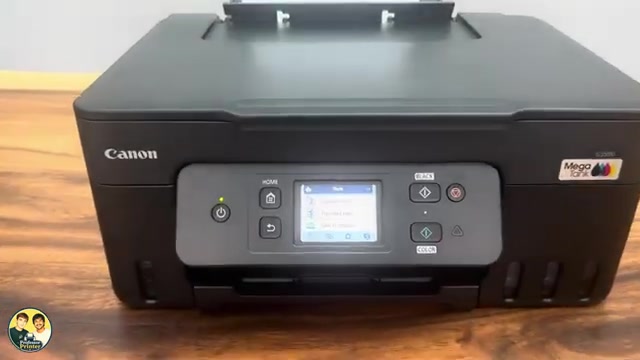
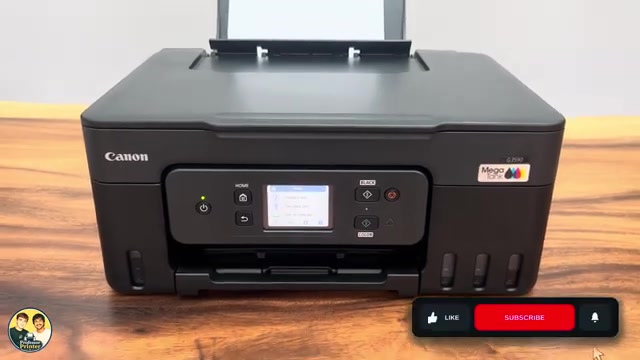
Join your home network from the Canon PIXMA G3590 touchscreen or use Easy wireless connect with Canon PRINT on iPhone, then check printer discovery.
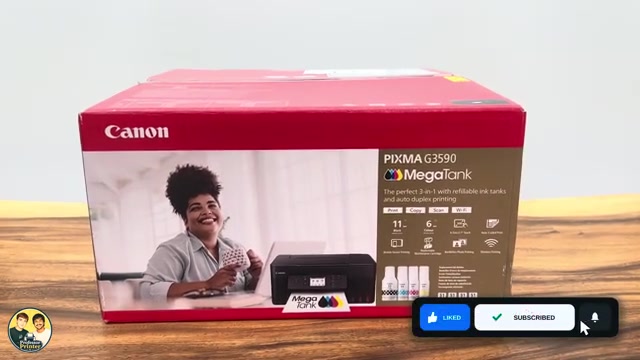
Unpack a G3590, follow its first-use prompts for printheads and ink, let initial preparation finish, then connect a phone or Windows computer and check a print.
Print the Canon PIXMA G3590 network report, find the router-network IP address, and include the initial administrator password only when you need it.
Use LAN settings only to restore Canon PIXMA G3590 network defaults without choosing the broader Reset all option. Reconnect the printer afterward.
Hold Stop until the Alarm lamp has flashed 19 times to initialise Canon PIXMA MG3620 network settings, then repeat connection setup.
Choose a Canon PIXMA TR4755i Wi-Fi setup route, enter the correct network details and complete device installation without treating three alternatives as required steps.
Select the ET-2950 or ET-2959 from an Apple app’s Print menu, check the options and print over the same Wi-Fi network without installing a printer driver.
Choose your router’s exact network in Wi-Fi Setup Wizard, or use Epson Smart Panel on your phone. Complete setup and check a print from the same network.
Check the connection first, then restore only Network Settings when a fresh network setup is needed. Reconnect afterwards and secure the administrator password again.
Locate the default PIN inside the front door and distinguish it from router Wi-Fi and Wi-Fi Direct passwords.
Clear an old wireless connection and make a DeskJet 2600 available for setup, with the correct button pair and indicator checks.
Check ink and paper, connect the printer to home Wi-Fi and confirm it is available to the HP app and AirPrint.
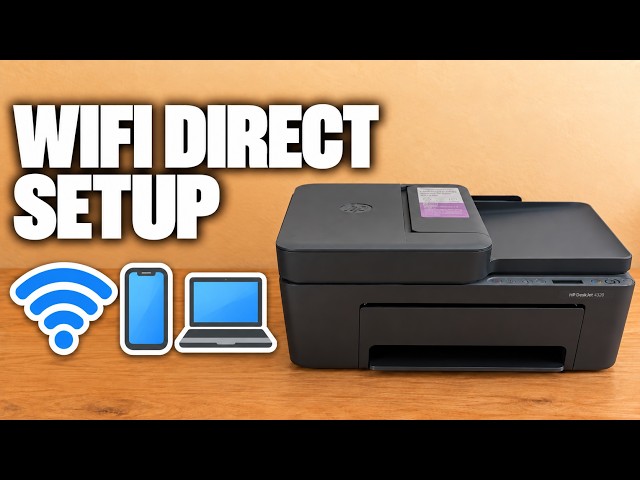
Connect an iPhone directly to a DeskJet 2600 for local printing, using the printer’s own network details without clearing its home Wi-Fi settings.
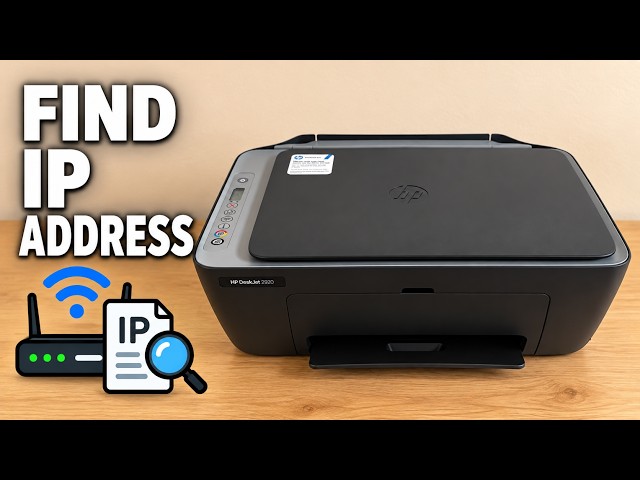
Print the DeskJet 2920’s network configuration page with a deliberate button press and read its address and connection status.
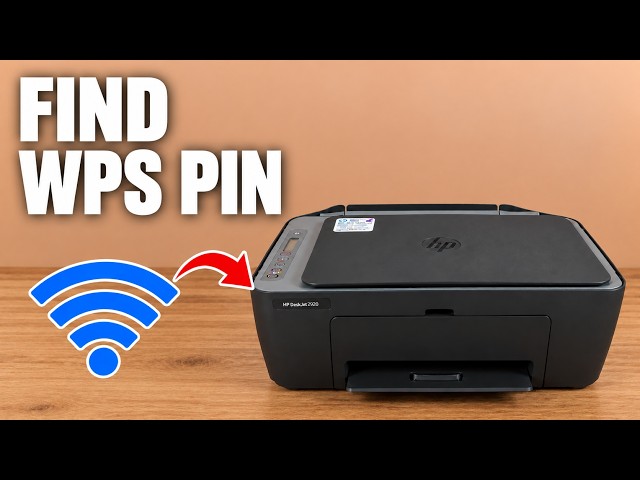
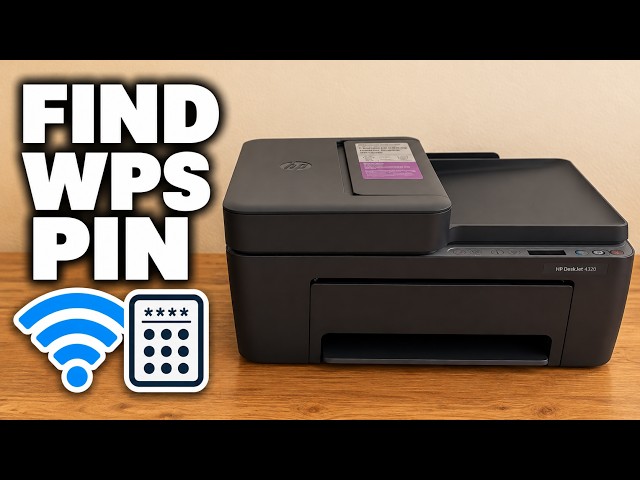
Print a temporary WPS PIN or locate the default administrator PIN inside the DeskJet 2920, depending on the prompt you are answering.
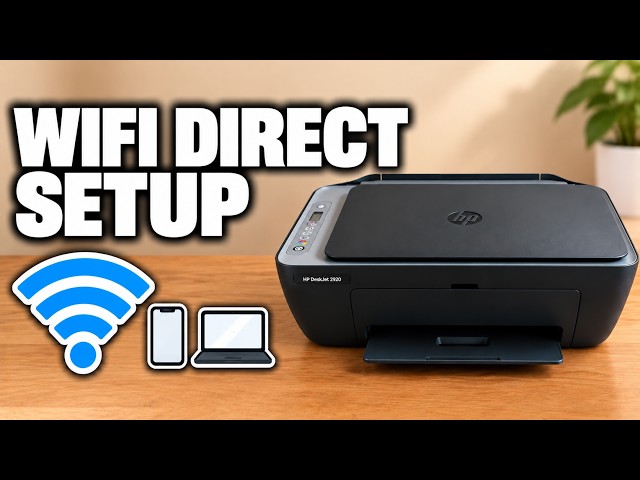
Enable the DeskJet 2920’s Direct network, print its connection details and connect an iPhone without resetting an existing home-network connection.
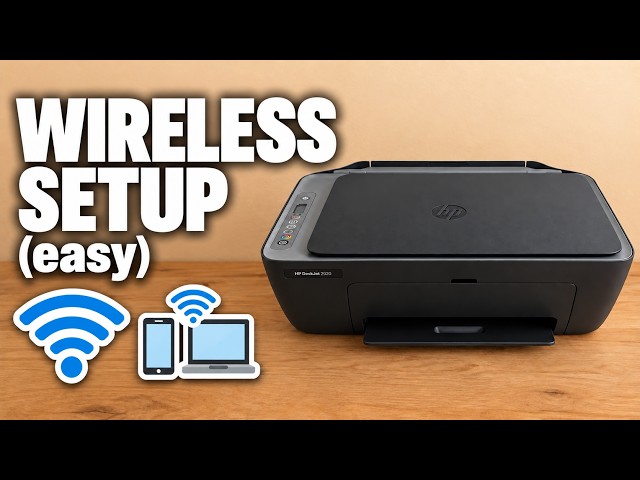
Connect an HP DeskJet 2920 to home Wi-Fi with an iPhone, interpret the wireless light and use the documented network reset only when needed.
Use the printer’s direct connection to reach its wireless wizard, save the home network and check discovery after returning your phone to that network.
Read the wireless light pattern, restore network setup only when needed and use the iPhone HP app to join your own network.
Connect the printer to your network, print a fresh information page and read the address for that active connection.
Read the PIN label inside your printer when a genuine setup or printer-settings prompt requests it.
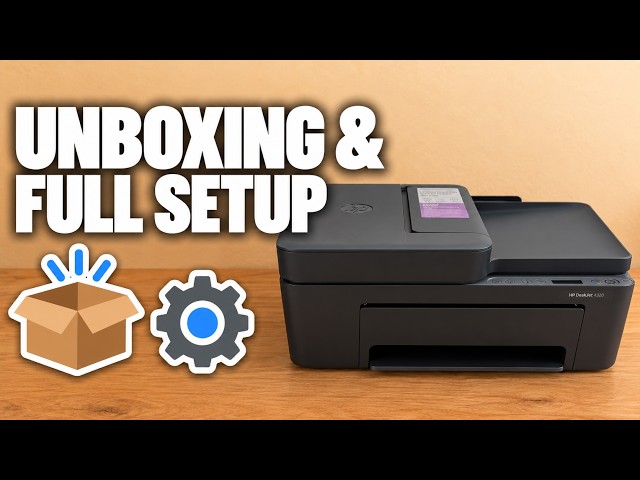
Remove the packing, load paper, fit the supplied cartridges and scan the alignment sheet before completing the recorded iPhone Wi-Fi setup.
Print your printer’s Direct name and password, enable Direct if needed and connect an iPhone without a router.
Generate a fresh WPS-PIN page with Information and Wi-Fi, then enter your own temporary code in the setup prompt.
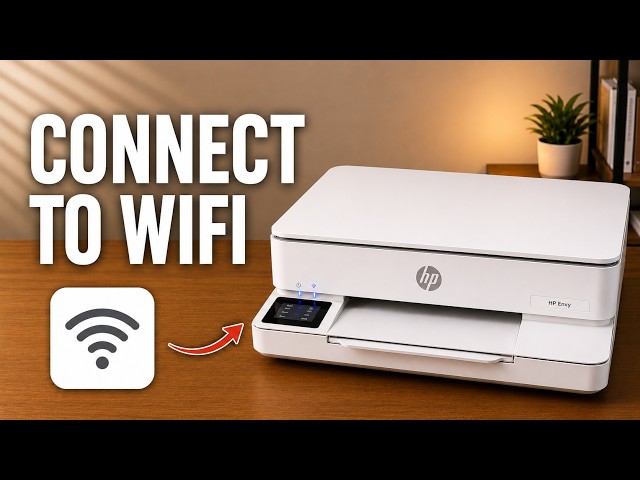
Use the ENVY 6100e touchscreen to choose your home network, check the connection and restore only network settings if needed.
Locate the ENVY 6100e’s default printer PIN and distinguish it from the router password and Wi-Fi Direct credentials.
Unpack the printer, install its supplied setup cartridges, complete alignment and connect it with the HP app before checking your first print.
Add the network printer in macOS, open its scanner and select a save destination before scanning from the flatbed.
Connect an iPhone directly to the ENVY 6100e’s own wireless network, find its password and return to normal Wi-Fi afterward.
Add the networked OfficeJet to macOS and the HP app, with checks for a printer that disappears during setup.
Use the printer’s touchscreen Wi-Fi Setup Wizard, enter your home-network password and then add the connected printer in the HP app.
Find the default printer PIN on the label inside the access door, and distinguish it from your home Wi-Fi password and Wi-Fi Direct credentials.
Load paper and setup cartridges, align the printer, connect it to home Wi-Fi with an iPhone, then add the existing printer on a Mac.
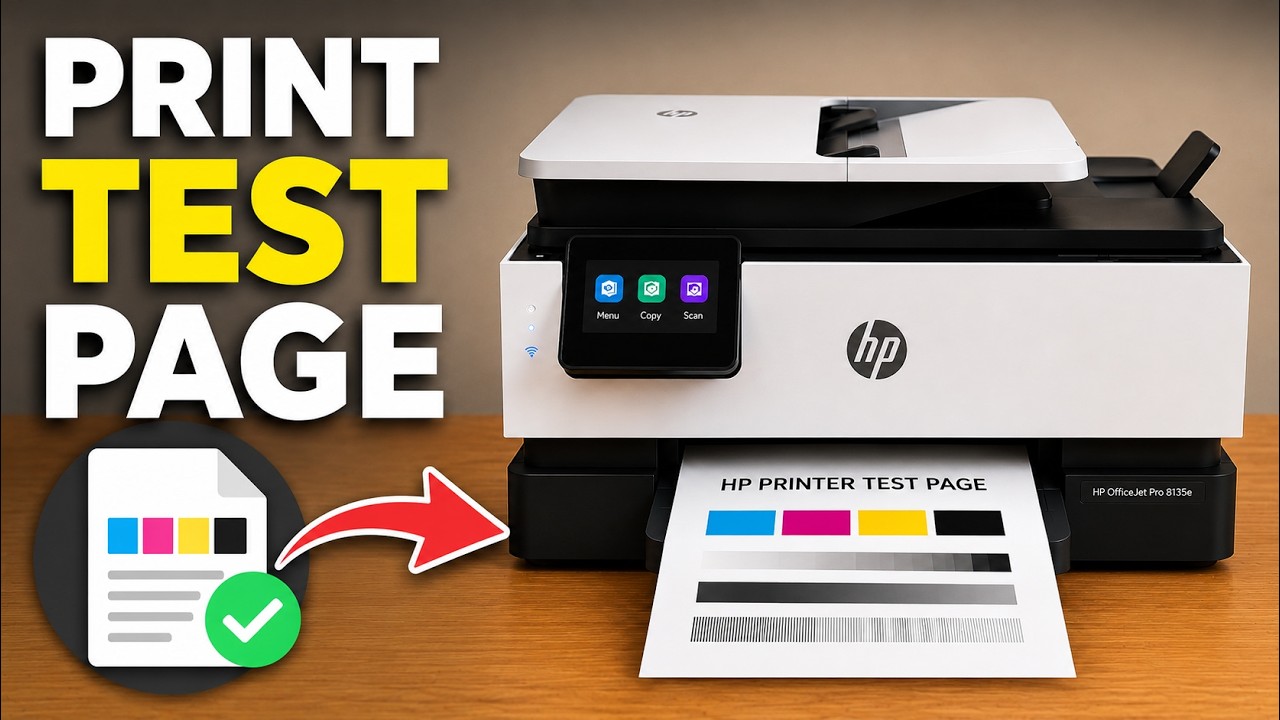
Print the printer’s network details or Wi-Fi test report from its touchscreen. Use the results for connection checks, not as a print-quality test.
Choose the reset that fits your problem and understand what it removes before confirming on the printer’s touchscreen.
Check for an available update from the touchscreen and let the printer finish without interrupting its power or connection.
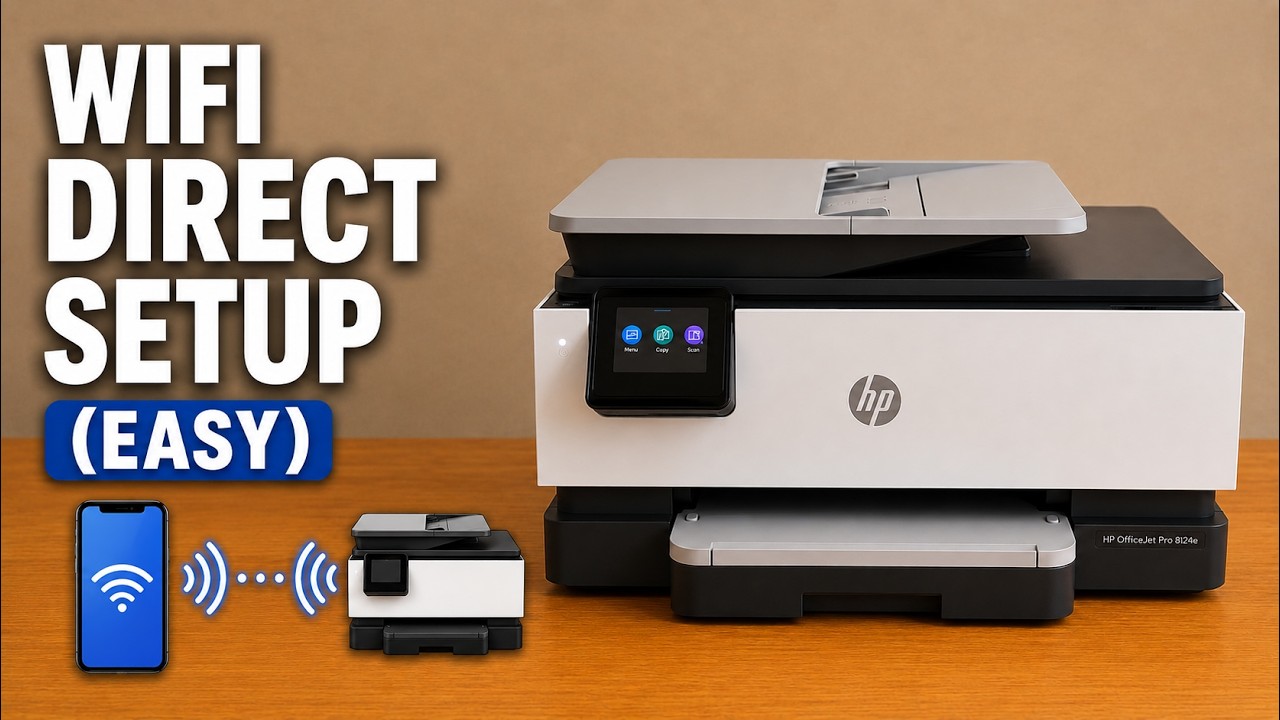
Enable the printer’s direct wireless network, find its password and connect an iPhone locally after the printer’s initial setup.
Separate a lost Wi-Fi connection from an internet warning, then check the network, restart safely and reconnect only when needed.
Set up or reconnect the Smart Tank 5107 on your home Wi-Fi, confirm the printer at its Information button and check the connection before printing.
Start the printer’s WPS push-button mode, press the router’s WPS control within two minutes and verify the wireless connection.
Set up the Smart Tank 5107 hardware, complete its alignment sheet and connect it to home Wi-Fi with the HP iPhone app.
Print the current network information and locate the default printer PIN, while keeping router and Wi-Fi Direct passwords separate.
Clear saved network settings with Information, Wi-Fi and Cancel, then reconnect the printer from Wi-Fi setup mode.
Connect the Smart Tank 5107 by USB, choose it in the Mac print dialog and open its scanner without setting up router Wi-Fi.
Enable Wi-Fi Direct, print this printer’s network name and password, then join its local connection from an iPhone.
Read the wireless light and screen together, switch Wi-Fi on if needed and choose setup only when the printer is not already connected.