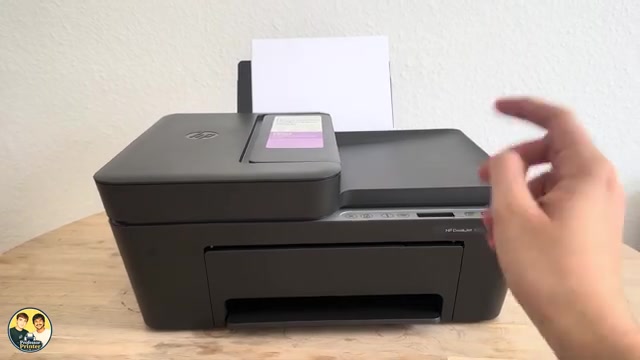
HP DeskJet 2600 blinking Wi-Fi light: what to check
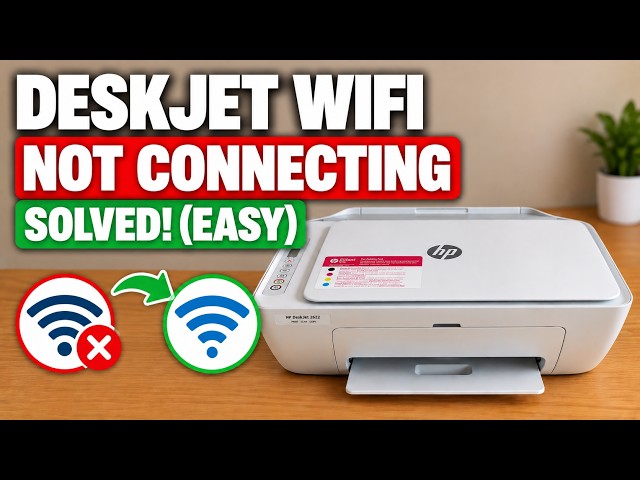
A flashing blue wireless light means the DeskJet 2600 has not joined a wireless network. Check its light and connection stage before changing any saved settings.
Find a starting point for connection issues, error lights and paper problems.
A flashing blue wireless light means the DeskJet 2600 has not joined a wireless network. Check its light and connection stage before changing any saved settings.
Find where DeskJet 2600 setup is stopping: app discovery, the temporary printer connection, or the home network. Check the working connections before resetting wireless settings.
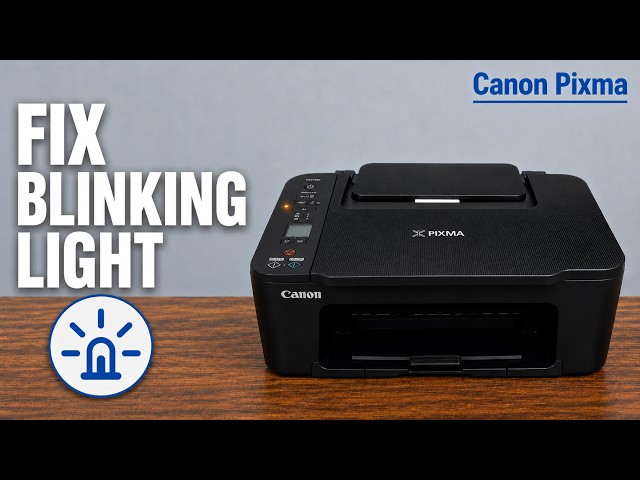
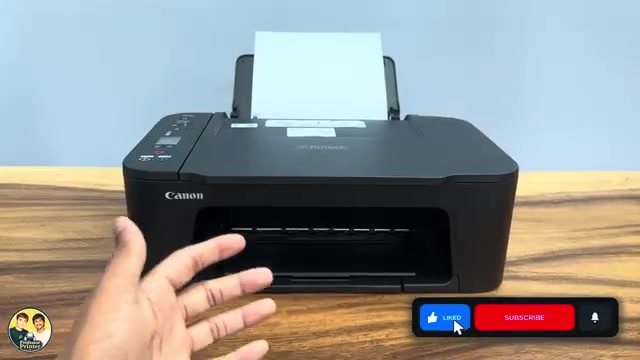
Read the TS3750i LCD and support code, then choose the right paper, cover or cartridge check for E02, E03, E04 or E05 without an unnecessary reset.
Check the printer’s Pwd label first. If a changed administrator password is lost, understand the full Factory Reset and Wi-Fi setup consequences.
Restore general settings with Machine Reset while preserving network and security settings. This is different from a full Factory Reset.
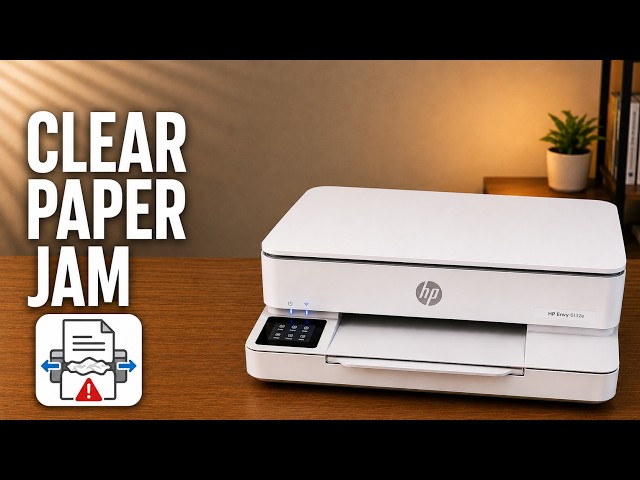
Match the jam location first, then follow the inside or paper-tray path. Let hot internal parts cool before reaching into the printer.
Restore the HL-L2445DW’s network configuration when you need to set it up again, with the connection and password consequences clear before you confirm.
Choose how long the HL-L2445DW waits before Sleep Mode. Sleep and Deep Sleep remain enabled; the timer is not a fix for every delayed print.
Use Windows driver search or the exact Brother download page. A “best driver already installed” result does not mean a new driver was installed.
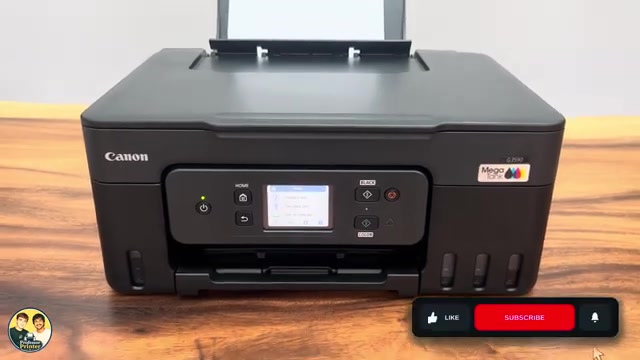
Find the jam at the output, rear feed, inside or rear transport area of a G3590. Stop and unplug before internal access, remove fragments and refit the covers.
Use Deep Cleaning only after normal cleaning has not resolved a poor nozzle check. Check ink and maintenance-cartridge space, then assess the printed pattern.
Use the G3590 Head Replacement menu, check ink and maintenance capacity, fit the colour and black heads in their correct holders, then check the output.
Restore Canon PIXMA G3590 settings with Reset all. This clears network configuration and restores the default administrator password, so connection setup must be repeated.
Use LAN settings only to restore Canon PIXMA G3590 network defaults without choosing the broader Reset all option. Reconnect the printer afterward.
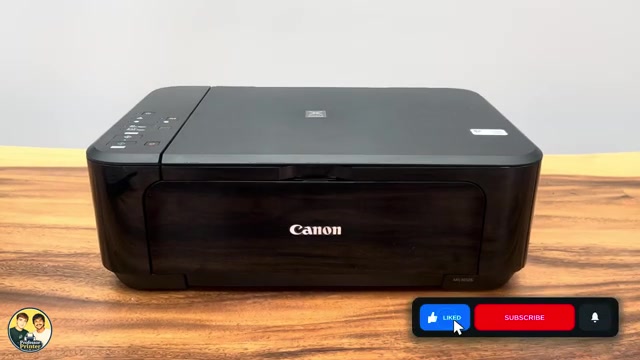
Hold Stop until the Alarm lamp has flashed 19 times to initialise Canon PIXMA MG3620 network settings, then repeat connection setup.
Use Setup code 1 to print a Canon PIXMA TS3750i nozzle check, then look for missing lines, horizontal white streaks or a missing colour.
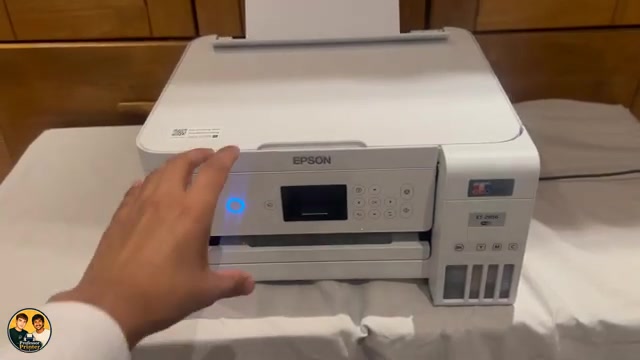
Use the rear feed, removable rear cover and scanner-unit access to remove jammed paper and fragments. Follow Epson’s access method instead of inserting tools into the printer.
Use a nozzle pattern to distinguish missing ink from an alignment issue, clean only when needed and observe the ink-level and waiting limits before Power Cleaning.
Choose vertical or horizontal alignment for the matching symptom, compare your own printed patterns and save the best choices before checking a fresh print.
Choose ordinary or power cleaning from the nozzle pattern, let the cycle finish and check again. Use Epson’s waiting limits instead of repeating maintenance indefinitely.
Print and inspect the nozzle pattern before choosing maintenance. Complete lines need no cleaning; missing segments call for the appropriate next check.
Check the connection first, then restore only Network Settings when a fresh network setup is needed. Reconnect afterwards and secure the administrator password again.
Disconnect power, inspect the cartridge carriage’s path for obstructions and check that it moves freely without forcing it.
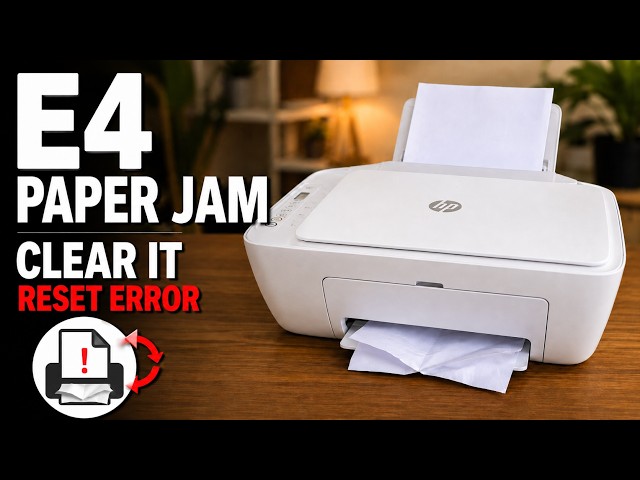
Try Cancel first, then inspect the accessible paper paths safely, remove torn pieces and close every cover before checking the E4 error again.
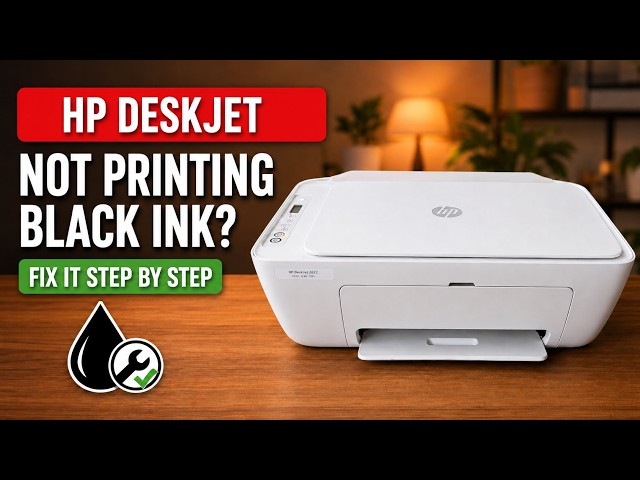
Check missing black or colour on a DeskJet 2600, run the HP app’s cleaning tool, inspect the test page and decide when to stop.
Reload a DeskJet 2600 correctly, check the rear feed path and clean its paper rollers safely if loading checks do not resolve the problem.
Hold the correct DeskJet 2600 button to print its status report, and distinguish it from the separate hardware test and network pages.
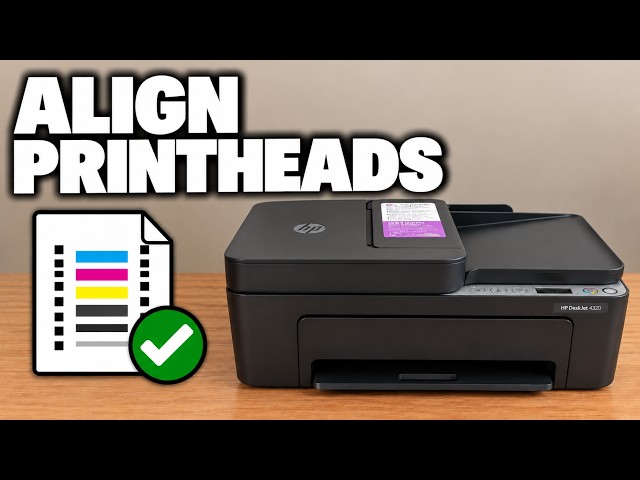
Print an alignment page, position it on the scanner and complete the app’s scan prompt to check blurred or misaligned output.
Check paper and ink status, run the HP app’s cleaning routine and inspect its test page before deciding whether a further cleaning is needed.
Use the blinking ink icon to identify an E0 cartridge problem, check seating and protective tape, and confirm the cartridge matches your printer and region.
For an E5 scanner error, cancel and retry the scan, then restart the printer if needed. If E5 persists, use HP support rather than opening the scanner.
For E6 on a DeskJet 2900, turn the printer off, disconnect power for one minute, reconnect and check whether the error returns.
Check the input, output, cartridge area and bottom access door for trapped paper. Disconnect power before reaching inside and remove paper gently with both hands.
Check the paper stack and guide first. If feed rollers need cleaning, unplug the printer, use a lightly damp swab and let the rollers dry completely before retrying.
Resolve a DeskJet 2900 paper-size mismatch by matching the selected print size to the paper actually loaded, then sending the job again.
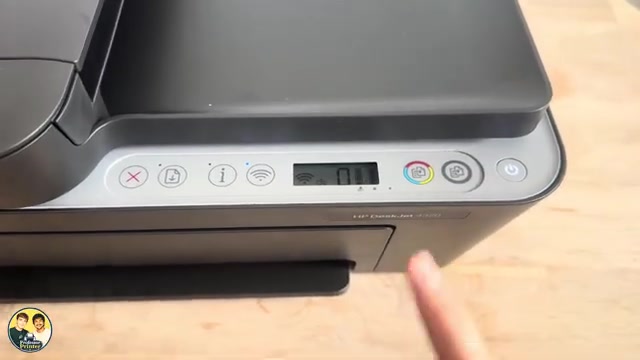
Print the DeskJet 2920’s network configuration page with a deliberate button press and read its address and connection status.
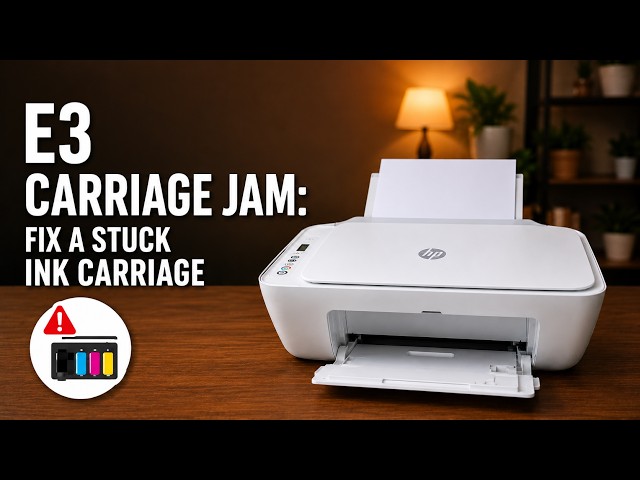
Identify E3 correctly, disconnect power for internal inspection and remove accessible paper that blocks the cartridge carriage without tools or force.
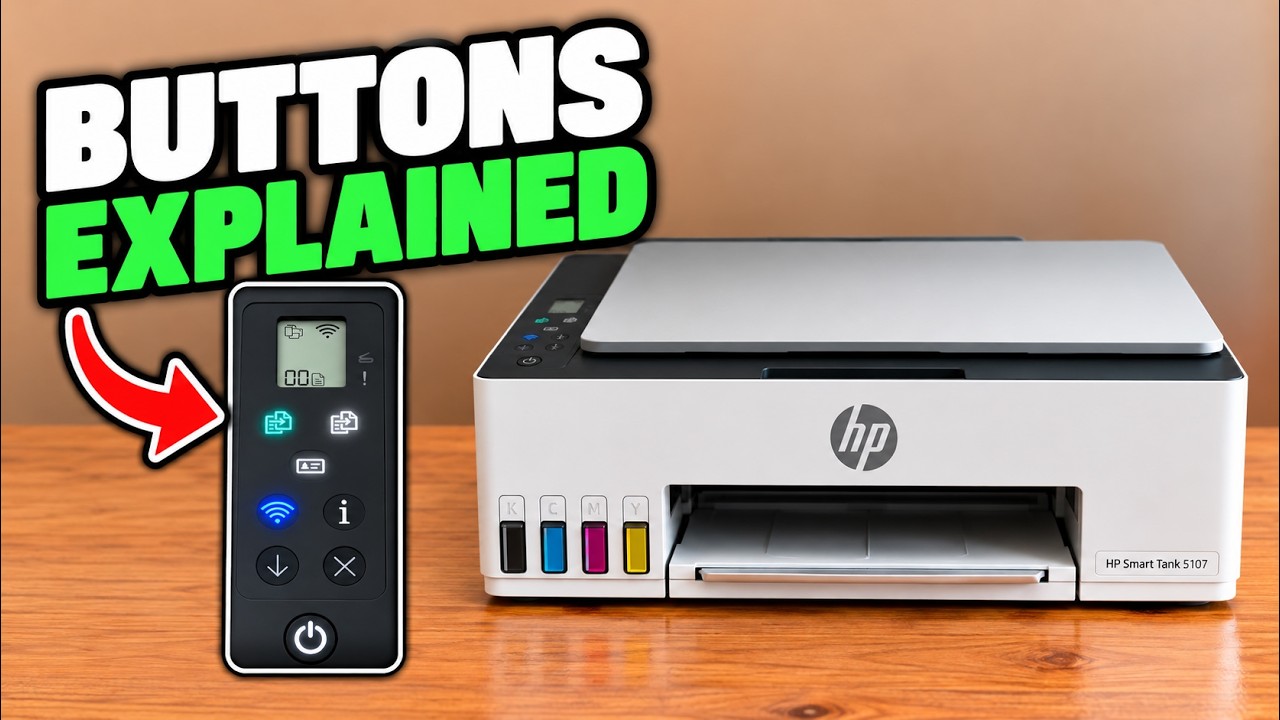
Identify Cancel, Resume, Information, Wi-Fi and Copy, understand the display, and avoid starting a network reset when you only need to stop a job.
Cancel the job, inspect the relevant paper path and remove sheets without sharp tools. Follow the model’s bottom-door positioning instead of turning it upside down.
Read the wireless light pattern, restore network setup only when needed and use the iPhone HP app to join your own network.
Identify the affected cartridge, check compatibility, tape and seating, then use HP’s E0 restart or replacement steps only if the error remains.
Check the paper and rear tray first. If pickup still fails, clean the paper rollers with power disconnected, let them dry and test again.
Use the quality report to choose alignment or cleaning, scan the alignment sheet to finish calibration and match photo settings to your loaded paper.
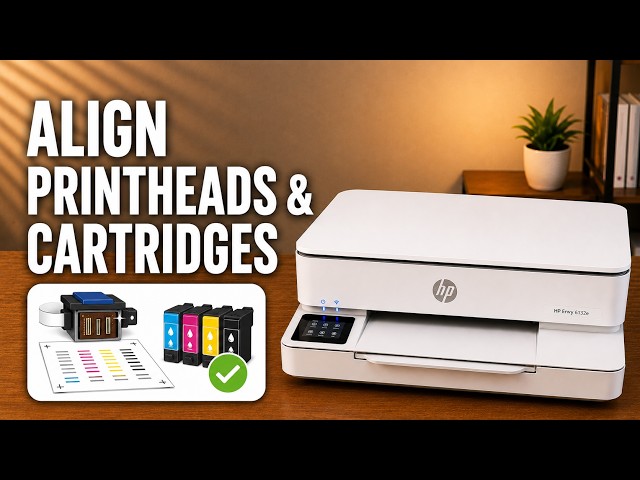
Print the alignment sheet from the touchscreen, place it face down on the scanner glass and choose Scan to complete calibration.
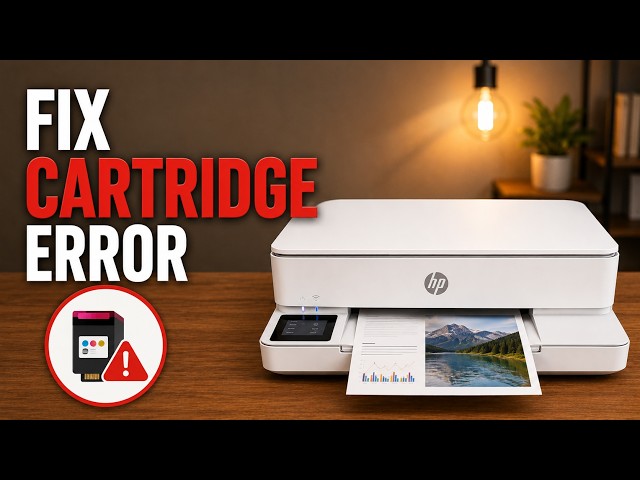
Check the exact cartridge message, confirm the correct regional supply and reseat the cartridge without touching its nozzles or contacts.
Disconnect power before reaching inside, check the carriage and paper path, then remove torn pieces and refit the covers before trying again.
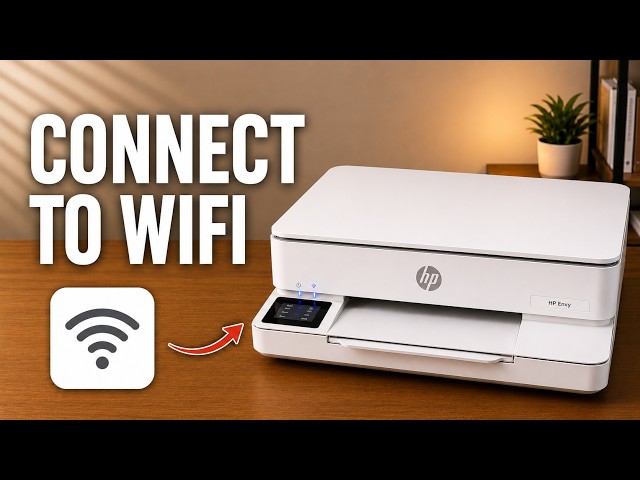
Use the ENVY 6100e touchscreen to choose your home network, check the connection and restore only network settings if needed.
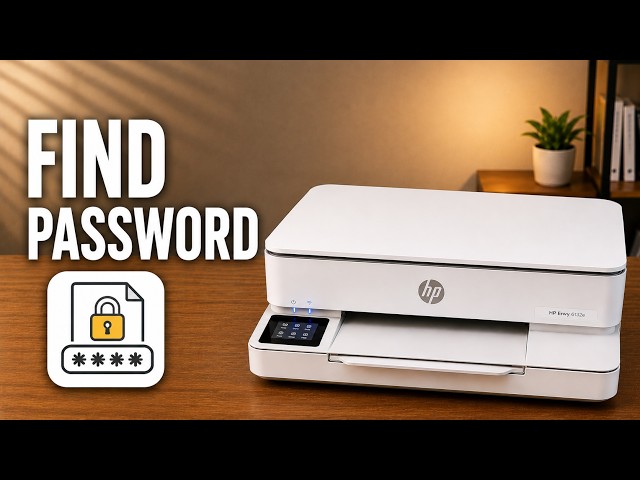
Locate the ENVY 6100e’s default printer PIN and distinguish it from the router password and Wi-Fi Direct credentials.
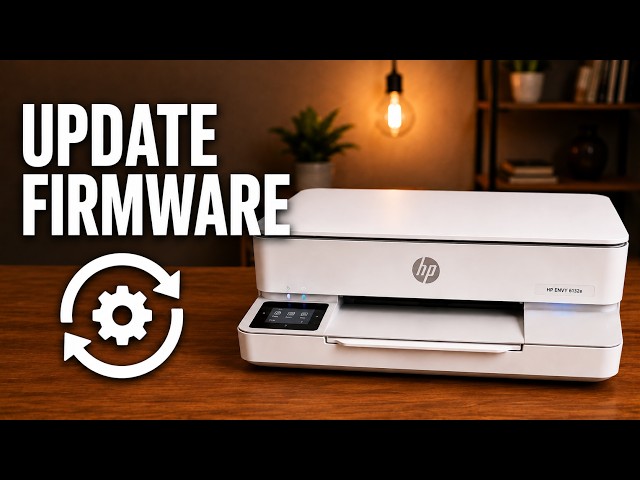
Use the touchscreen to select automatic firmware updates or update notifications, and check Internet access before expecting an installation.
Check paper and ink, inspect a diagnostic report, then choose cartridge cleaning, alignment or smear cleaning for the actual print defect.
Understand what the ENVY 6100e’s restore options change, try the relevant checks first and use its normal touchscreen reset menu.
Print the alignment sheet, place it on the scanner glass and scan it to finish alignment. Use plain white paper and wait for the completion message.
Identify the exact cartridge message, check the correct regional supply and reseat the indicated cartridge without touching its contacts.
Run the touchscreen’s Clean Smear paper-feed routine, wait for completion and compare a new print before deciding whether the marks are gone.
Use the diagnostic page to decide whether cleaning or alignment is needed, progressing through cleaning levels only while the printed result remains poor.
Check the print zone, paper path, input tray and document feeder. Keep the printer level and use the correct access points instead of pulling from the output opening.
Check loading in the bottom tray separately from originals in the top document feeder, then use the supported feeder-roller cleaning procedure if needed.
Identify the everyday controls, stop the current job and distinguish normal activity from a fast-blinking power-light error.
Check the rear feed and front access area for torn paper, avoid moving parts and confirm the obstruction is gone before restarting a job.
Identify the displayed error before changing anything: paper-size mismatch, carriage or paper jams, scanner failure, empty ink, and printer or update errors need different responses.
Use the diagnostic page to choose alignment or automatic cleaning, then check paper and quality settings without dismantling the printheads.
Read the wireless light and screen together, switch Wi-Fi on if needed and choose setup only when the printer is not already connected.