Browse by task

Troubleshooting

Find a starting point for connection issues, error lights and paper problems.

Brother HL-L2445DW

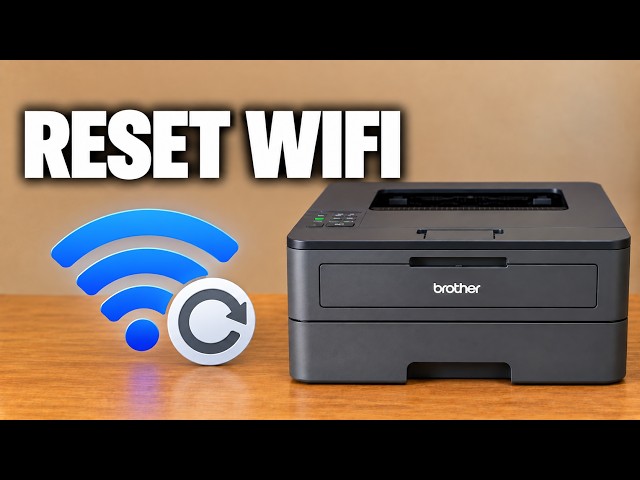
Reset network settings on Brother HL-L2445DW

Restore the HL-L2445DW’s network configuration when you need to set it up again, with the connection and password consequences clear before you confirm.

Wi-Fi & connectivityRead & watch
Brother HL-L2445DW

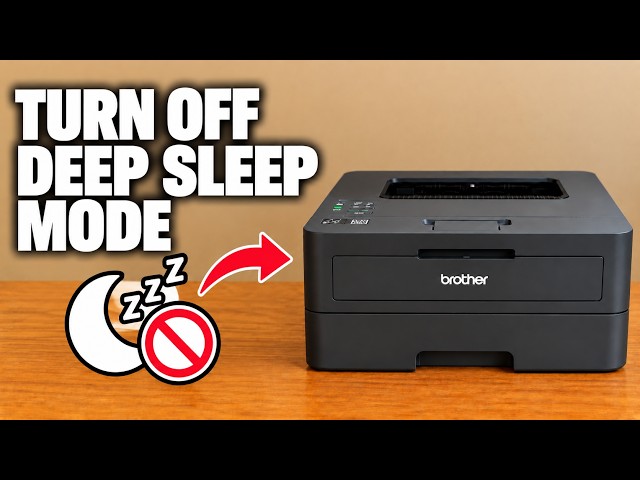
Change the Brother HL-L2445DW sleep timer

Choose how long the HL-L2445DW waits before Sleep Mode. Sleep and Deep Sleep remain enabled; the timer is not a fix for every delayed print.

TroubleshootingRead & watch
Canon PIXMA G3590

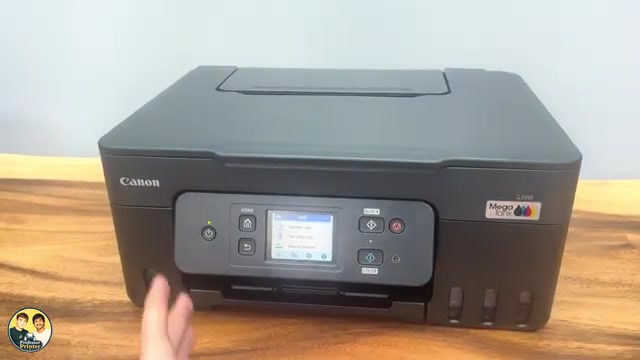
Clear a paper jam on a Canon PIXMA G3590

Find the jam at the output, rear feed, inside or rear transport area of a G3590. Stop and unplug before internal access, remove fragments and refit the covers.

TroubleshootingRead & watch
Canon PIXMA G3590

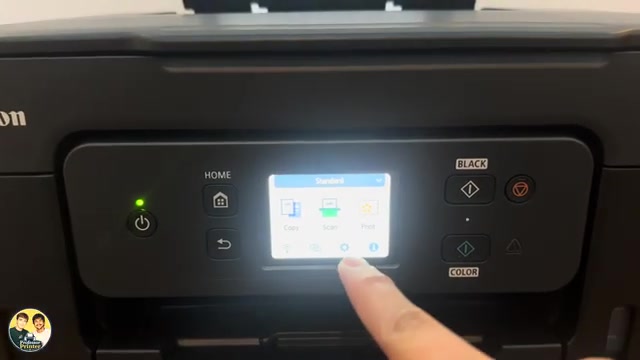
Reset all settings on a Canon PIXMA G3590

Restore Canon PIXMA G3590 settings with Reset all. This clears network configuration and restores the default administrator password, so connection setup must be repeated.

TroubleshootingRead & watch
Epson EcoTank ET-2950

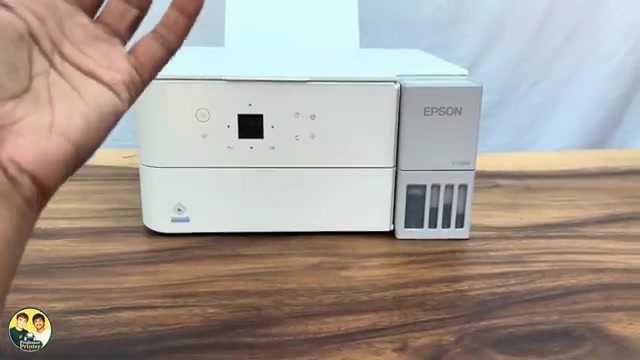
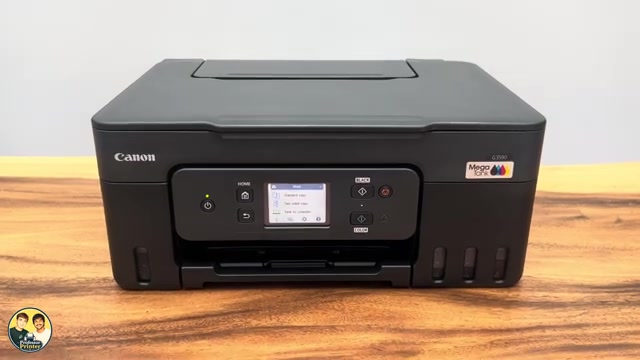
Clean the printhead on an Epson ET-2950 or ET-2959

Choose ordinary or power cleaning from the nozzle pattern, let the cycle finish and check again. Use Epson’s waiting limits instead of repeating maintenance indefinitely.

TroubleshootingRead & watch
HP DeskJet 2600 series

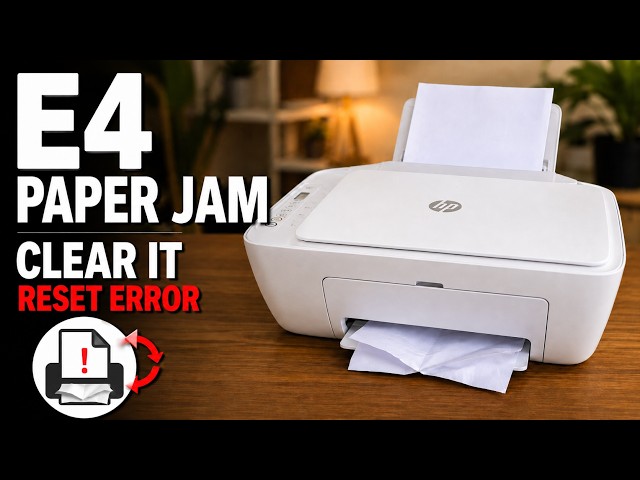
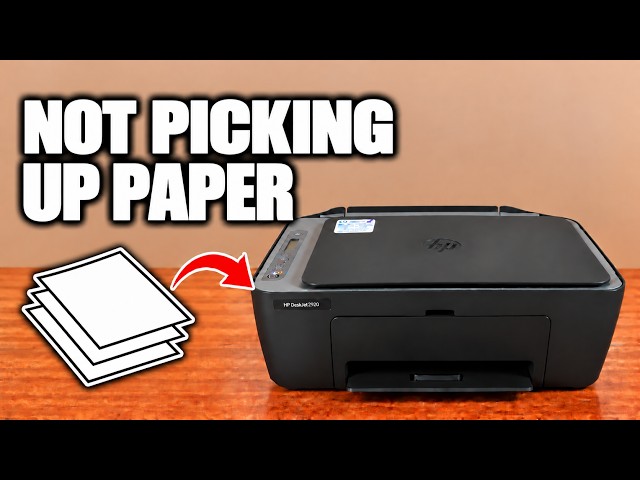
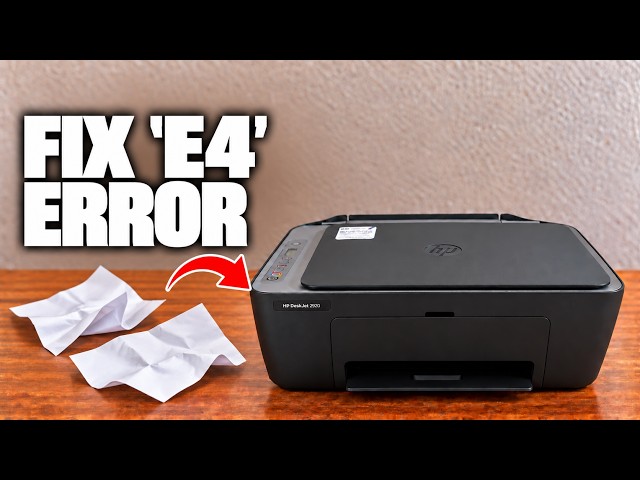
Clear an E4 paper jam on an HP DeskJet 2600

Try Cancel first, then inspect the accessible paper paths safely, remove torn pieces and close every cover before checking the E4 error again.

TroubleshootingRead & watch
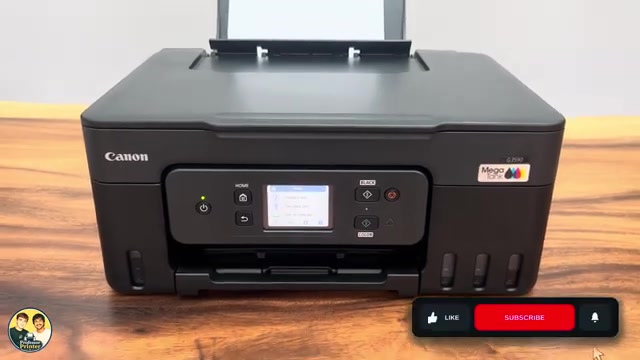
HP DeskJet 2920

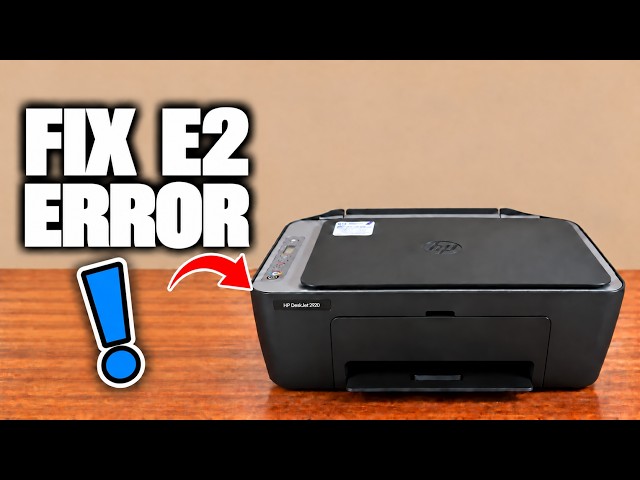
HP DeskJet 2900 E5: scanner error checks

For an E5 scanner error, cancel and retry the scan, then restart the printer if needed. If E5 persists, use HP support rather than opening the scanner.

TroubleshootingRead & watch
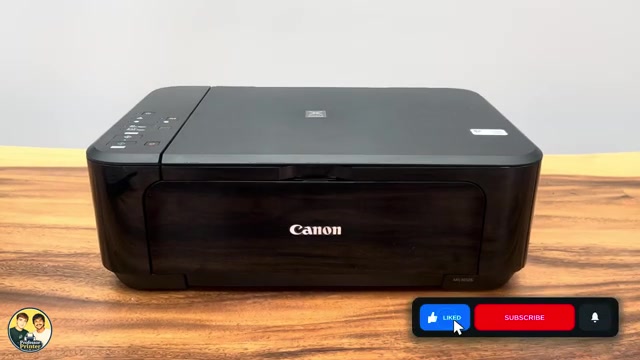
HP DeskJet 2920

Clear an HP DeskJet 2900 paper jam or E4 error

Check the input, output, cartridge area and bottom access door for trapped paper. Disconnect power before reaching inside and remove paper gently with both hands.

TroubleshootingRead & watch
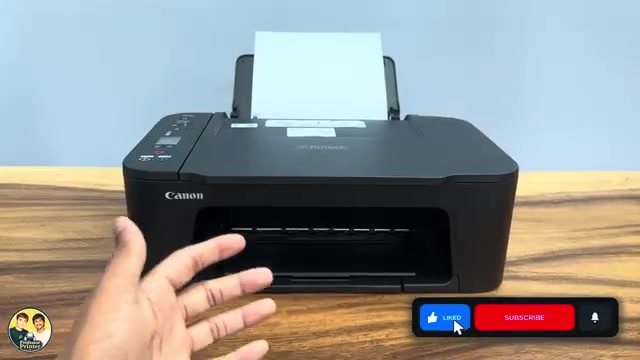
HP ENVY 6100 series

Clear a paper jam in an HP ENVY 6100e

Disconnect power before reaching inside, check the carriage and paper path, then remove torn pieces and refit the covers before trying again.

TroubleshootingRead & watch
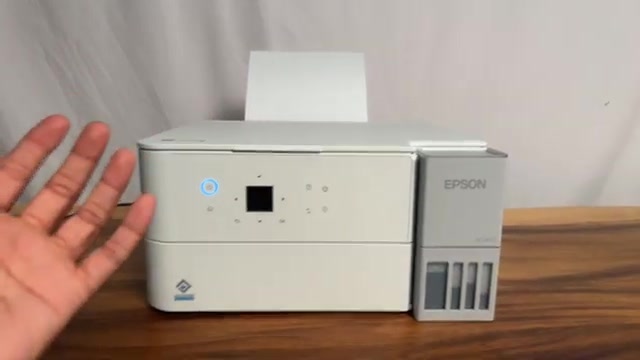
HP ENVY 6100 series

Find the admin PIN on an HP ENVY 6100e

Locate the ENVY 6100e’s default printer PIN and distinguish it from the router password and Wi-Fi Direct credentials.

Wi-Fi & connectivityRead & watch
HP ENVY 6100 series

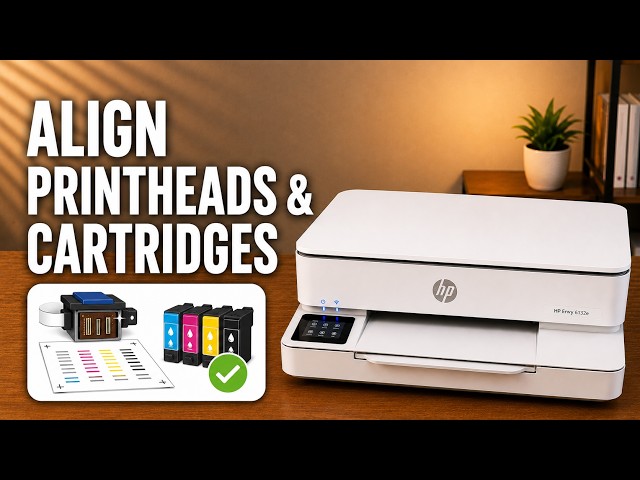
Fix poor or blank prints on HP ENVY 6100e

Check paper and ink, inspect a diagnostic report, then choose cartridge cleaning, alignment or smear cleaning for the actual print defect.

TroubleshootingRead & watch