Before you start
- Plain paper of the size and type supported by your exact printer.
- The printer idle and enough room to reach its rear paper support.
Find the rear paper input
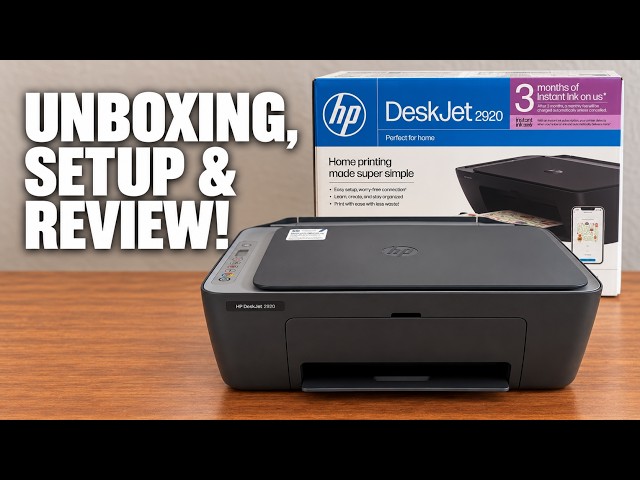
On the demonstrated DeskJet 2920, blank paper loads at the rear. Raise the paper support before inserting the stack; the source initially forgets this and corrects it. The guide controls the paper width, not how far to push the sheets.
Step 1:Raise the support and open the guide
Lift the rear input support into its open position. Slide the paper-width guide outward to make room for the sheets. HP’s 2900 setup instructions describe moving it left, then back right against the loaded stack.
Step 2:Place a neat stack in the feeder
Align the edges of clean, flat plain paper and place the stack in the rear input with the side to be printed facing up. Let it sit naturally without forcing it down. Keep below the tray’s loading limit; the video’s approximate capacity is not a substitute for your model’s limit.
Step 3:Bring the guide to the paper edge
Slide the guide against the edge so the stack is supported without being squeezed or bent. The sheets should stay straight. Use one paper size and type for the job and match the print settings to the loaded paper.
Lower the front output tray and pull out its extension to support the printed pages. HP’s first-time setup instructions include this before printing.
Step 4:Clear an out-of-paper interruption and check
If a job stopped with HP’s out-of-paper condition, load the paper and press Resume as directed by the printer message. HP describes the Error/Paper icons and Resume light blinking for an interrupted job that needs paper.
Confirm the message clears and that a page actually feeds on the resumed or next print. An app’s paper indicator alone does not prove the paper path works.
Questions & troubleshooting
How far down should the paper go?
Seat it gently in the raised rear input without force. The source gives inconsistent fractions of a page, so this guide uses the tray support and guide rather than a guessed insertion depth.
The stack bends when I set the guide.
Ease the guide outward until it only rests against the edge. Reload uneven, curled or damaged sheets before trying again.
It still does not pick up paper.
Check the stack for bent or torn sheets, reload it evenly and confirm the guide plus paper settings. If that does not resolve it, use HP’s paper-feed troubleshooting reference for the 2900 series. Forcing paper farther into the input is not the next step.