Before you start
- The HP phone app already connected to the printer.
- A two-page PDF and suitable plain paper of the size selected in the app.
This is a two-pass, one-sheet method
The recording prints a two-page PDF on one sheet by sending each page separately from the HP phone app. You reload the sheet yourself; this procedure does not claim automatic duplex or a reliable batch workflow for a large document.
Step 1:Select and print only page one
Open Print documents in the connected HP app and choose the two-page PDF. Open Print preview, then Print page range. Deselect page two so only page one remains selected. Match the paper-size setting to the actual sheet and print.
Step 2:Reload the same sheet for its blank side
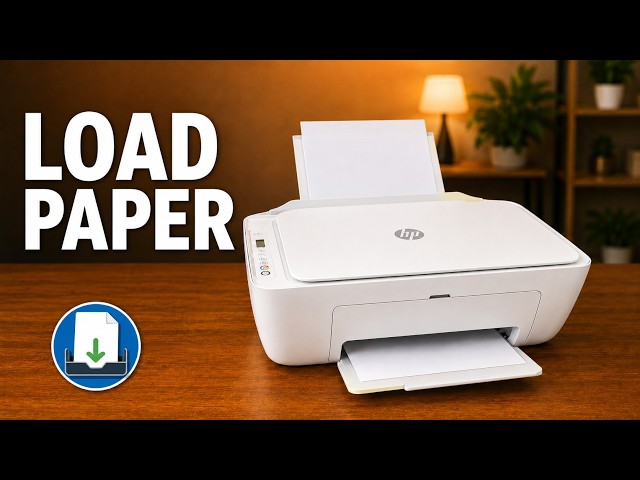
Wait for the sheet to finish and the ink to dry. Remove unused sheets from the input so you can control which sheet feeds. For a normal portrait document read like a book, HP’s top-loading instructions put the printed side down, the blank side facing the front, and the top edge into the feeder first. Keep the guide at the edge without forcing the sheet.
Use one trial sheet before an important document and check both sides’ orientation. A landscape or short-edge layout needs its own orientation choice; the source does not establish one reload direction for every layout.
Step 3:Select only page two and print again
Return to the same PDF’s page-range control. Deselect page one and select page two only. Confirm the same paper size and send the second print. Once the sheet comes out, verify that pages one and two are on opposite sides and face the intended direction.
If a paper-size mismatch interrupts the second pass
Check the physical paper size and the app’s selected size before retrying. A4 and Letter are not interchangeable settings. Cancel the failed job with the X button, let the printer release the sheet and reload it correctly. Reopen the PDF if necessary and verify that only page two is selected.
The presenter encounters a mismatch, reopens the app and then reports a two-sided result. That is an observed recovery, not a guarantee that restarting the app fixes every mismatch.
Questions & troubleshooting
Both PDF pages printed on separate sheets.
Check Print page range before the first pass. Select only page one, then reload that same sheet before sending page two.
The reverse side is upside down.
Use a trial sheet and verify the intended reading edge. The article’s reload direction is for a portrait, book-style result, not every layout.