HP ENVY 6100 series
Choose firmware update settings on HP ENVY 6100e
Use the touchscreen to select automatic firmware updates or update notifications, and check Internet access before expecting an installation.
Getting startedRead & watch
Find your next step, from getting connected to everyday printer tasks.
Guides shown here are assigned to this exact model. Similar model names are kept separate.
Watch this model’s channel playlist12 guides across 6 tasks
Use the touchscreen to select automatic firmware updates or update notifications, and check Internet access before expecting an installation.
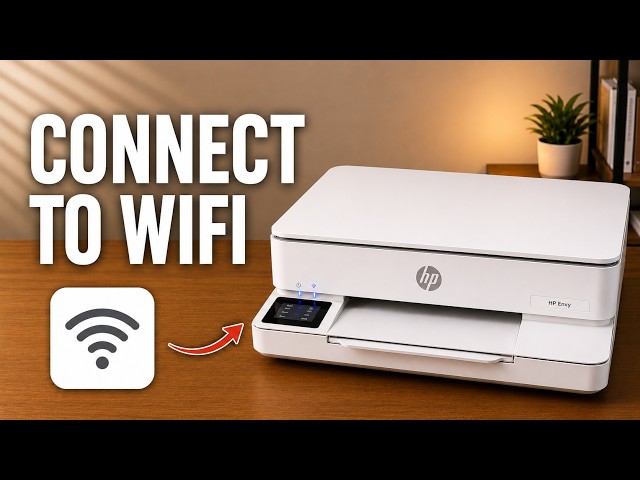
Use the ENVY 6100e touchscreen to choose your home network, check the connection and restore only network settings if needed.
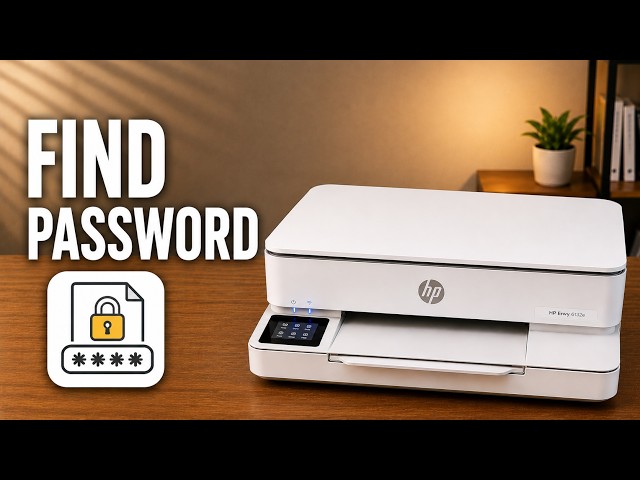
Locate the ENVY 6100e’s default printer PIN and distinguish it from the router password and Wi-Fi Direct credentials.
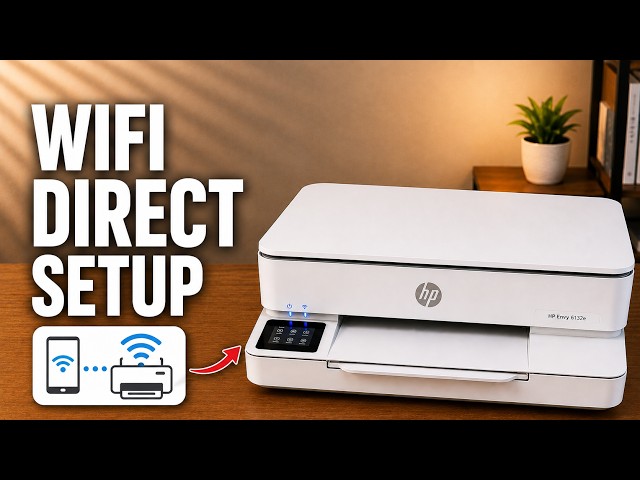
Connect an iPhone directly to the ENVY 6100e’s own wireless network, find its password and return to normal Wi-Fi afterward.
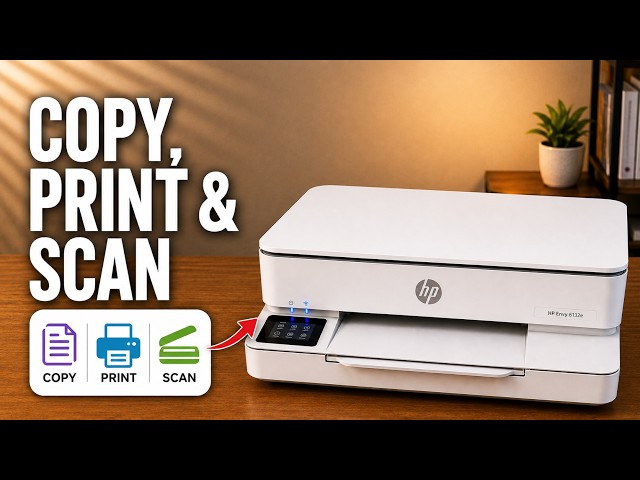
Make a copy at the printer, print a file from your iPhone, or scan a page with the HP app and save it as a PDF in Files.
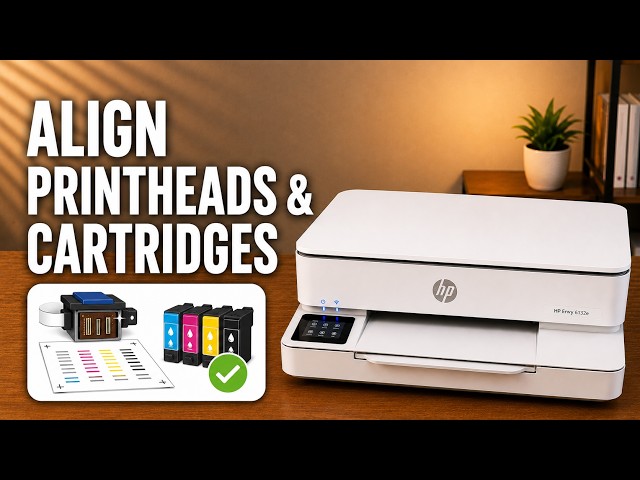
Print the alignment sheet from the touchscreen, place it face down on the scanner glass and choose Scan to complete calibration.
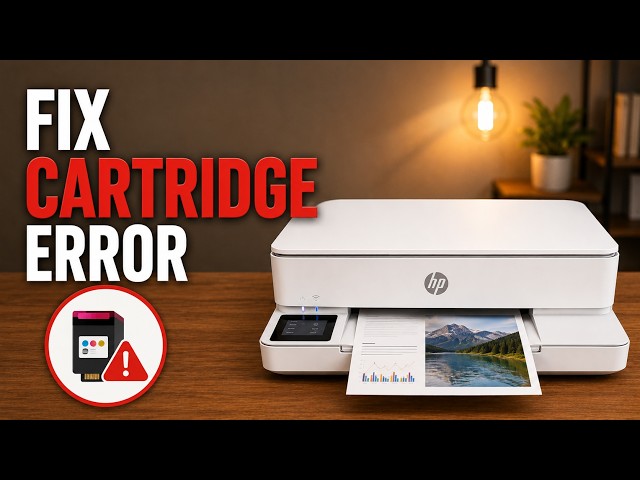
Check the exact cartridge message, confirm the correct regional supply and reseat the cartridge without touching its nozzles or contacts.
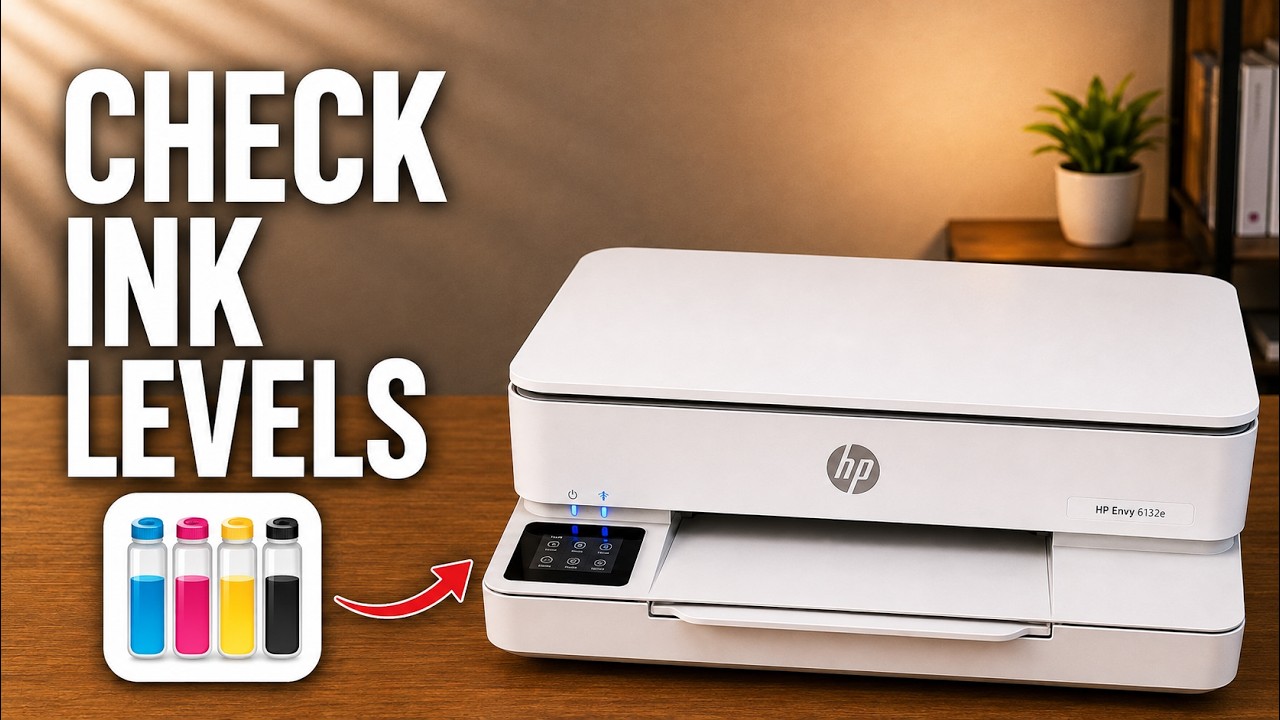
View the ENVY 6100e’s estimated ink on its touchscreen, in the HP app or on its local settings page without mistaking an estimate for a print-quality test.
Check paper and ink, inspect a diagnostic report, then choose cartridge cleaning, alignment or smear cleaning for the actual print defect.
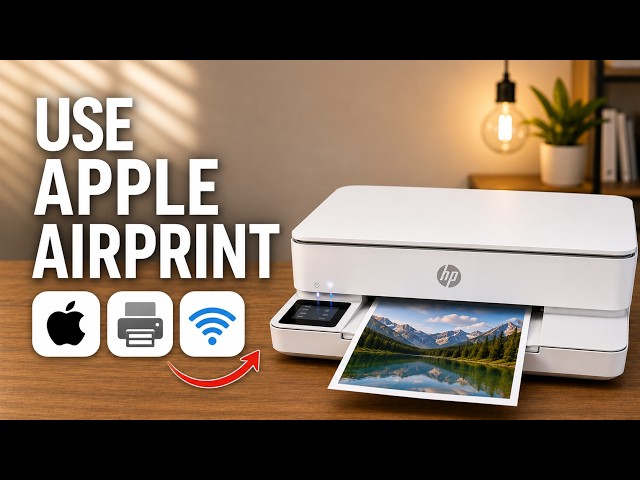
Open an iPhone document, select the ENVY 6100e through AirPrint and check the page settings and printed result.
Make a copy at the printer, print a file from your iPhone, or scan a page with the HP app and save it as a PDF in Files.
Print the alignment sheet from the touchscreen, place it face down on the scanner glass and choose Scan to complete calibration.
Check the exact cartridge message, confirm the correct regional supply and reseat the cartridge without touching its nozzles or contacts.
Disconnect power before reaching inside, check the carriage and paper path, then remove torn pieces and refit the covers before trying again.
Use the ENVY 6100e touchscreen to choose your home network, check the connection and restore only network settings if needed.
Locate the ENVY 6100e’s default printer PIN and distinguish it from the router password and Wi-Fi Direct credentials.
Use the touchscreen to select automatic firmware updates or update notifications, and check Internet access before expecting an installation.
Check paper and ink, inspect a diagnostic report, then choose cartridge cleaning, alignment or smear cleaning for the actual print defect.
Understand what the ENVY 6100e’s restore options change, try the relevant checks first and use its normal touchscreen reset menu.
Browse documented model families. Check each guide’s demonstrated printer before using its instructions.