HP DeskJet 2600 blinking Wi-Fi light: what to check
A flashing blue wireless light means the DeskJet 2600 has not joined a wireless network. Check its light and connection stage before changing any saved settings.
Find your next step, from getting connected to everyday printer tasks.
Guides shown here are assigned to this exact model. Similar model names are kept separate.
Watch this model’s channel playlist11 guides across 4 tasks
A flashing blue wireless light means the DeskJet 2600 has not joined a wireless network. Check its light and connection stage before changing any saved settings.
Reconnect a DeskJet 2600 after a router, Wi-Fi name or password change. Try HP app setup, use the demonstrated recovery if discovery fails, then check the printer from home Wi-Fi.
Find where DeskJet 2600 setup is stopping: app discovery, the temporary printer connection, or the home network. Check the working connections before resetting wireless settings.
Read the DeskJet 2600’s ink indicators, print its status report or view estimated levels in the connected HP app.
Check missing black or colour on a DeskJet 2600, run the HP app’s cleaning tool, inspect the test page and decide when to stop.
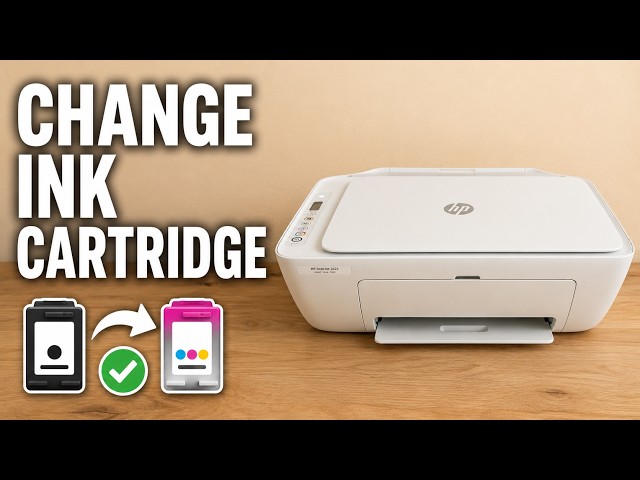
Open the DeskJet 2600 cartridge area, release the old cartridge and seat the correct replacement. Two source demonstrations cover the same task.
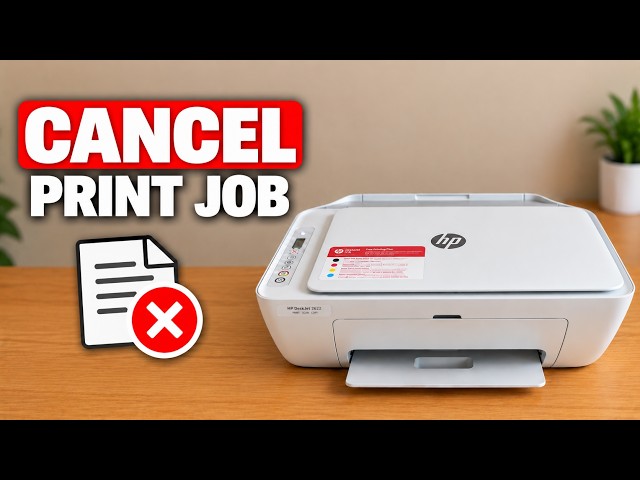
Use the DeskJet 2600’s Cancel button to stop the current operation and understand why a computer queue may still contain other jobs.
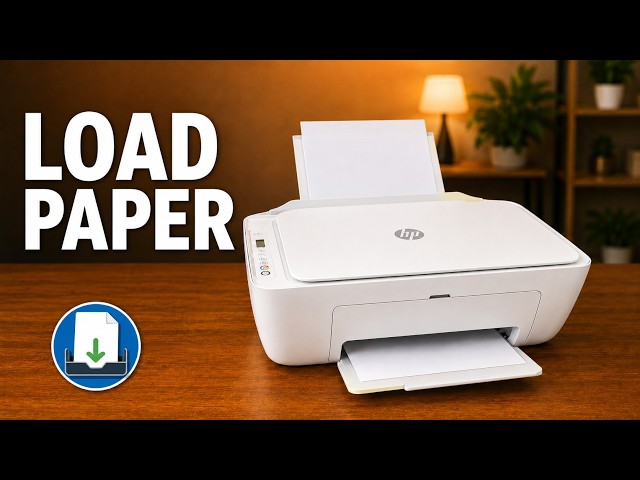
Open the rear input tray, position plain paper correctly and adjust the guide and output support on a DeskJet 2600.
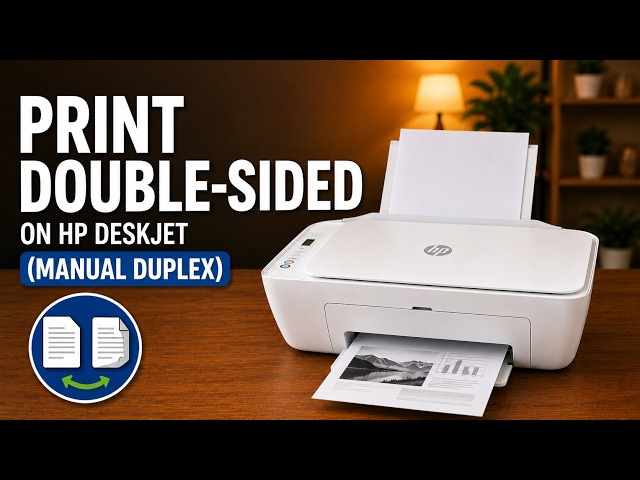
Print page one, reload that sheet and print page two using the HP phone app, with paper orientation and mismatch checks.
Reload a DeskJet 2600 correctly, check the rear feed path and clean its paper rollers safely if loading checks do not resolve the problem.
A flashing blue wireless light means the DeskJet 2600 has not joined a wireless network. Check its light and connection stage before changing any saved settings.
Find where DeskJet 2600 setup is stopping: app discovery, the temporary printer connection, or the home network. Check the working connections before resetting wireless settings.
Check missing black or colour on a DeskJet 2600, run the HP app’s cleaning tool, inspect the test page and decide when to stop.
Reload a DeskJet 2600 correctly, check the rear feed path and clean its paper rollers safely if loading checks do not resolve the problem.
Hold the correct DeskJet 2600 button to print its status report, and distinguish it from the separate hardware test and network pages.
Browse documented model families. Check each guide’s demonstrated printer before using its instructions.