Before you start
- Plain paper suitable for your exact printer, with a consistent size and type throughout the stack.
- The printer idle before opening its tray.
Use the lower front paper tray
The demonstrated ENVY 6132e takes blank paper in the drawer at the lower front. The scanner glass is for originals. Wait until any current print finishes before adding paper.
A4 and US Letter are different sizes. Check the packet or sheet dimensions and select the matching name rather than treating them as interchangeable.
Step 1:Open the tray and move the guides
Pull the lower tray out by its handle. Slide the width guides apart enough for the paper. In this design moving one guide moves the other; do not force the drawer or guides beyond their normal travel.
Step 2:Load an even stack and close the tray
Use clean, flat sheets and align their edges. Place the stack in the input tray with the print side down. Bring the guides just against both edges without squeezing or bending the paper. Close the tray and pull out the output extension.
Do not copy an estimated sheet count from a video. Keep within your exact model’s stated capacity and the tray’s loading marks.
Step 3:Confirm the paper size and type
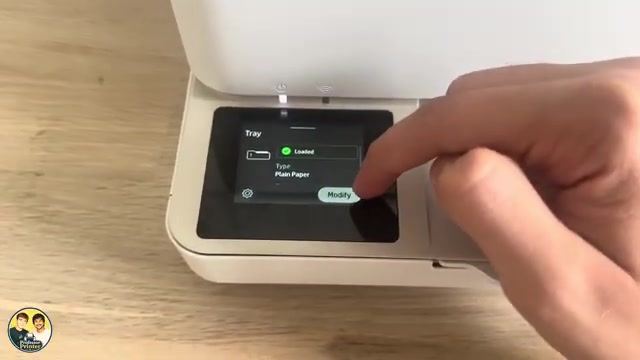
If the touchscreen asks whether the paper changed, choose Modify when needed and select the actual size and paper type. The source also opens Menu → Trays to change those settings after the question disappears. For this plain-paper task, choose the plain-paper type matching your sheets.
Step 4:Check the next printed page
Before the next job, make its paper size and type match the tray. Print a small document and confirm the expected page feeds and reaches the output tray. If an out-of-paper message remains, recheck the stack and guide position rather than forcing more sheets into the tray.
Questions & troubleshooting
Where do I change the paper size after closing the prompt?
Open Menu → Trays and modify the paper information, as shown in the recording. Choose the size actually loaded.
Can I choose Letter for A4 paper?
Choose the size on the paper packet. A4 and US Letter are not the same size; matching the tray and print job avoids an unnecessary mismatch.
The guides bend the paper.
Move them outward slightly until they touch the stack without squeezing it. HP’s loading instructions call for the guides to rest against the edges.
The printer still reports no paper.
Check for bent or damaged sheets, align the stack and reload it. Confirm the tray’s size/type. If it still cannot pick paper, use HP’s exact-family feed troubleshooting reference rather than adding a reset to a loading task.