HP OfficeJet Pro 8124e
Set up HP OfficeJet Pro 8124e with an iPhone and Mac
Load paper and setup cartridges, align the printer, connect it to home Wi-Fi with an iPhone, then add the existing printer on a Mac.
Getting startedRead & watch
Find your next step, from getting connected to everyday printer tasks.
Guides shown here are assigned to this exact model. Similar model names are kept separate.
Watch this model’s channel playlist24 guides across 6 tasks
Load paper and setup cartridges, align the printer, connect it to home Wi-Fi with an iPhone, then add the existing printer on a Mac.
A source-based look at the presenter’s OfficeJet Pro 8124e impressions, with clear limits on model equivalence, speed claims and ongoing ink costs.
Add the networked OfficeJet to macOS and the HP app, with checks for a printer that disappears during setup.
Use the printer’s touchscreen Wi-Fi Setup Wizard, enter your home-network password and then add the connected printer in the HP app.
Find the default printer PIN on the label inside the access door, and distinguish it from your home Wi-Fi password and Wi-Fi Direct credentials.
Load paper and setup cartridges, align the printer, connect it to home Wi-Fi with an iPhone, then add the existing printer on a Mac.
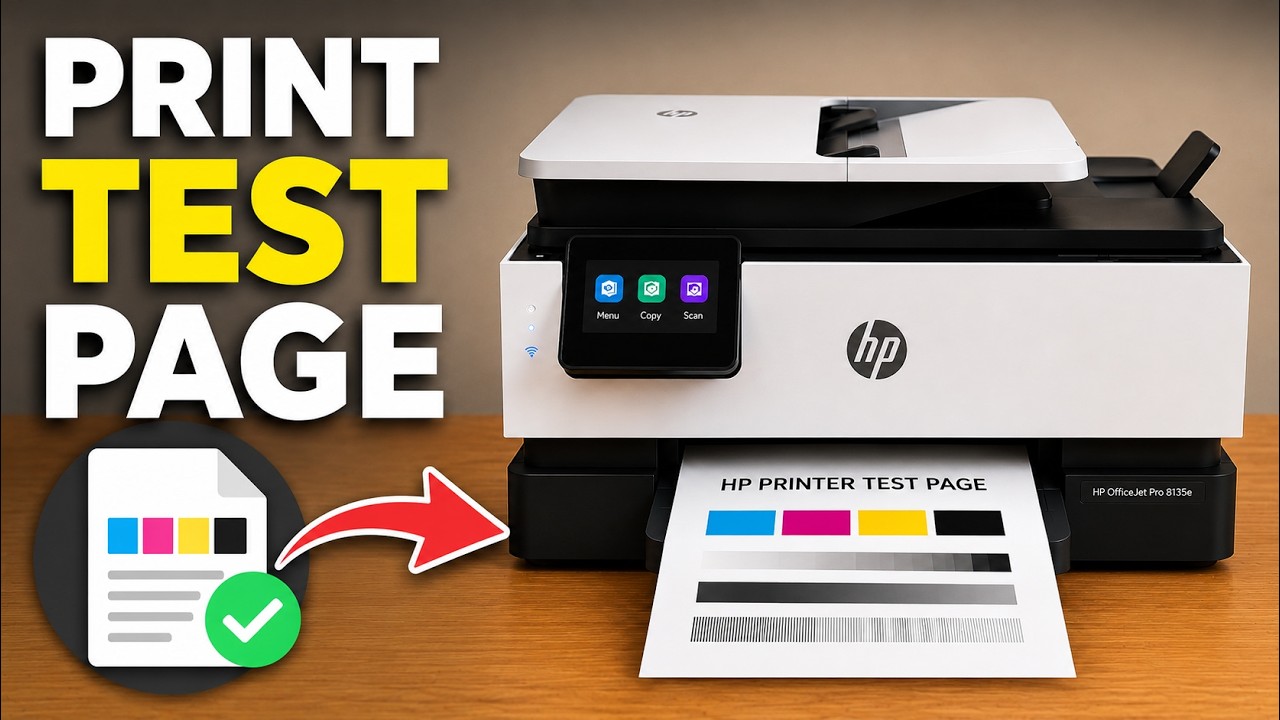
Print the printer’s network details or Wi-Fi test report from its touchscreen. Use the results for connection checks, not as a print-quality test.
Choose the reset that fits your problem and understand what it removes before confirming on the printer’s touchscreen.
Check for an available update from the touchscreen and let the printer finish without interrupting its power or connection.
Enable the printer’s direct wireless network, find its password and connect an iPhone locally after the printer’s initial setup.
Separate a lost Wi-Fi connection from an internet warning, then check the network, restart safely and reconnect only when needed.
Scan a page from the glass or several originals from the document feeder, check the page order, then save the scan as a PDF in Files.
Identify the exact cartridge message, check the correct regional supply and reseat the indicated cartridge without touching its contacts.
Use Supplies on the touchscreen to inspect estimated cartridge levels and the separate printhead status. The HP app also shows supply estimates.
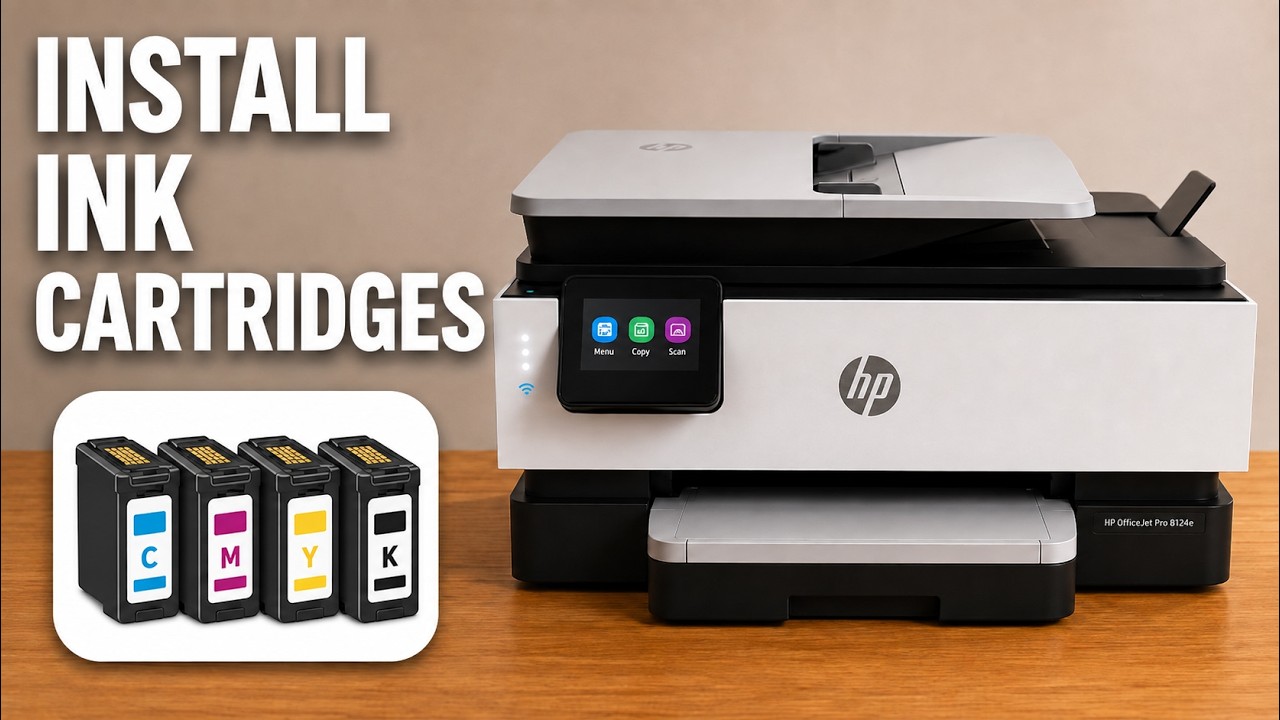
Open the cartridge access door, release the old cartridge and seat its replacement in the matching color slot. Check the cartridge number for your region first.
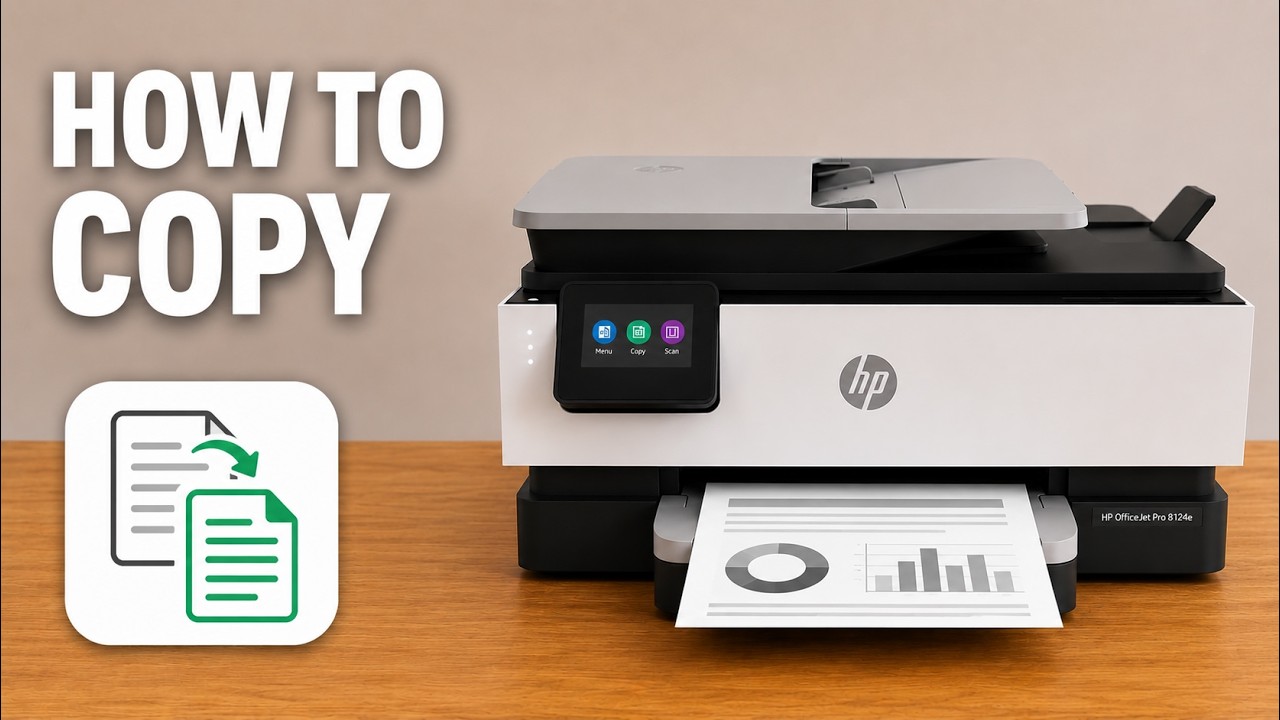
Make a copy from the scanner glass or feed several original pages through the top document feeder using the printer’s touchscreen.
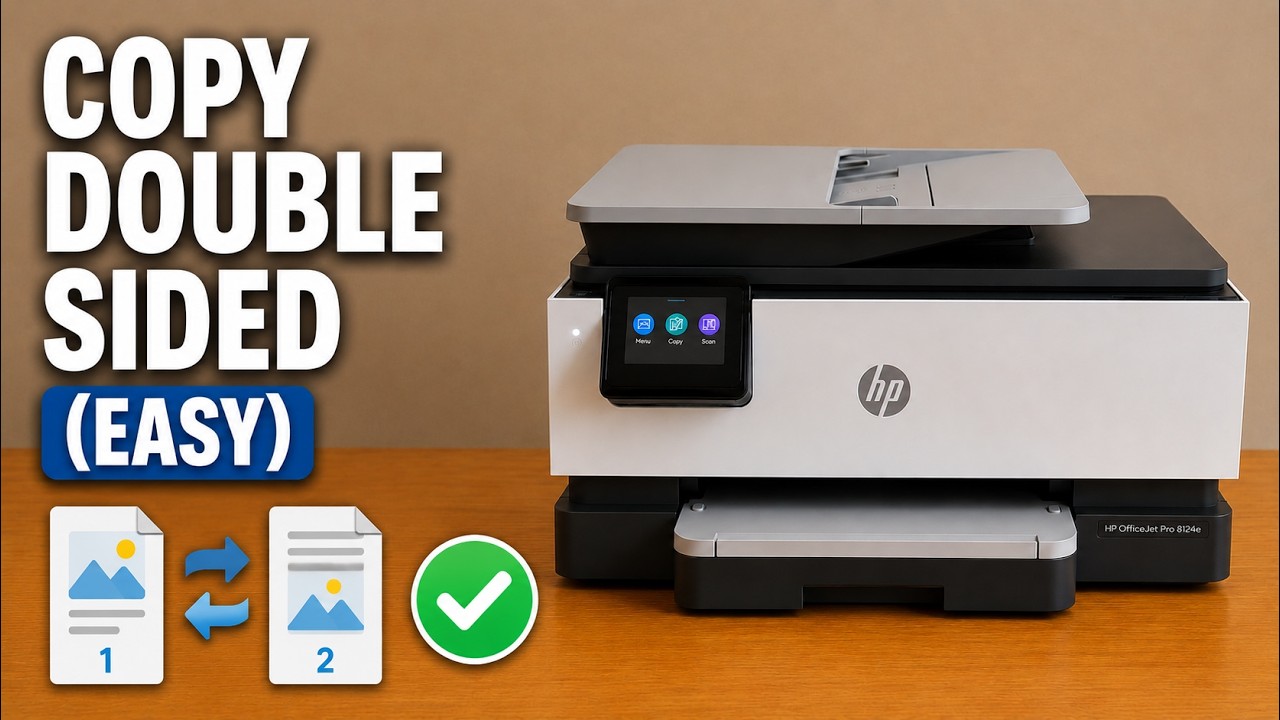
Scan each side of the original on the glass when prompted, then let the printer produce a two-sided copy automatically.
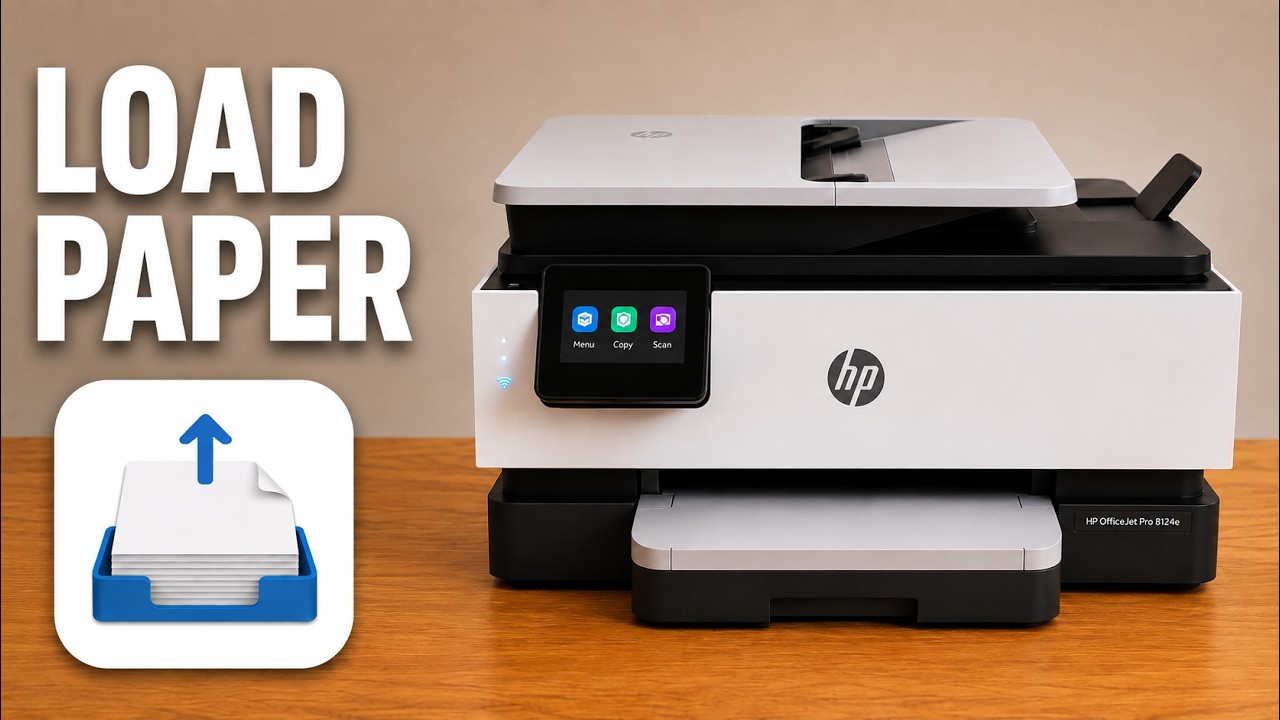
Load the bottom tray, adjust its guides and match the printer’s paper size and type settings. Photo paper goes with its printable side down.
Choose two-sided printing in the HP app, select the binding edge and let the printer turn the sheet automatically.
Match the loaded photo paper in the tray and HP app, review the crop and quality settings, then print a small sample before making more copies.
Print the alignment sheet, place it on the scanner glass and scan it to finish alignment. Use plain white paper and wait for the completion message.
Identify the exact cartridge message, check the correct regional supply and reseat the indicated cartridge without touching its contacts.
Run the touchscreen’s Clean Smear paper-feed routine, wait for completion and compare a new print before deciding whether the marks are gone.
Use the diagnostic page to decide whether cleaning or alignment is needed, progressing through cleaning levels only while the printed result remains poor.
Check the print zone, paper path, input tray and document feeder. Keep the printer level and use the correct access points instead of pulling from the output opening.
Check loading in the bottom tray separately from originals in the top document feeder, then use the supported feeder-roller cleaning procedure if needed.