Before you start
- Clean, flat plain paper in one size.
Use the rear input tray
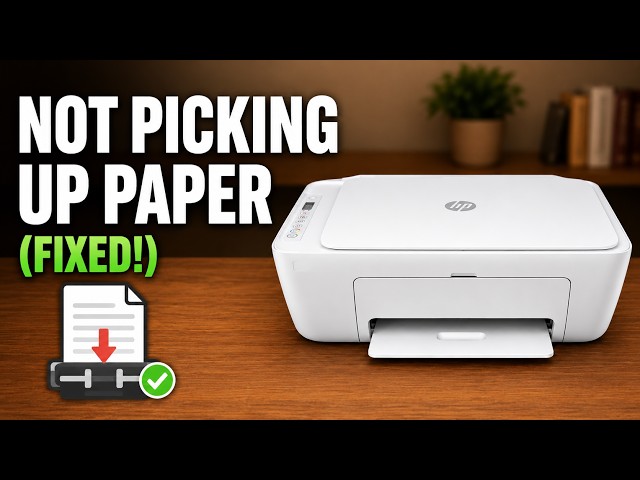
The rear support holds blank paper; the front output tray catches printed pages. Wait until the printer finishes its current job before loading. Use one paper size and type at a time.
Step 1:Raise the support and move the guide
Raise the rear input tray. From the front of the printer, slide the paper-width guide fully left to open the loading space. This direction follows HP’s instructions; the camera in the recording views the printer from the side.
Step 2:Insert the plain-paper stack
Align a flat stack of plain paper and place it in the rear input with the print side facing up. Let the stack settle without forcing it into the feed mechanism. Use the size named on the paper pack: A4 and US Letter are different sizes.
Step 3:Adjust the guide and open the output tray
Slide the width guide right until it rests against the paper’s edge. It should support the sheets without squeezing or bowing them. Lower the front output tray and pull out its extension.
Choose that same paper size and type in your print settings. A correctly loaded stack remains straight and the next sheet feeds normally; loading alone does not confirm a complete print job.
Questions & troubleshooting
The paper will not fit into the opening.
Check that the width guide has moved left and that nothing obstructs the rear input. Do not force the stack against a closed guide.