Before you start
- The HP ENVY 6132e already connected to the phone in the official HP app.
- Inkjet photo paper of a supported size/type and the image you want to print.
Match the paper to the settings
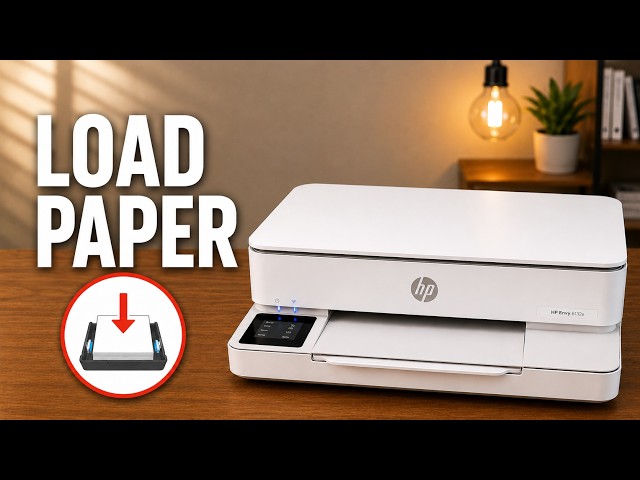
This walkthrough covers preparing a photo job on the ENVY 6132e named in the recording. HP’s ENVY 6100 instructions corroborate the front-tray print-side direction. The article preview uses the actual touchscreen from the video rather than the marketing thumbnail’s different model label.
Step 1:Load with the print side down
Open the front input tray and move the guides apart. Load the supported photo paper with its print side facing down; for the one-sided glossy paper described in the source, that is the glossy side. Bring the guides to the edges without bending the sheets, close the tray and extend the output support.
Step 2:Set the tray’s size and media type
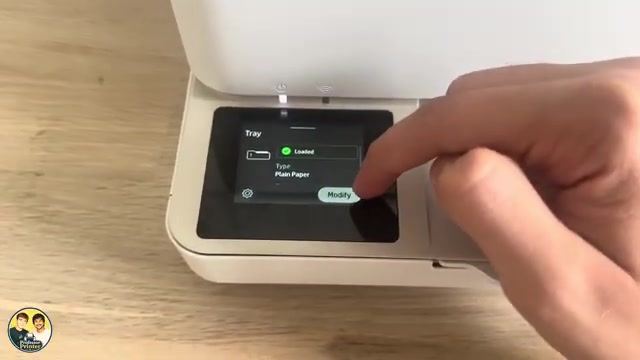
When the printer asks whether the paper changed, choose Modify and set the actual size and type. If that prompt has closed, the recording opens Menu → Trays → Modify. Select the media description matching your paper rather than choosing a brand or size that you did not load.
Photo-paper size is not automatically A4. Read the pack and use that size on the printer and in the app.
Step 3:Choose the photo in the HP app
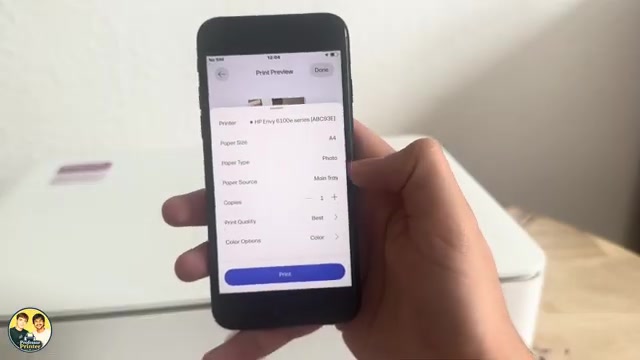
Select your printer, open Print photos and choose the image from your phone. Check the preview and paper selection. In the recording the tray’s photo-paper choice is already selected; if yours is not, set the correct type in the print options.
Step 4:Confirm size, colour and quality before Print
- Check that paper size, media type and paper source match the loaded paper.
- Review the image placement and any edits in the preview.
- For the colour photo shown in the walkthrough, select Colour and the Best quality option if your app offers it. These settings do not constitute a measured guarantee of photo quality.
- Choose Print, allow the job to finish, and inspect your own page for the expected image, size and printed side.
Questions & troubleshooting
The tray question disappeared.
The source reopens it with Menu → Trays → Modify. Set the loaded size and paper type before sending the photo.
The app still says plain paper.
Recheck the printer’s tray setting and the paper-type choice in the app. Match both to the actual paper; do not print with a knowingly incorrect media selection.
Does this show what a finished glossy photo will look like?
No. The presenter states that glossy paper is not available in the recording. Use the video for its settings walkthrough, then assess the output from your own paper and image.